Nutze die Craft-API zum Erstellen mit Codex CLI
Nutze die Craft-API, um Apps auf Codex CLI zu erstellen. Rufe deine Dokumente ab, synchronisiere Inhalte und erstelle eigene Tools mit deinen Craft-Daten.


API für Dokumente aktivieren
Zuerst musst du die API aktivieren, damit Craft einen API-Endpunkt für deine Dokumente einrichten kann. Dann verwendest du die API-Endpunkt-URL, um dich von Codex CLI aus mit dem Server zu verbinden.
Schritt 1
Schritt 2
Schritt 3
Schritt 4
Schritt 5
Schritt 6
Die API in einem Codex CLI-Prompt verwenden
Sobald die API für deine Craft-Dokumente aktiviert ist, kannst du dich auf das Schreiben eines Prompts konzentrieren, den Codex CLI zur Erstellung deines Projekts verwenden wird.
Damit Codex CLI die API nutzen und die Struktur deines Dokuments verstehen kann, hängst du das AI-Bundle an deinen Prompt an. Dieses Bundle ist ein Markdown-Dokument, das den aktuellen Inhalt deines Craft-Dokuments sowie die API-Dokumentation enthält.
Schritt 1
Jetzt kannst du einen Prompt hinzufügen, um die App zu beschreiben, die du erstellen möchtest. Hier ist ein sehr allgemeines Beispiel, das zum Testen verwendet werden kann:
Bitte erstelle eine Website, die den Inhalt meiner verbundenen Craft-Dokumente visualisiert. Anweisungen zum Zugriff auf diese Daten und deren Struktur findest du in der angehängten Datei.
Schritt 2
Ein paar Ideen für den Einstieg
Beispiele durchsuchen
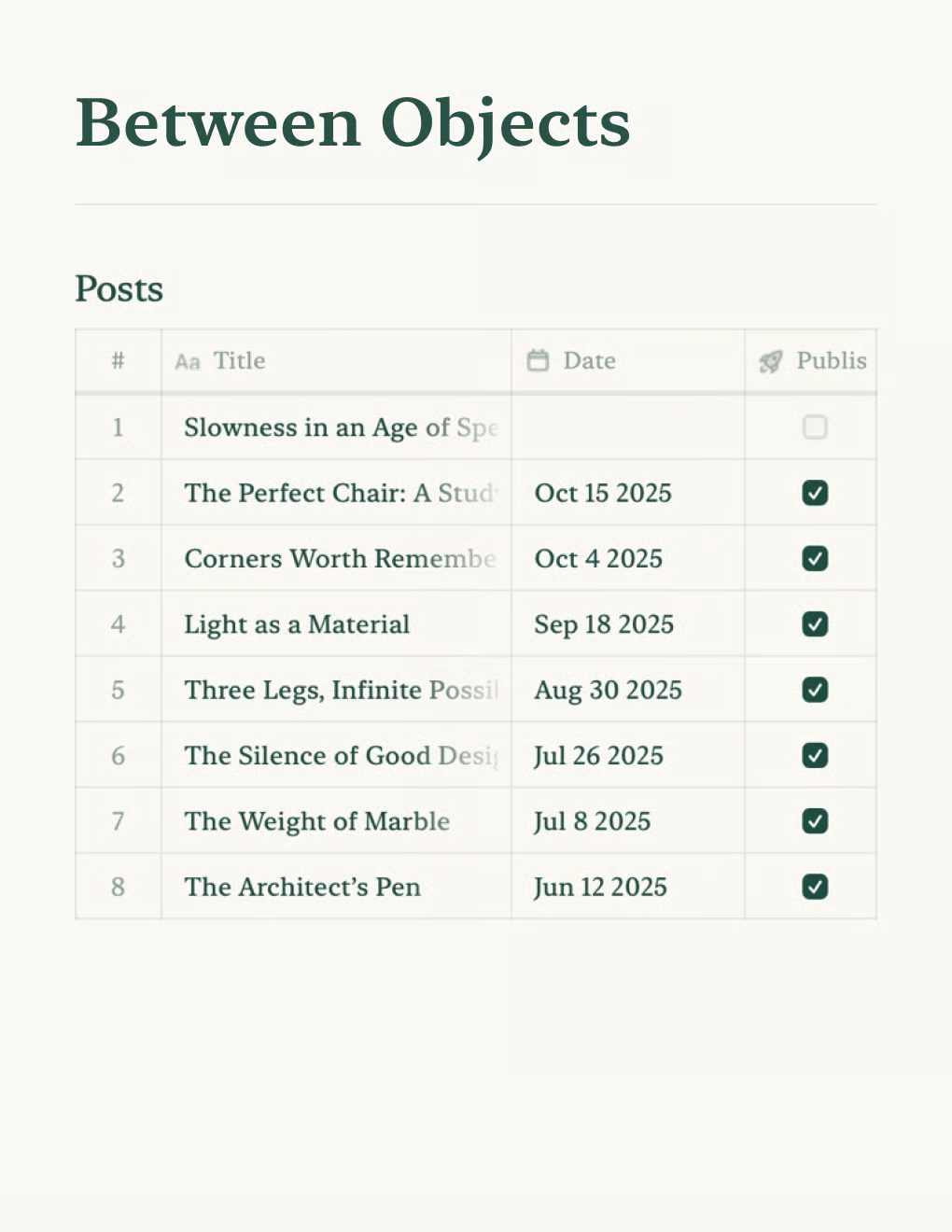

Erstelle einen persönlichen Blog mit Craft-Dokumenten. Inhalte werden automatisch per API synchronisiert – veröffentliche direkt aus deiner Notiz-App.
Mehr erfahren

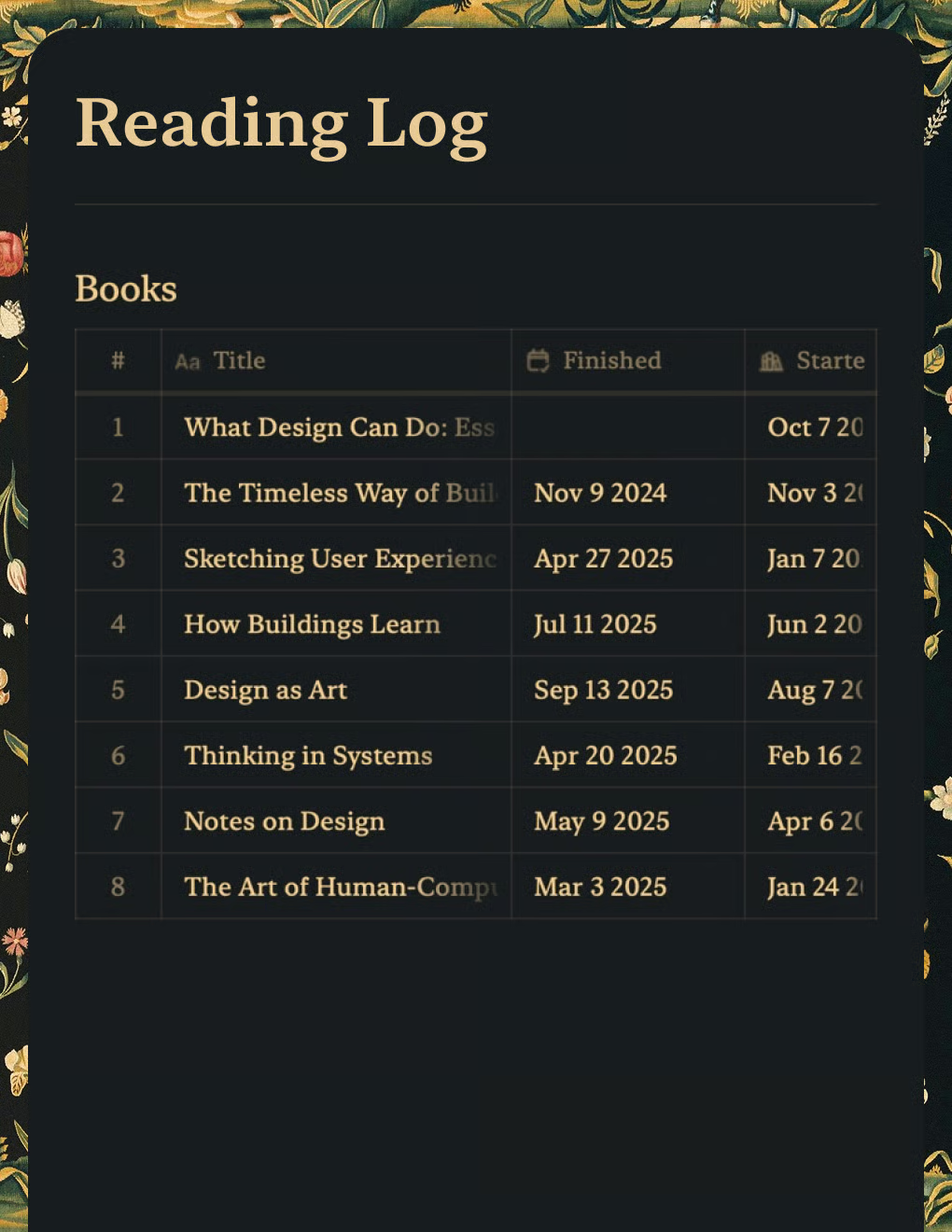
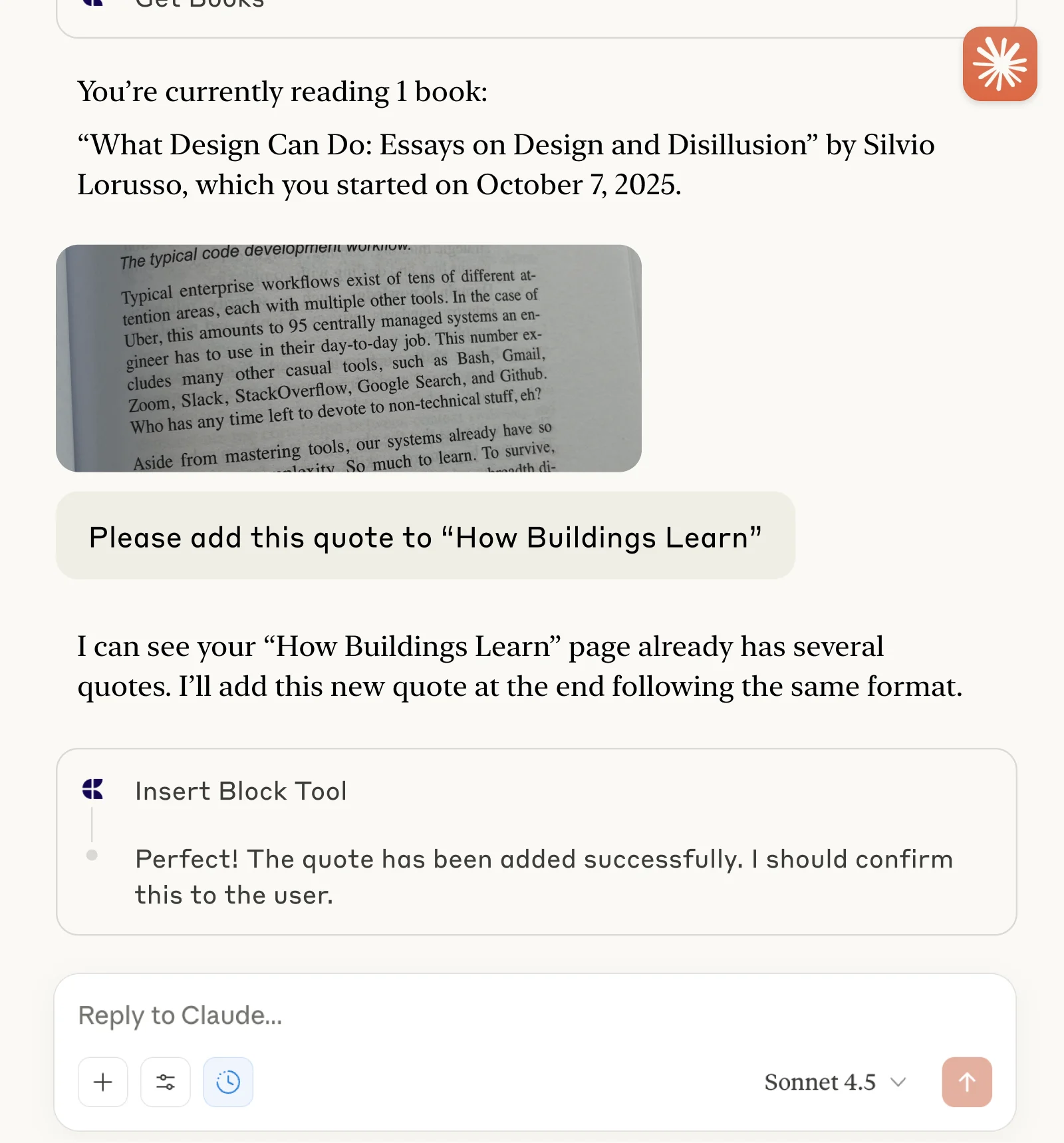
Verfolge Bücher und erfasse Zitate mit Claude oder ChatGPT über MCP.
Mehr erfahren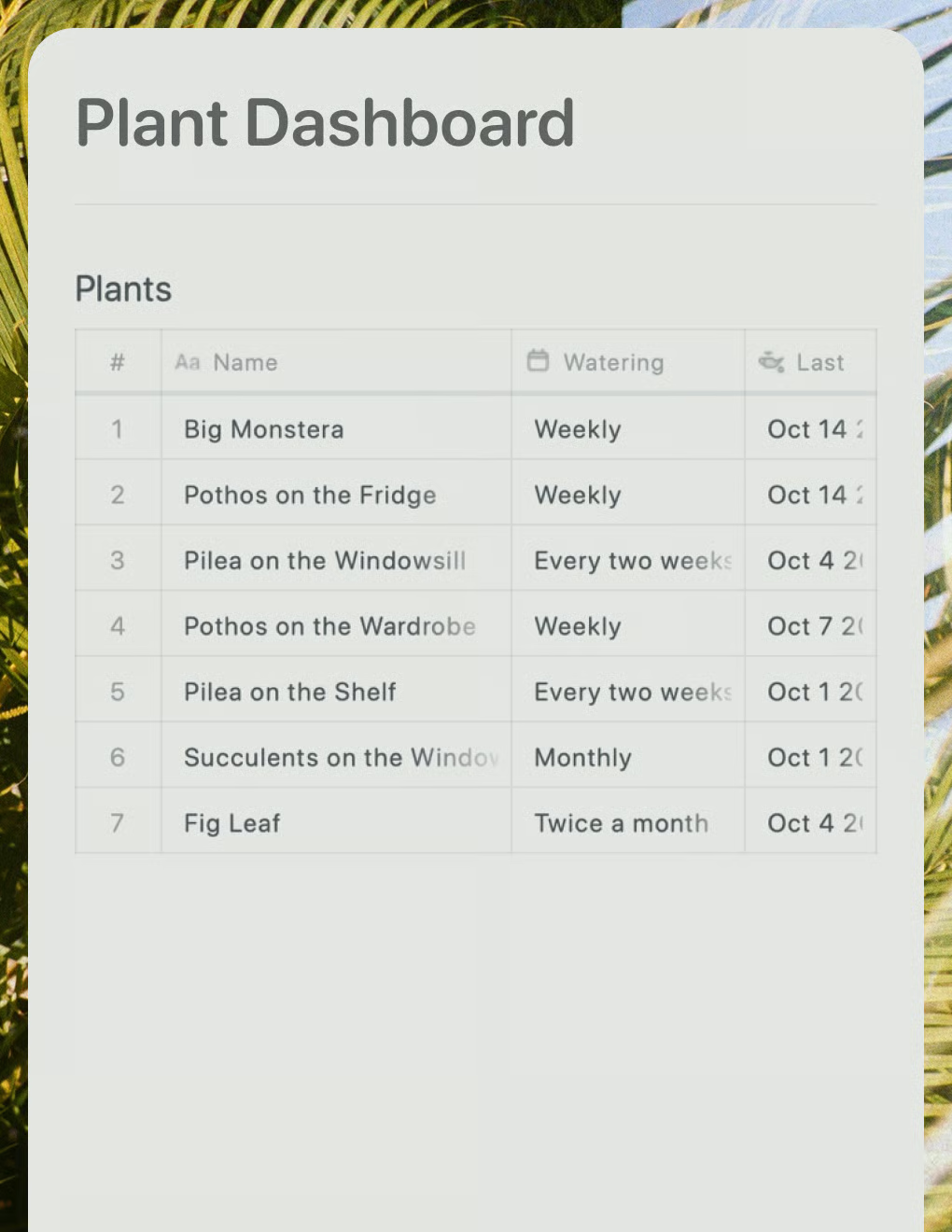
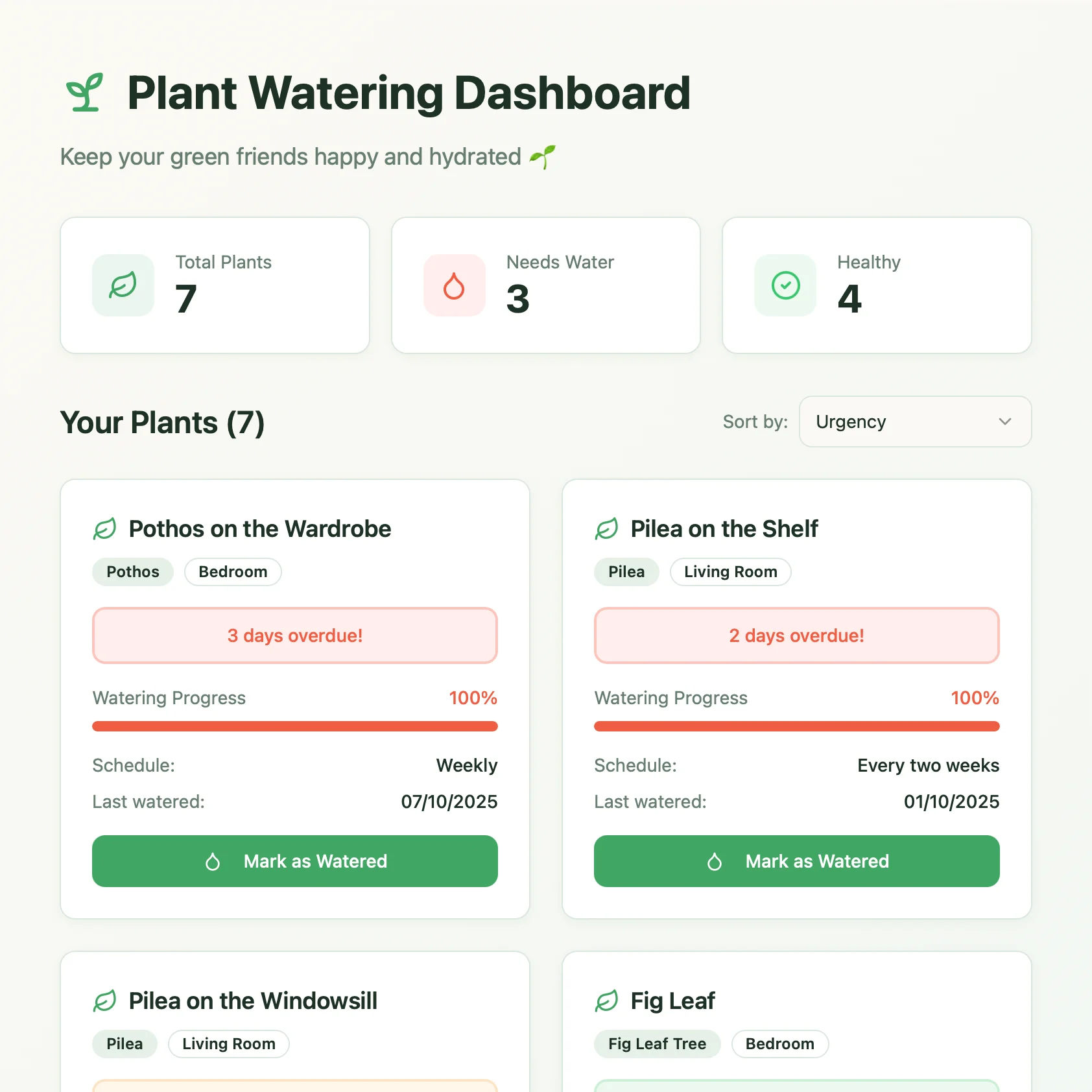
Ein Live-Pflanzenpflege-Dashboard, erstellt mit Lovable. Ruft Gießpläne und Pflegetipps aus deinem Craft-Dokument ab.
Mehr erfahren