Imagine With Craft

Craft per MCP mit deiner App verbinden
Wenn MCP aktiviert ist, kann sich der MCP-Client mit deinem Craft-Dokument verbinden und damit interagieren. Diese Anleitung führt dich durch die einzelnen Schritte.
Einen MCP-Konnektor in Andere MCP-Clients hinzufügen
Schritt 1
Wähle den MCP-Client aus, den du verwenden möchtest, und öffne seine Einstellungen oder Konfigurationsdatei
Schritt 2
Kopiere die folgende MCP-Konfiguration und füge sie in die MCP-Konfigurationsdatei des MCP-Clients ein. Ersetze
craft durch einen aussagekräftigen Namen für deinen MCP-Server. Ersetze <MCP_URL> durch die MCP-URL.Einige MCP-Clients bieten ein Formular zum Hinzufügen des MCP-Servers an. Falls ja, fülle das Formular mit der MCP-URL aus.
{
  "mcpServers": {
    "craft": {
      "url": "https://mcp.craft.do/my/mcp"
    }
  }
}Schritt 3
Es öffnet sich ein Browserfenster mit der Craft-Autorisierungsseite. Wähle den Bereich aus, mit dem du dich verbinden möchtest, und klicke auf „Genehmigen“, um den Zugriff zu gewähren.
Du kannst den MCP-Client jetzt nach deinen Dokumenten fragen und sie sogar aktualisieren lassen. Probiere zum Einstieg etwas wie Folgendes:
Klicke auf ein Beispiel, um den Prompt in die Zwischenablage zu kopieren
Ein paar Ideen für den Einstieg
Beispiele durchsuchen
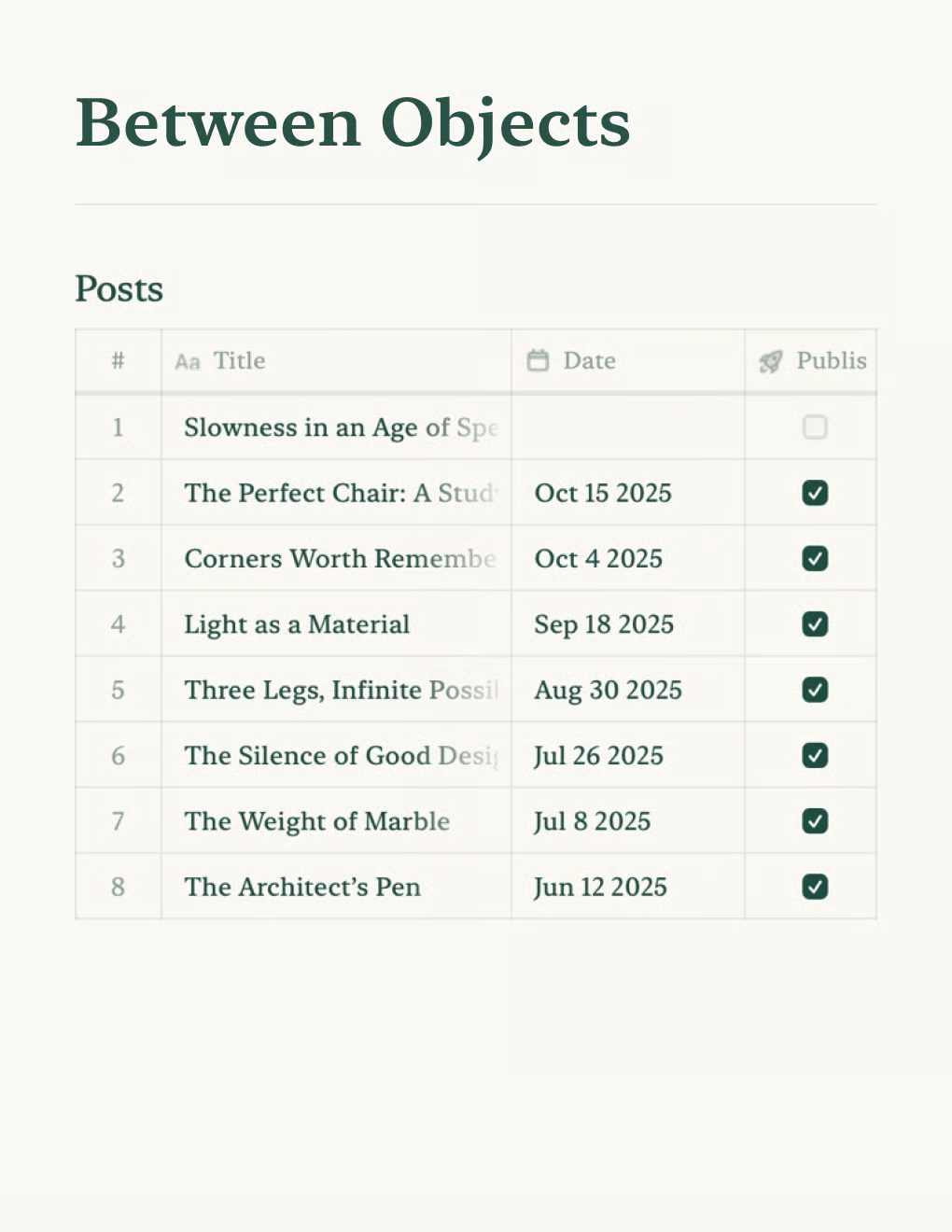

Persönlicher Blog
Erstelle einen persönlichen Blog mit Craft-Dokumenten. Inhalte werden automatisch per API synchronisiert – veröffentliche direkt aus deiner Notiz-App.
Mehr erfahren

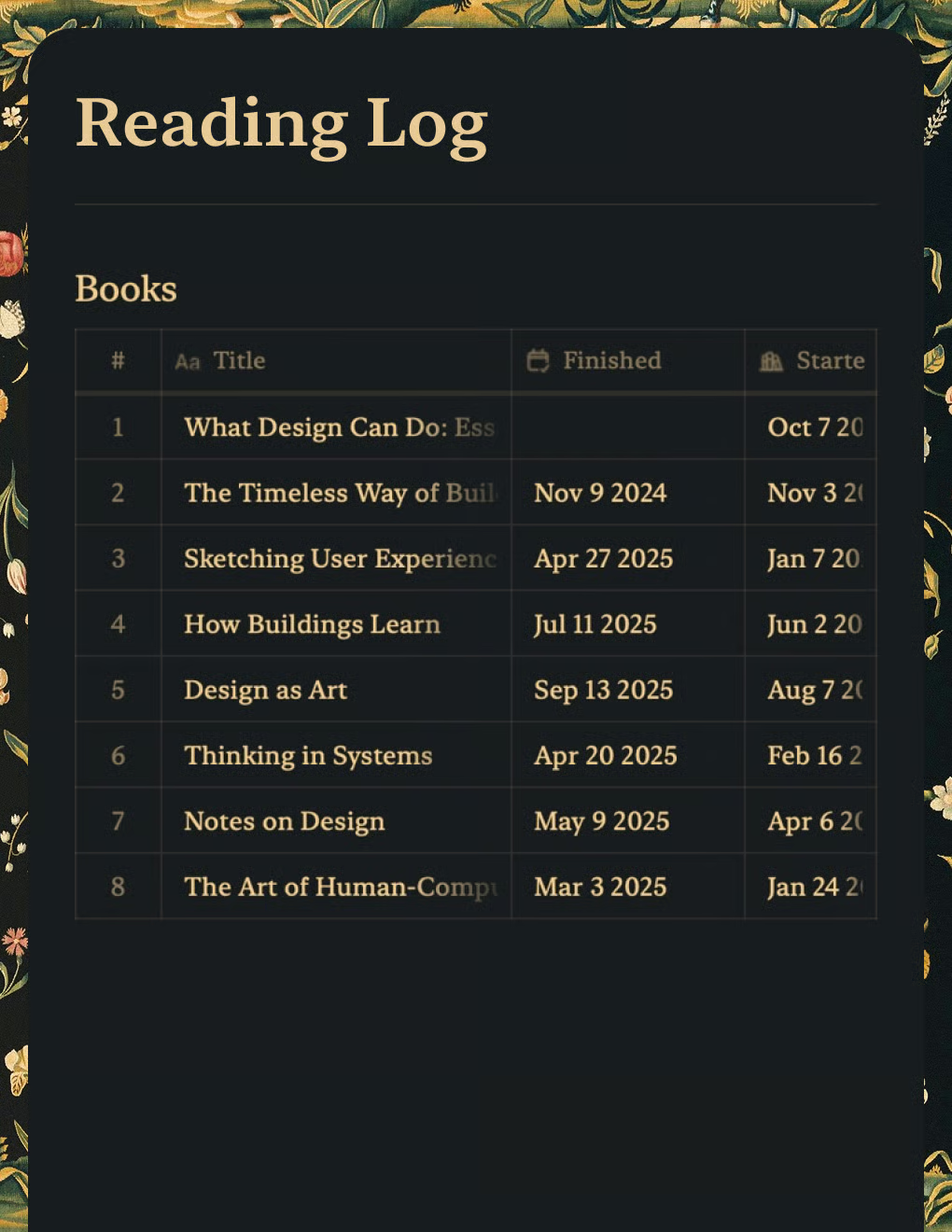
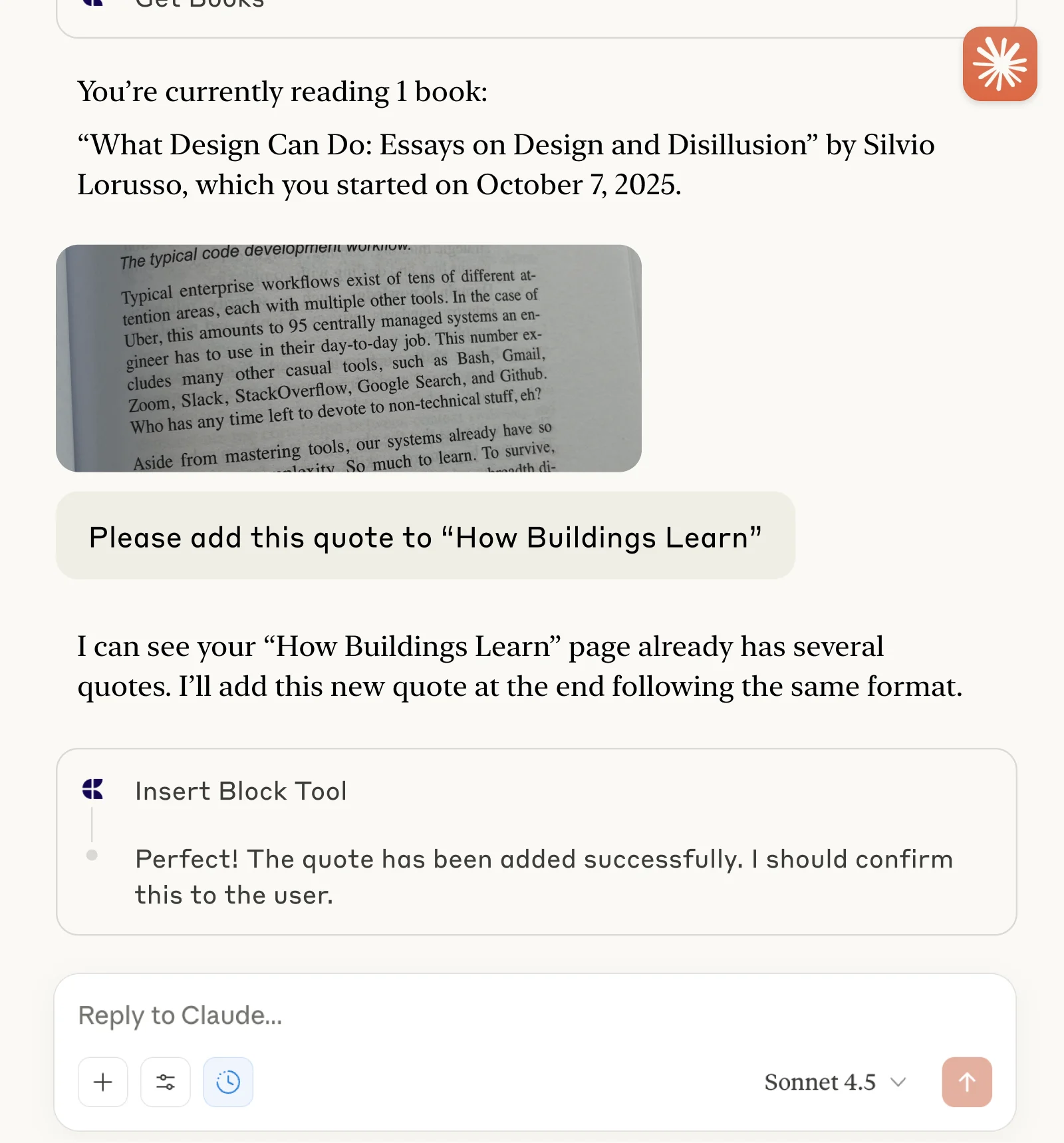
Lesetagebuch
Verfolge Bücher und erfasse Zitate mit Claude oder ChatGPT über MCP.
Mehr erfahren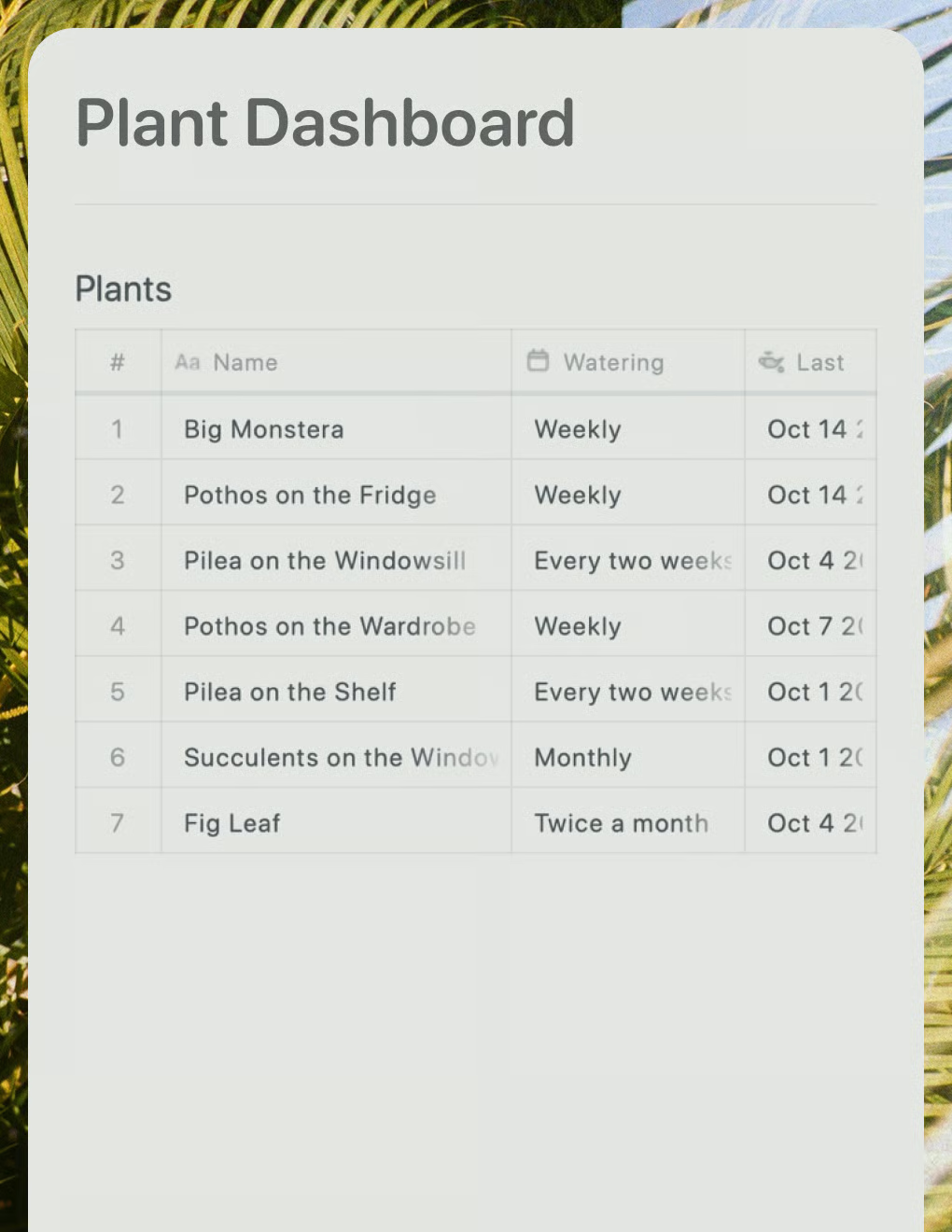
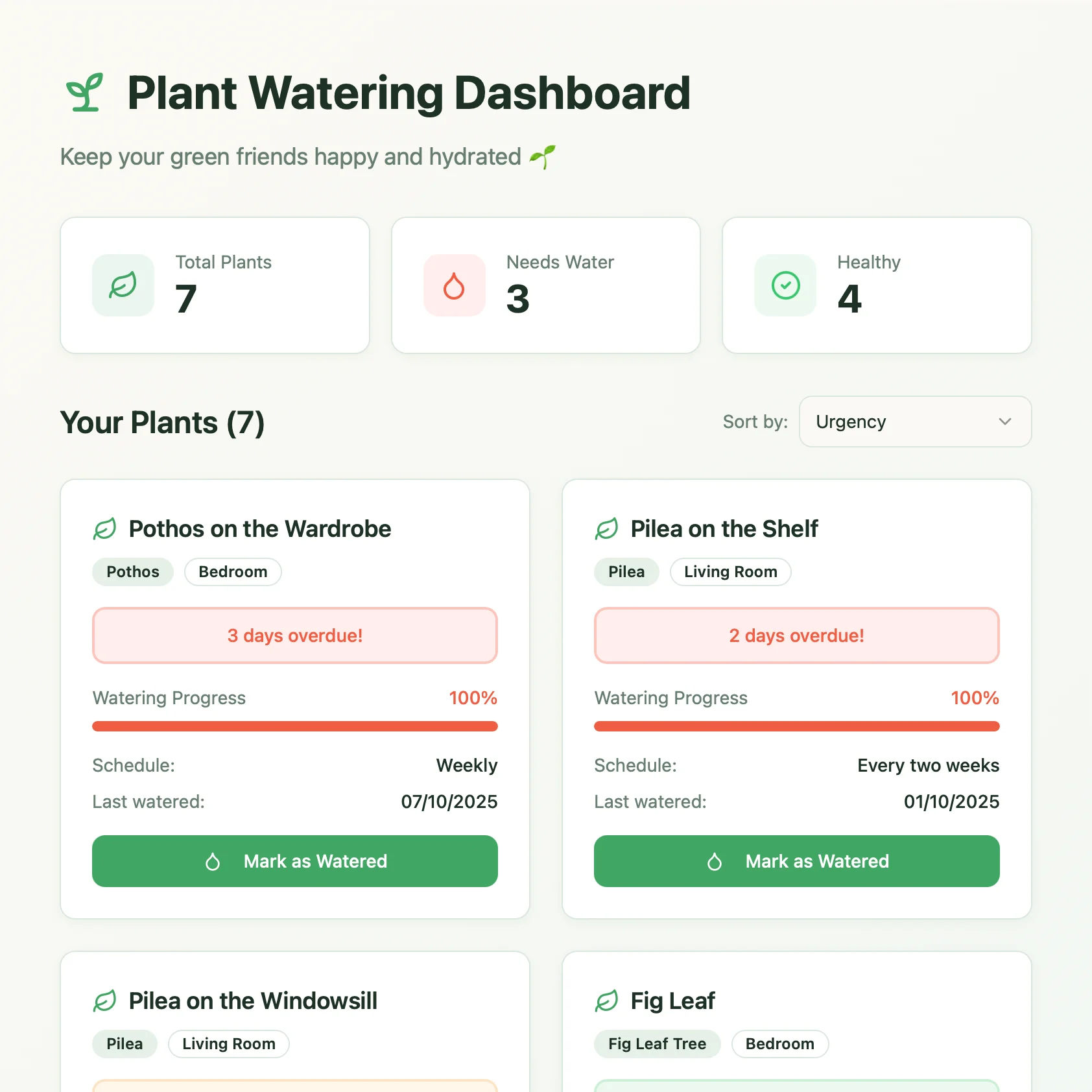
Pflanzen-Dashboard
Ein Live-Pflanzenpflege-Dashboard, erstellt mit Lovable. Ruft Gießpläne und Pflegetipps aus deinem Craft-Dokument ab.
Mehr erfahren