So verbindest du Craft mit Claude Code über MCP
Schritt-für-Schritt-Anleitung, um Craft-Dokumente über MCP mit Claude Code zu verbinden. Lies, durchsuche und aktualisiere deine Notizen direkt aus Claude Code.


Einen MCP-Konnektor in Claude Code hinzufügen
Erstelle einen neuen Konnektor in Claude Code und verwende die MCP-URL, um die beiden Dienste zu verbinden.
Schritt 1
- Lokaler Geltungsbereich (Standard): Projektspezifisch, nur für dich sichtbar
- Projekt-Scope: Teamweit geteilt über die Datei
.mcp.json - Benutzer-Scope: Projektübergreifend, persönliche Nutzung
--scope project | --scope userSchritt 2
craft durch einen kurzen Namen, an dem du den MCP-Server erkennen kannst. Standardmäßig wird der lokale Scope verwendet, sodass die Verbindung auf dein aktuelles Projekt beschränkt bleibt.claude mcp add --transport http craft https://mcp.craft.do/my/mcpSchritt 3
/mcp in Claude Code, wähle den gerade erstellten MCP-Server aus und folge den Schritten im Browser, um dich anzumelden.Schritt 4
Schritt 5
Du kannst Claude Code jetzt nach deinen Dokumenten fragen und sie sogar aktualisieren lassen. Probiere zum Einstieg etwas wie Folgendes:
Klicke auf ein Beispiel, um den Prompt in die Zwischenablage zu kopieren
Ein paar Ideen für den Einstieg
Beispiele durchsuchen
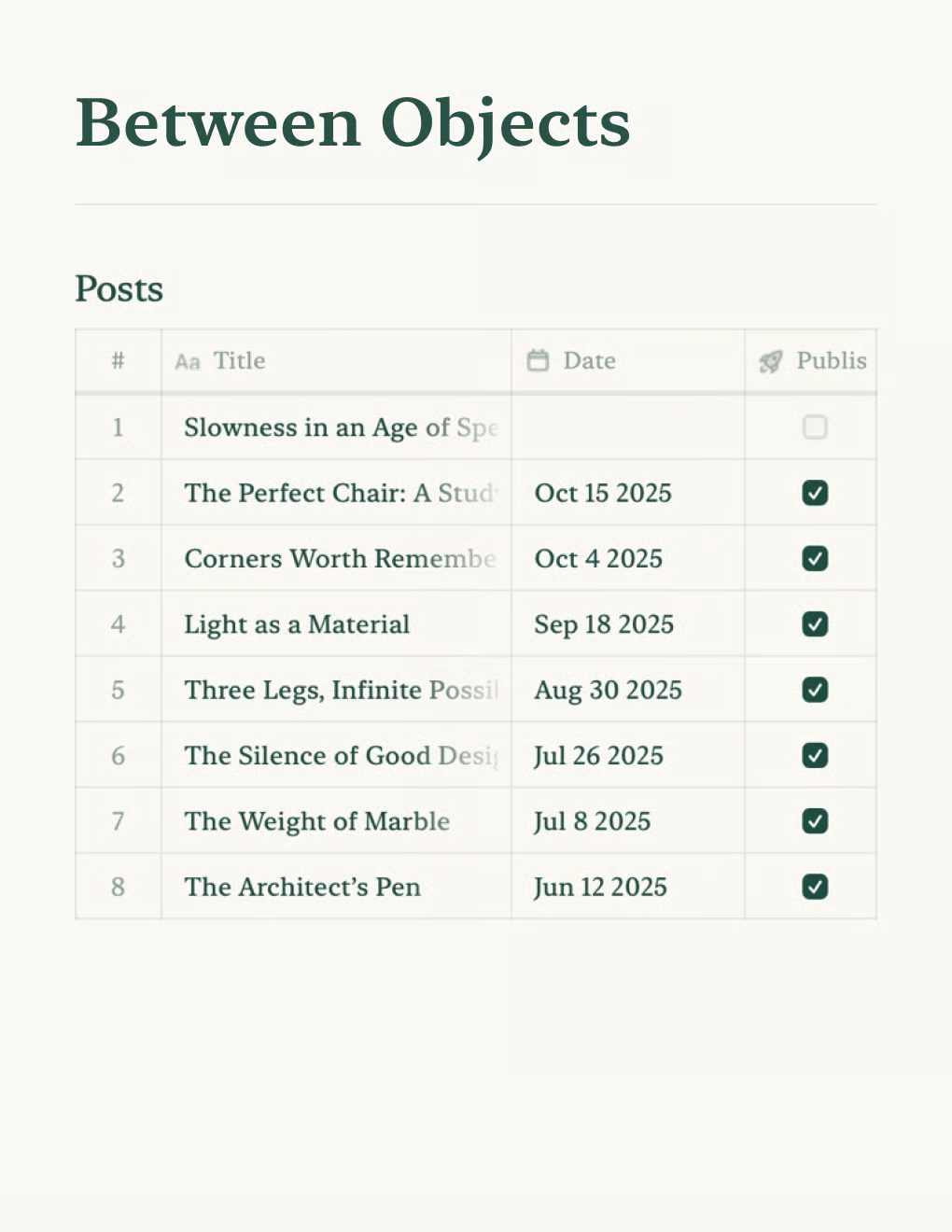

Erstelle einen persönlichen Blog mit Craft-Dokumenten. Inhalte werden automatisch per API synchronisiert – veröffentliche direkt aus deiner Notiz-App.
Mehr erfahren

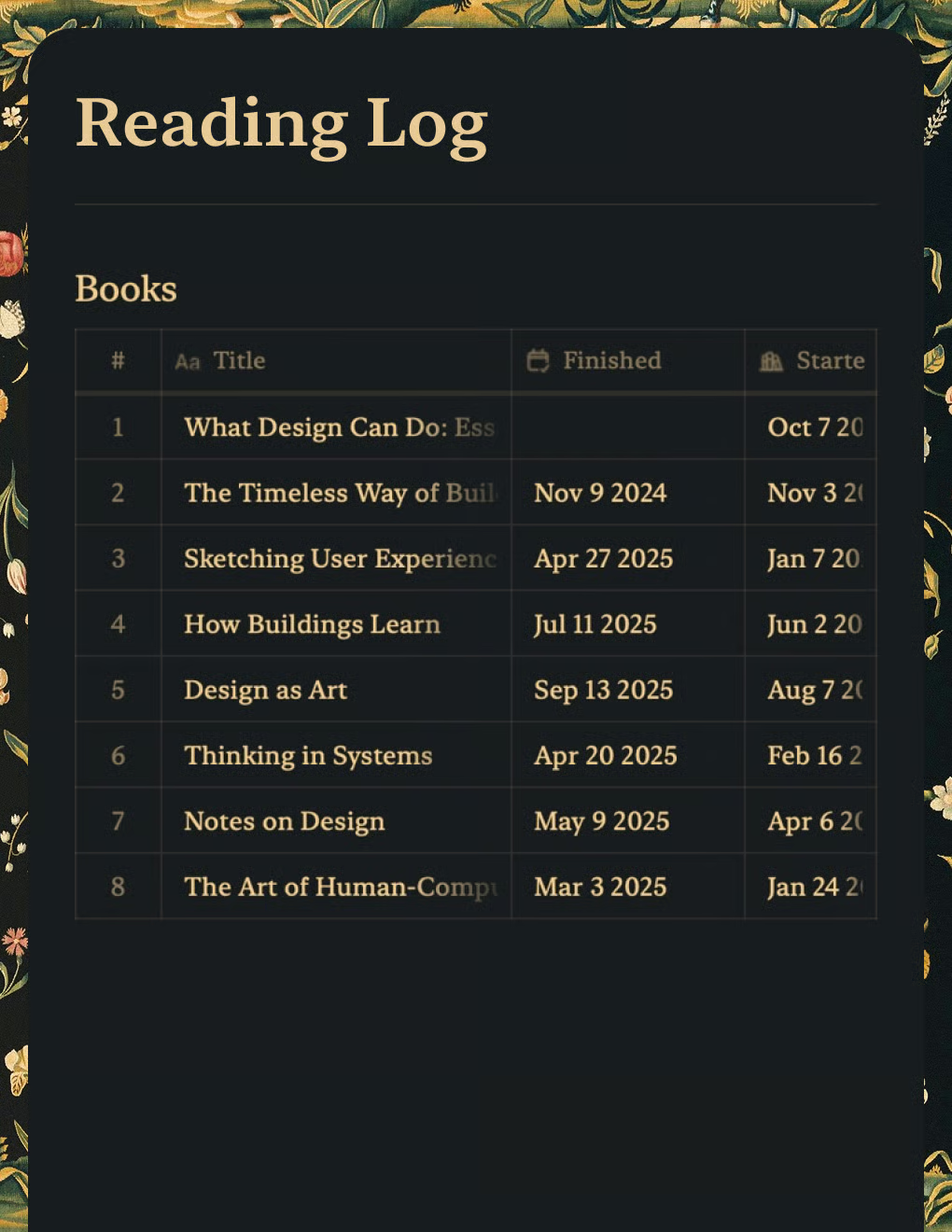
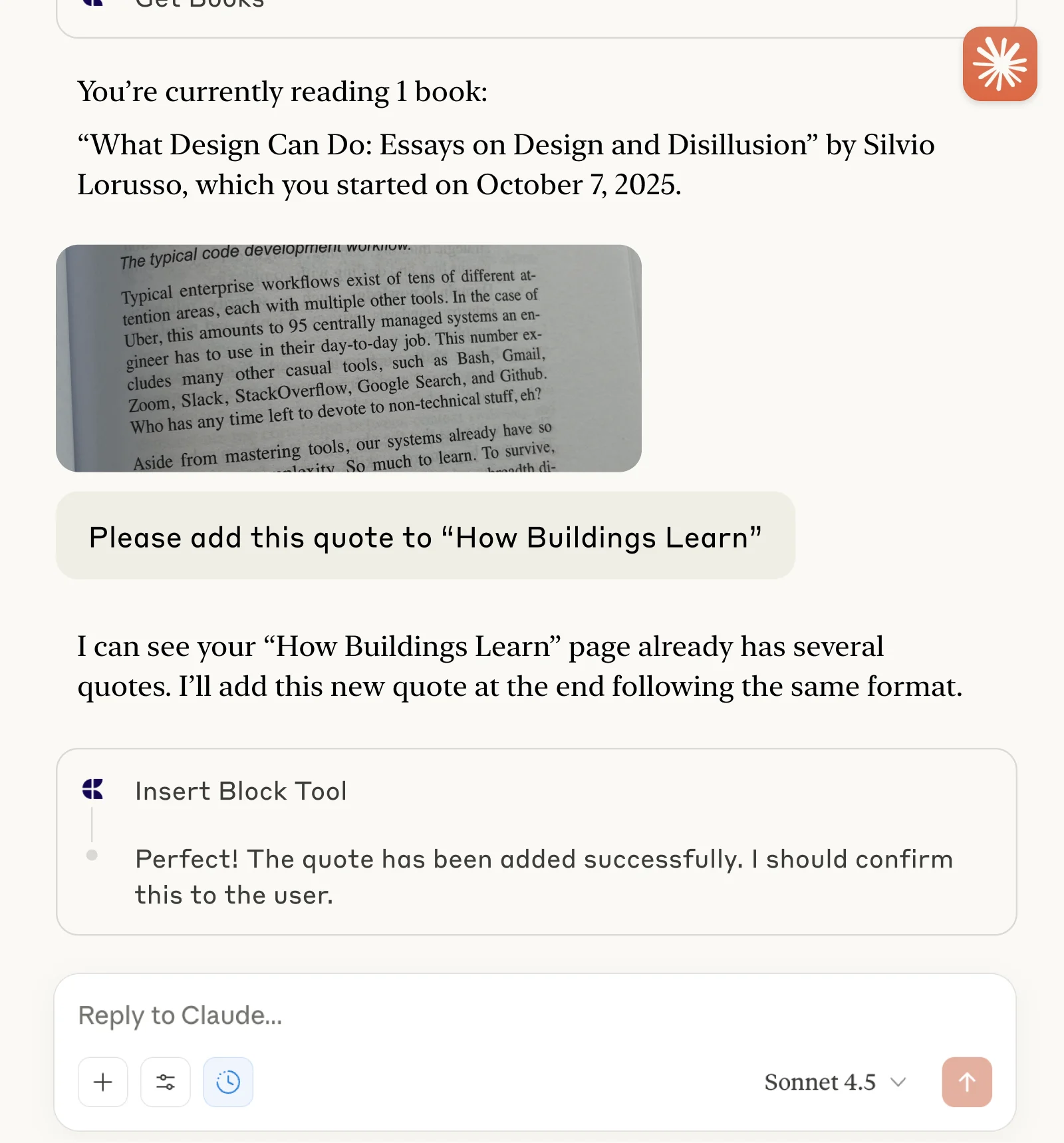
Verfolge Bücher und erfasse Zitate mit Claude oder ChatGPT über MCP.
Mehr erfahren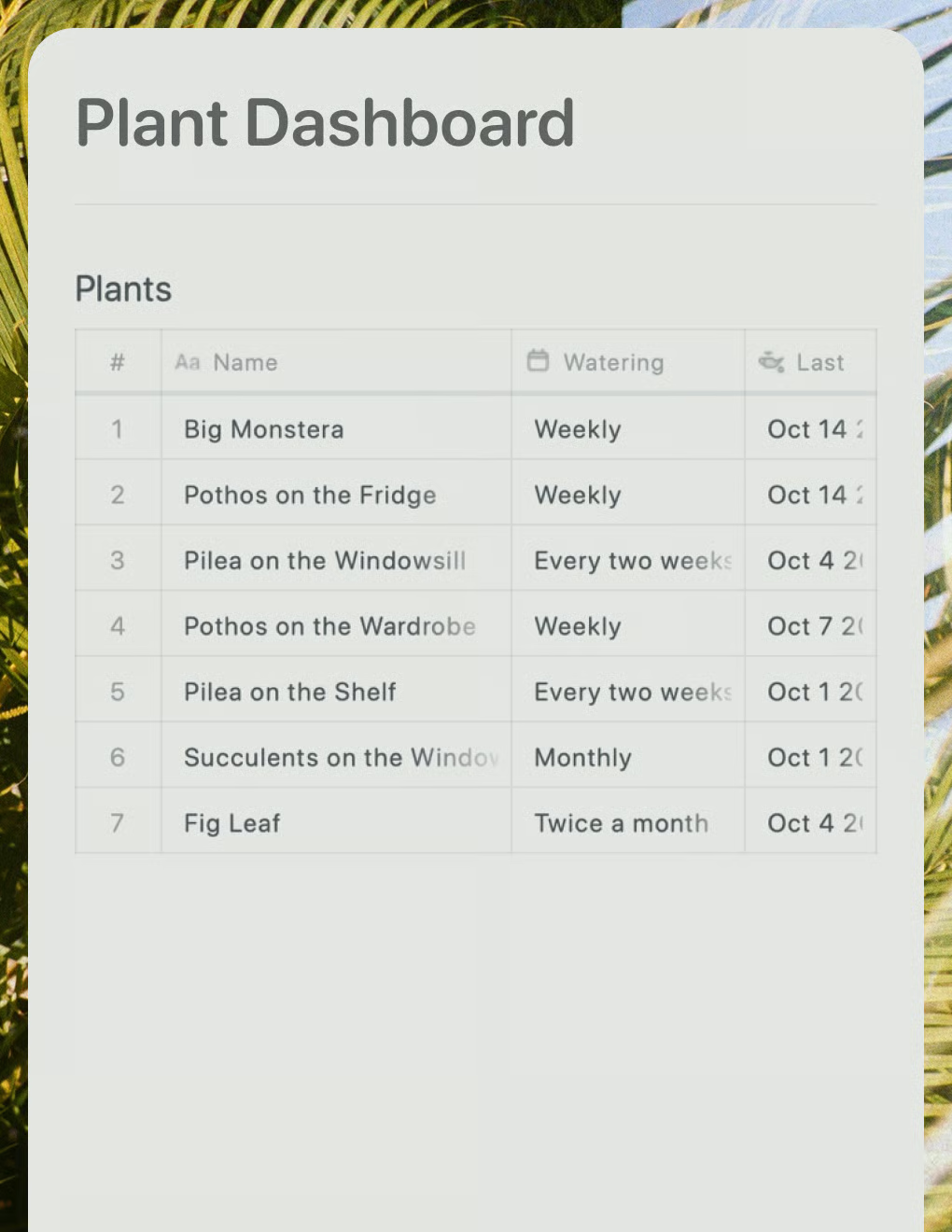
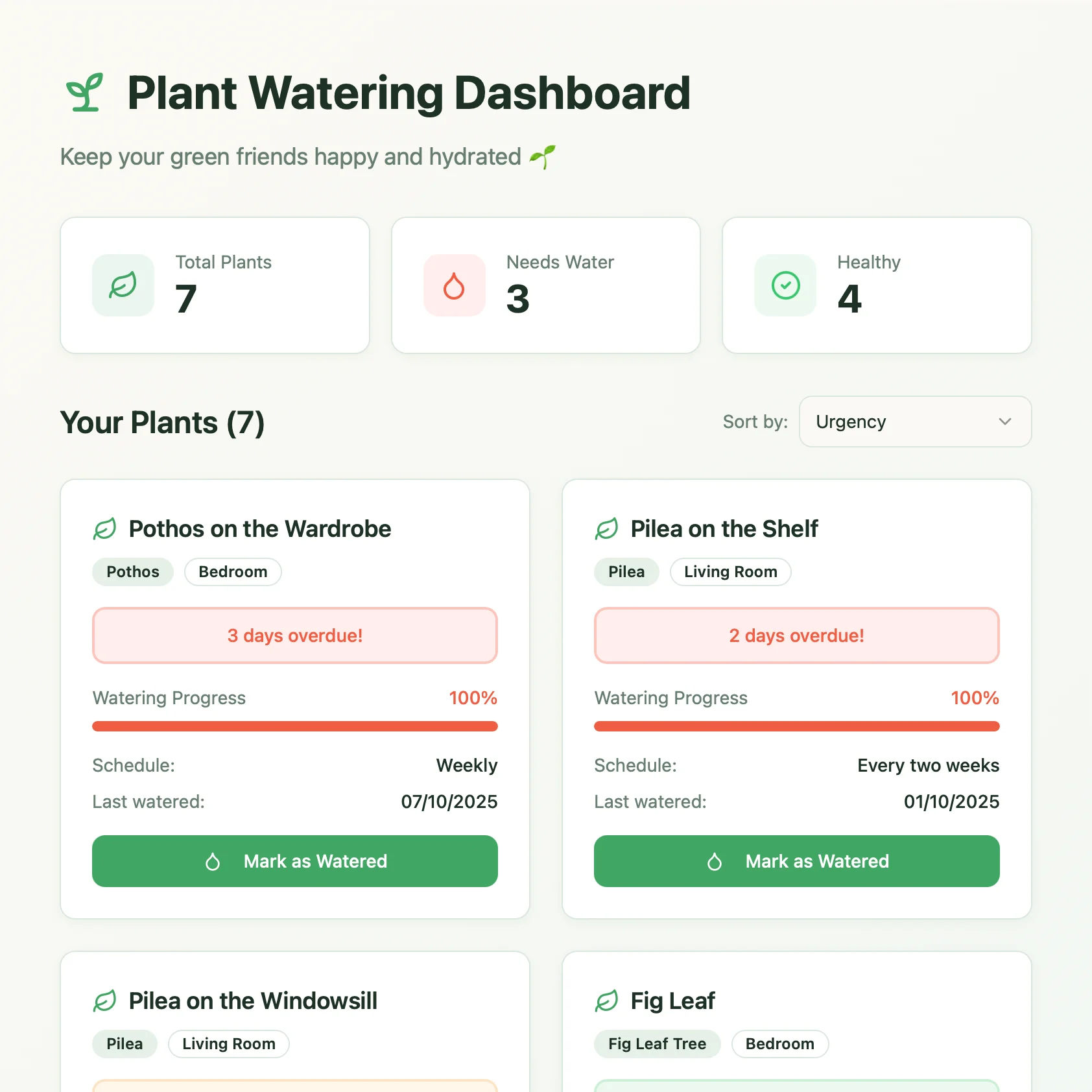
Ein Live-Pflanzenpflege-Dashboard, erstellt mit Lovable. Ruft Gießpläne und Pflegetipps aus deinem Craft-Dokument ab.
Mehr erfahren