自動デイリーダイジェスト
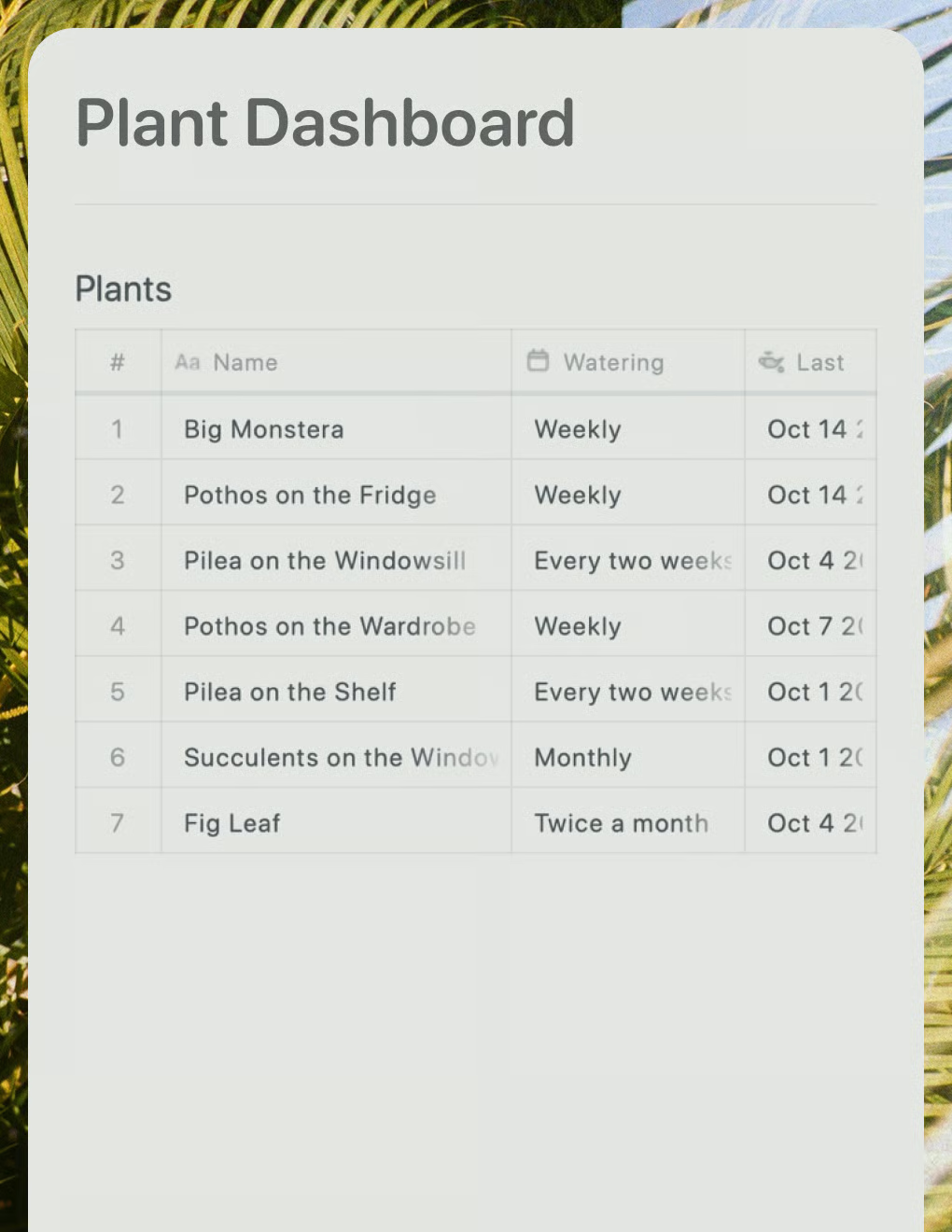
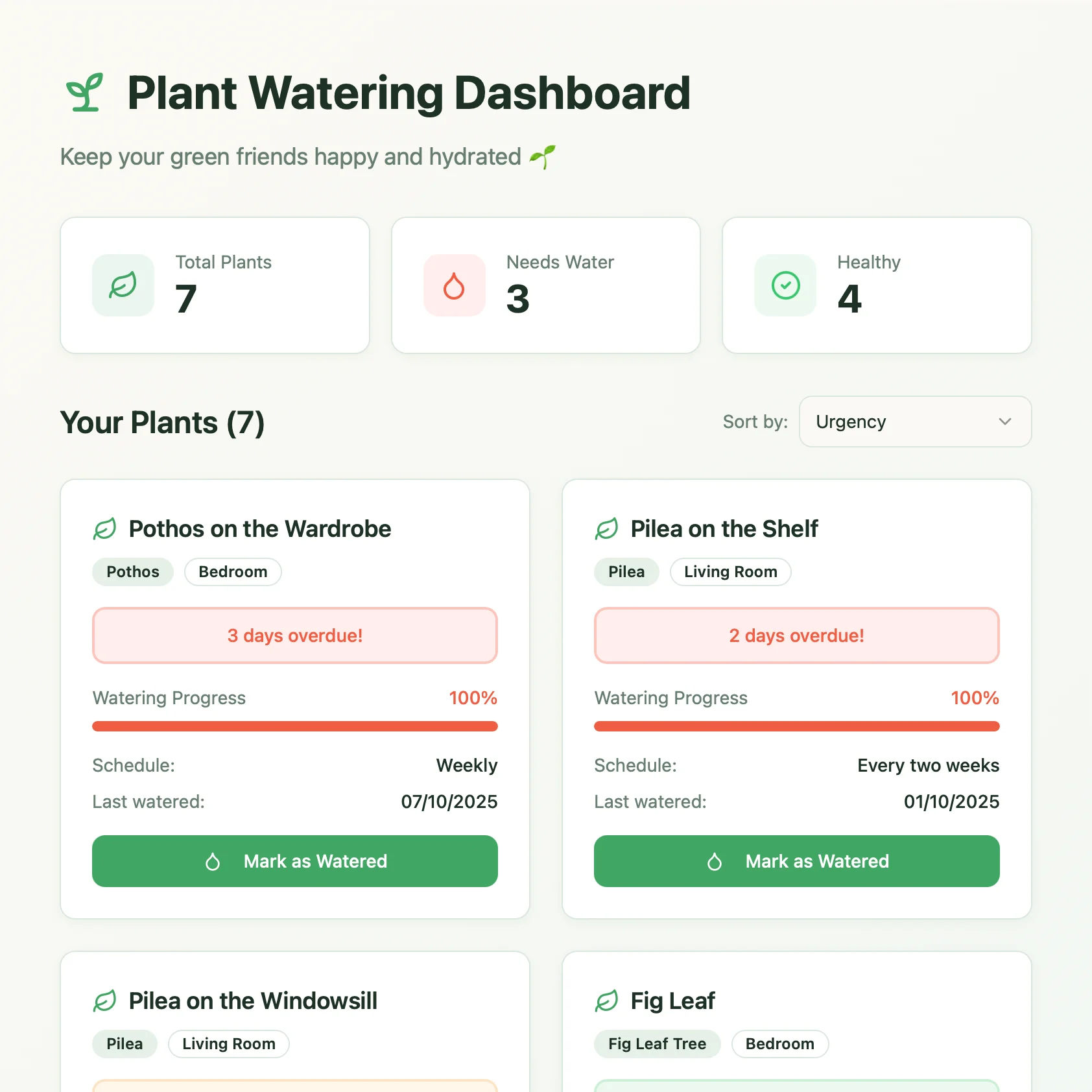
n8nでRSSフィードをCraftのコレクションに接続します。新しい記事はCraftワークスペースに自動で表示されるため、コピー&ペーストや手動更新は必要ありません。


Craftとn8nで構築
自分で構築する
ステップ1 — APIアクセスを有効にする
Craftドキュメントで読み取り/書き込みAPIアクセスを有効にします。n8nが新しいコレクションアイテムを作成するには書き込みアクセスが、コレクション一覧を取得するには読み取りアクセスが必要です。
ステップ1
ステップ2
ステップ3
ステップ4
ステップ5
ステップ2 — n8nにCraft Nodeをインストールする
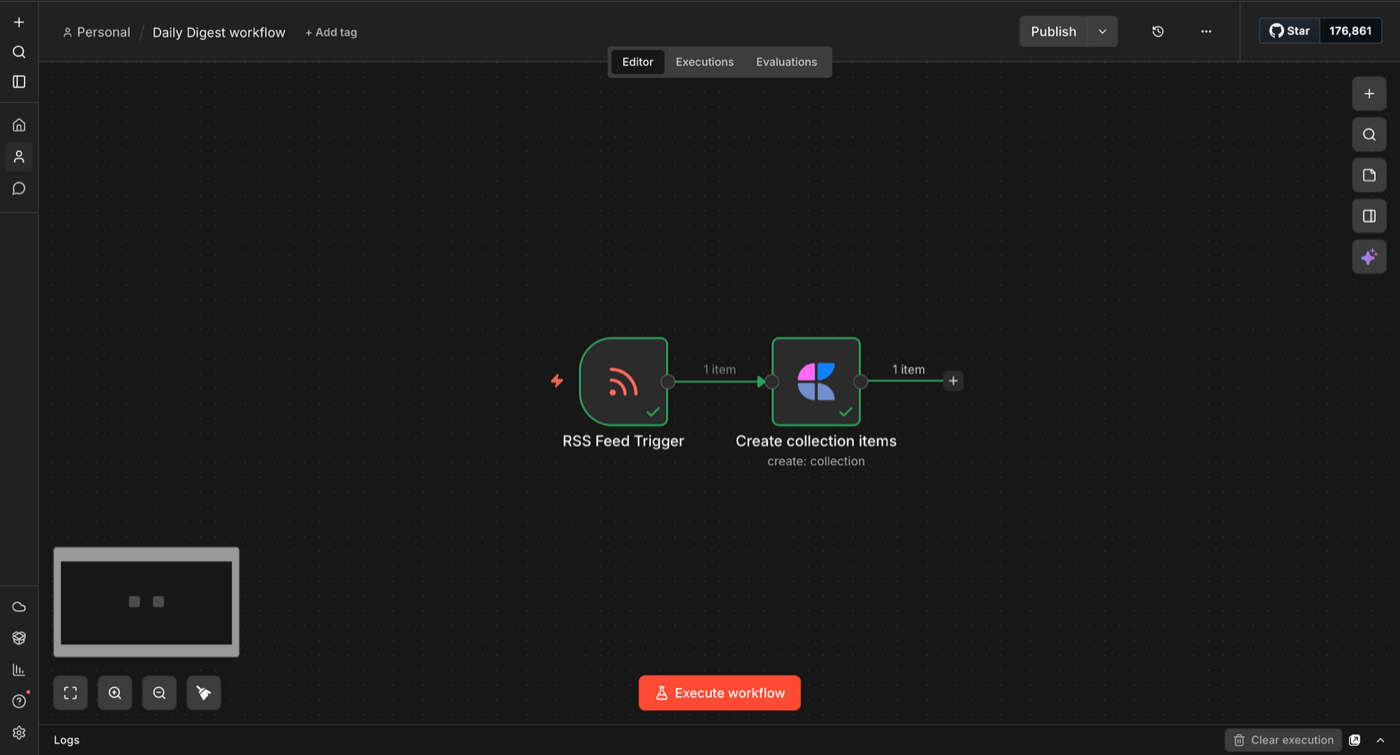
n8nインスタンスを開き、Settings -> Community nodes に移動します。Install a community node をクリックし、n8n-nodes-craft を検索します。これにより、必要な Create collection items を含む26種類のアクションを備えたCraft Nodeが追加されます。利用可能なアクションの一覧については、n8nセットアップガイドをご覧ください。
ステップ3 — RSS Feed Triggerを追加する
n8nで新しいワークフローを作成します。Add first step をクリックし、RSS Feed Trigger を選択します。次の項目を設定します。
- Feed URL — 収集したいRSSフィードのURL。例:
https://news.ycombinator.com/rss- Poll Times — n8nが新しいアイテムを確認する頻度(例:毎分、毎時)
Fetch Test Event をクリックして、フィードからデータが返ってくることを確認します。出力に title、link、pubDate フィールドを持つアイテムが表示されるはずです。
ステップ4 — Craftの認証情報を接続する
RSS Feed Triggerの後にある + をクリックし、Craft を検索します。Create collection items アクションを選択します。Credential to connect with のドロップダウンで Create new Craft account credential を選択し、次の項目を入力します。
- API Base URL — Step 1で取得したURLを貼り付けます
- API Key — Step 1で取得したキーを貼り付けます
- Connection Type —
Full Space Connection - Permissions —
Read + Write
ステップ5 — Craft Nodeを設定する
認証情報を保存したら、ノード自体を設定します。
- Resource —
Collection - Operation —
Create Items - Collection — ドロップダウンから保存先のコレクションを選択します(例:「News」)
- Items — RSSフィールドをコレクションの列にマッピングするため、次のJSONを貼り付けます。
[{"title": "{{ $json.title }}", "properties": {"link": "{{ $json.link }}"}}]ステップ6 — テストして有効化する
Execute workflow をクリックして、ワークフロー全体をテストします。両方のノードに緑のチェックマークと「1 item」が表示されれば、RSSエントリーはCraftのコレクションに正常に保存されています。
確認できたら、右上の Publish をクリックしてワークフローを有効化します。これ以降、n8nは設定したスケジュールに沿ってRSSフィードを確認し、新しいアイテムをCraftのコレクションに自動で作成します。
完成イメージ
お気に入りのフィードから新しい記事がCraftに自動で表示されます。ブラウザのタブを開いたり、コピー&ペーストしたりする必要はありません。コレクションを開けば、すべてがそこに揃っています。RSSフィードを差し替えれば、業界ニュース、ブログ記事、リリースノート、競合の更新情報など、追跡したいあらゆる情報源に対応できます。