
用 Craft 創想

使用 MCP 將 Craft 連接到您的應用程式

啟用 MCP 後,MCP 用戶端即可連線到您的 Craft 文件並與之互動。本指南將引導您完成相關步驟。

Craft
其他 MCP 用戶端

Enabling MCP for Documents

First, you have to enable MCP in order for Craft to setup an MCP server for your documents. Then, you use the MCP URL to connect to the server from 其他 MCP 用戶端.

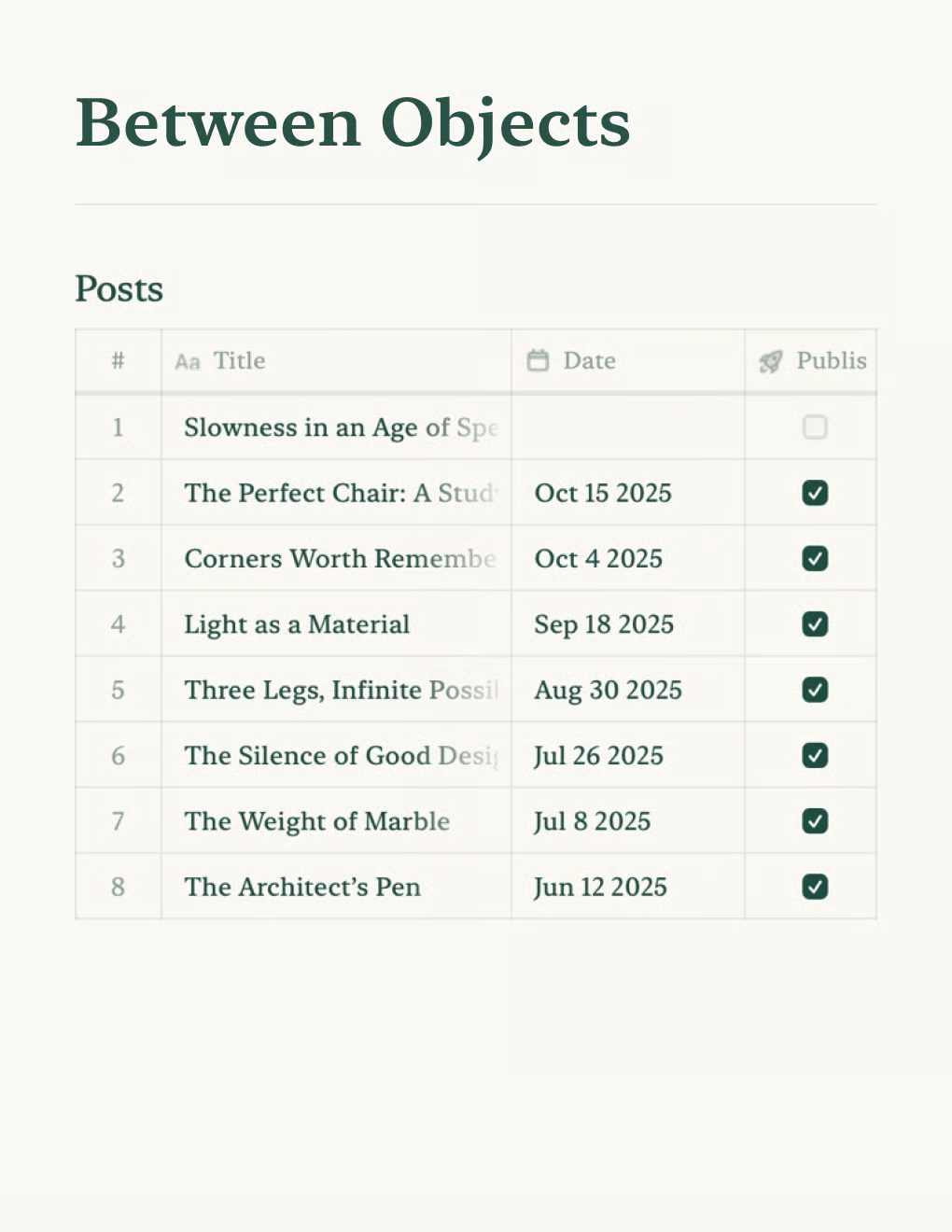
Click the “Imagine” tab in the sidebar

步驟1

Open the “Imagine” tab
Click “Create Your First MCP Connection” button

步驟2

Click “Create Your First MCP Connection”
Configure MCP connection settings

步驟3

Configure your MCP connection with a name.
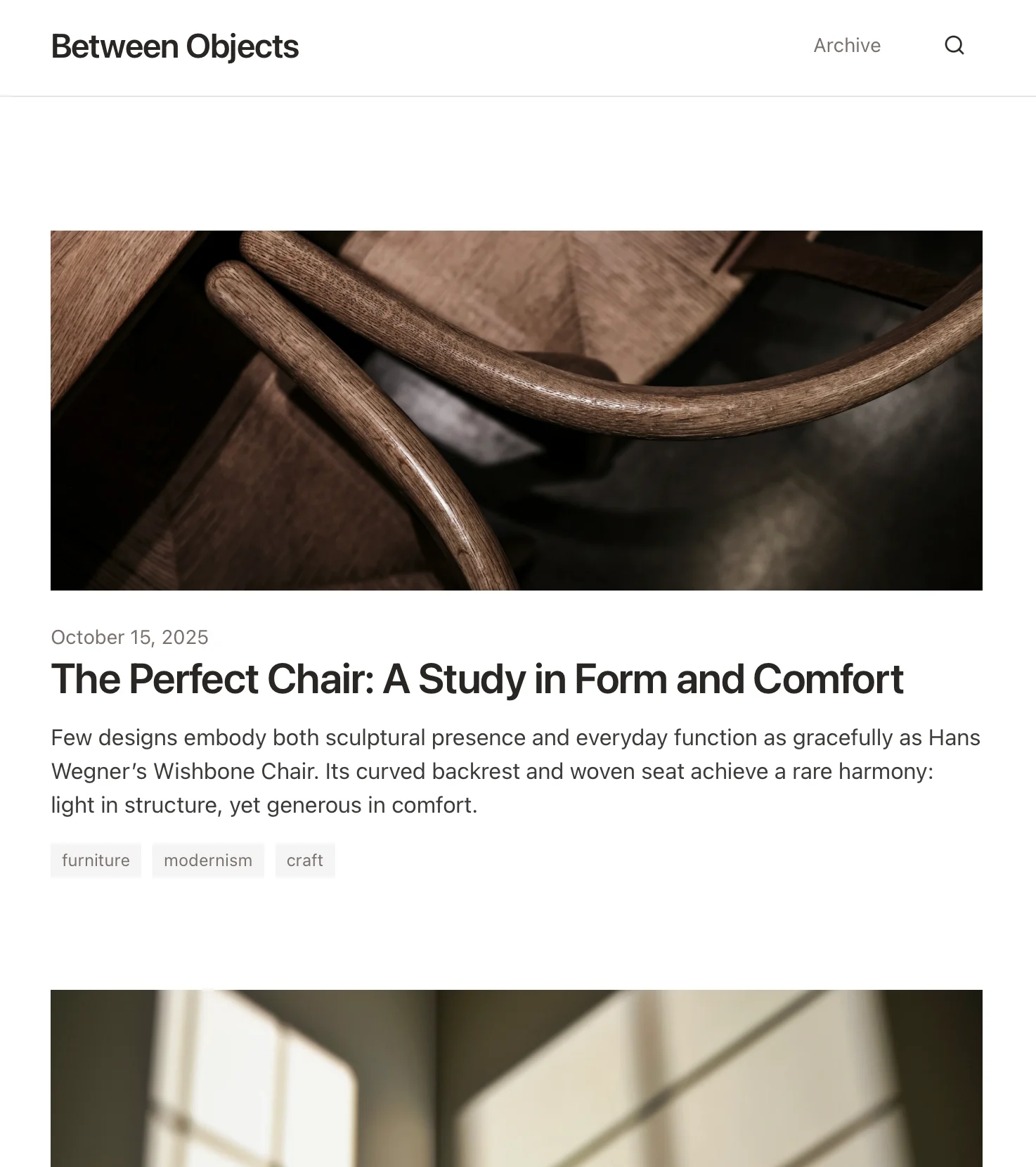
Click “Add Document” button

步驟4

Click “Add Document” to select which documents this MCP connection has access to.
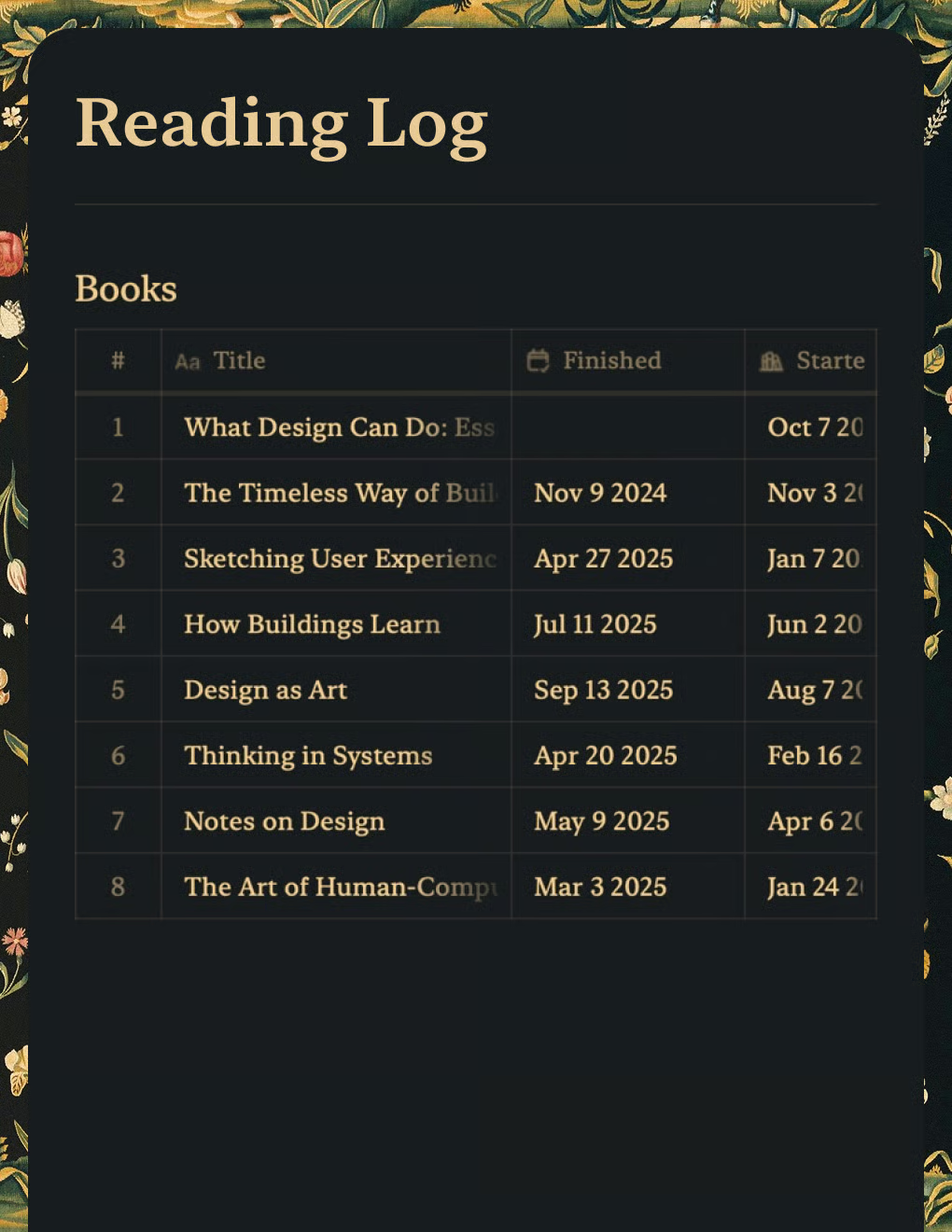
MCP URL displayed at the top

步驟5

The MCP URL that will be used to interact with your document is now displayed at the top.

在其他 MCP 用戶端中新增 MCP 連接器

MCP客戶端設定

步驟1

確定要使用的 MCP 用戶端,然後轉到其設定或設定檔。

步驟2

複製以下 MCP 設定並將其貼上到 MCP 用戶端的 MCP 設定檔中。將 craft 替換為您的 MCP 伺服器的描述性名稱。 ' <'MCP_URL> 替換為 Craft 中的 MCP URL。
部分 MCP 用戶端會提供一個表單來新增 MCP 伺服器。如果遇到這種情況,請填寫表單並輸入 Craft 提供的 MCP URL。

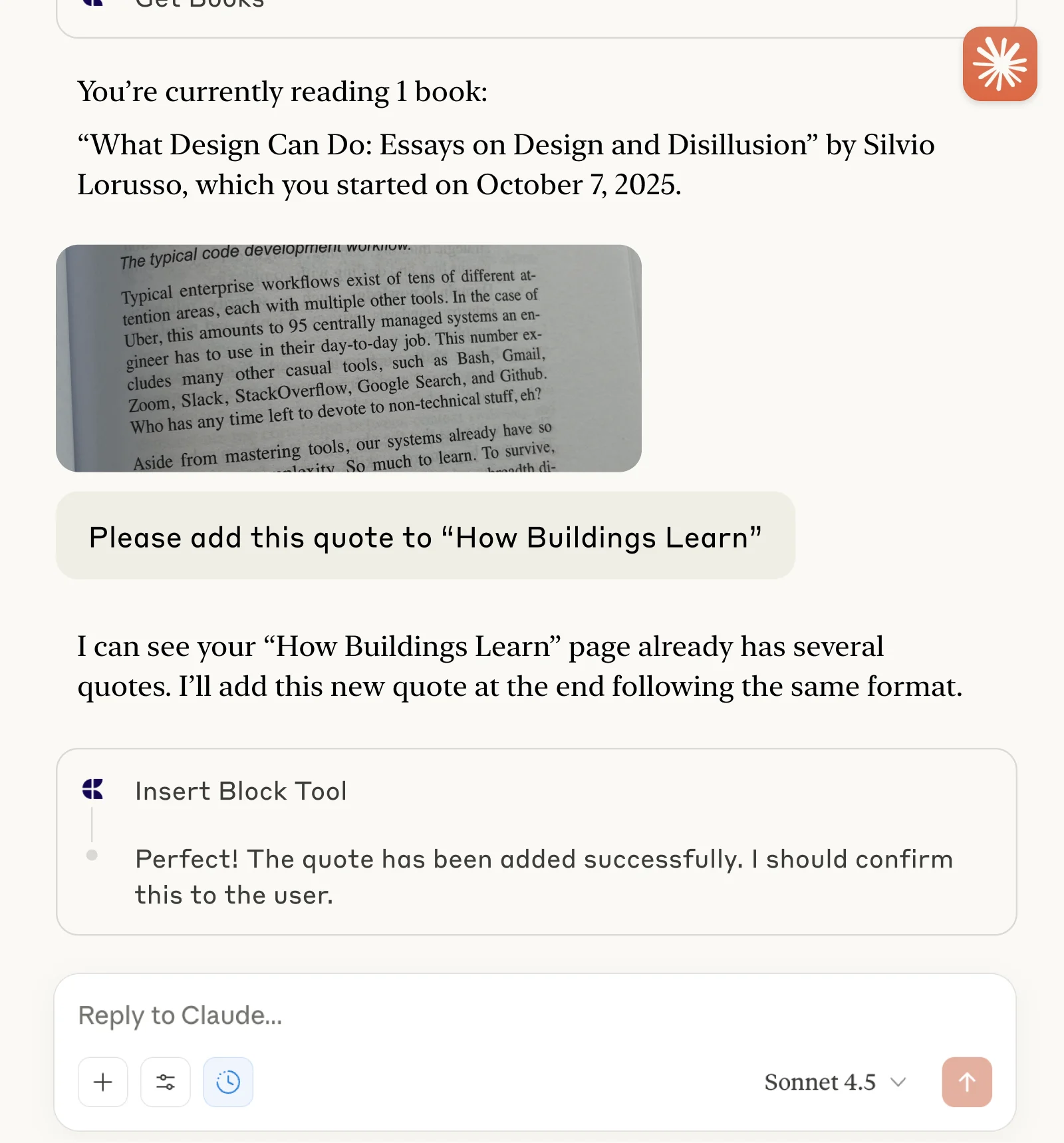
現在您可以向 MCP 客戶詢問您的 Craft 文檔,甚至可以讓他們更新文檔。您可以從下面的例子開始:

點擊範例即可將提示複製到剪貼簿

一些入門建議

瀏覽範例