
在其他 MCP 用戶端中新增 MCP 連接器
步驟 1
確定要使用的 MCP 用戶端,然後轉到其設定或設定檔。
步驟 2
複製以下 MCP 設定並將其貼上到 MCP 用戶端的 MCP 設定檔中。將
craft 替換為你的 MCP 伺服器的描述性名稱。 將 <MCP_URL> 替換為 Craft 中的 MCP URL。部分 MCP 用戶端會提供一個表單來新增 MCP 伺服器。如果遇到這種情況,請填寫表單並輸入 Craft 提供的 MCP URL。
{
  "mcpServers": {
    "craft": {
      "url": "https://mcp.craft.do/my/mcp"
    }
  }
}步驟 3
瀏覽器視窗將會打開,顯示 Craft 授權頁面。選擇要連接的空間,然後按一下「批准」以授予存取權限。
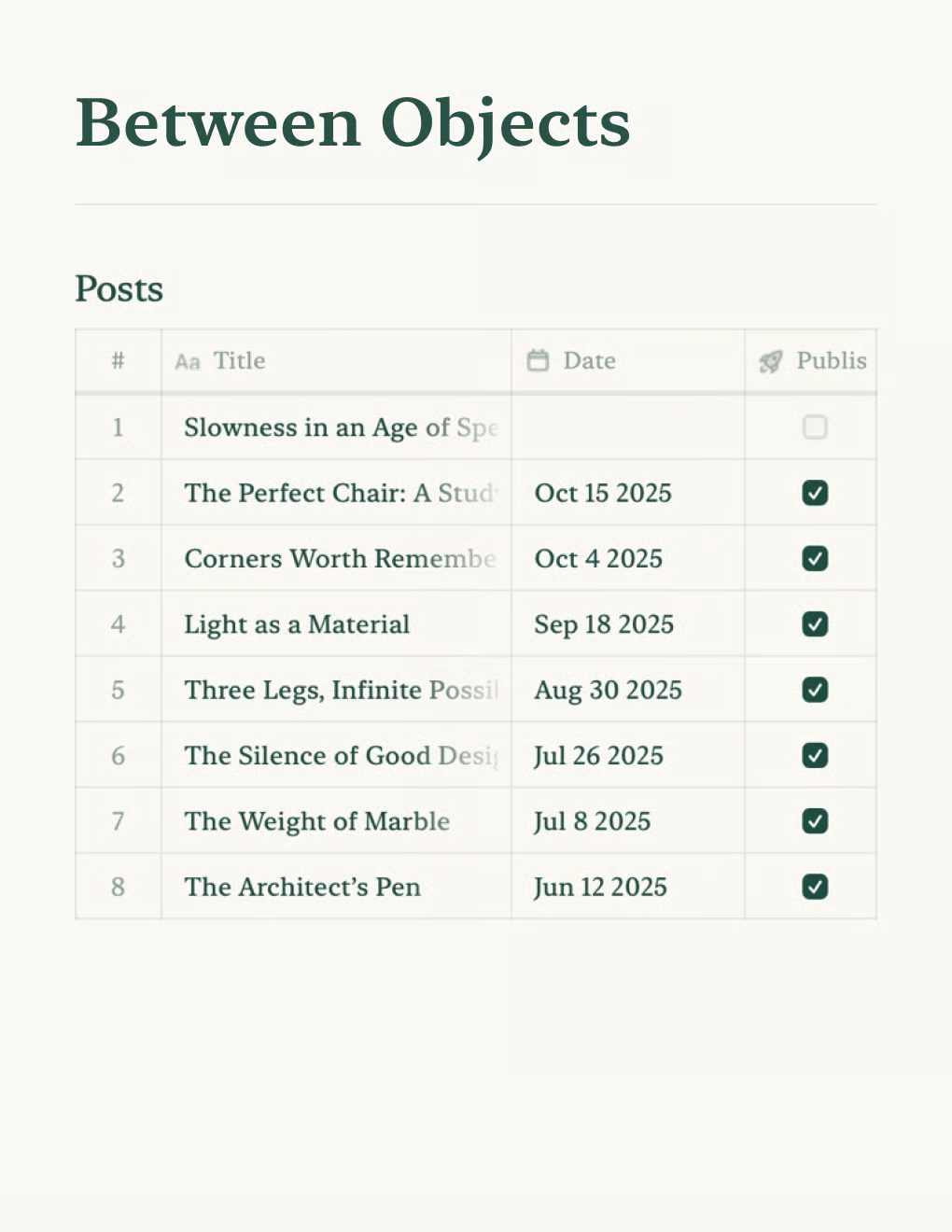
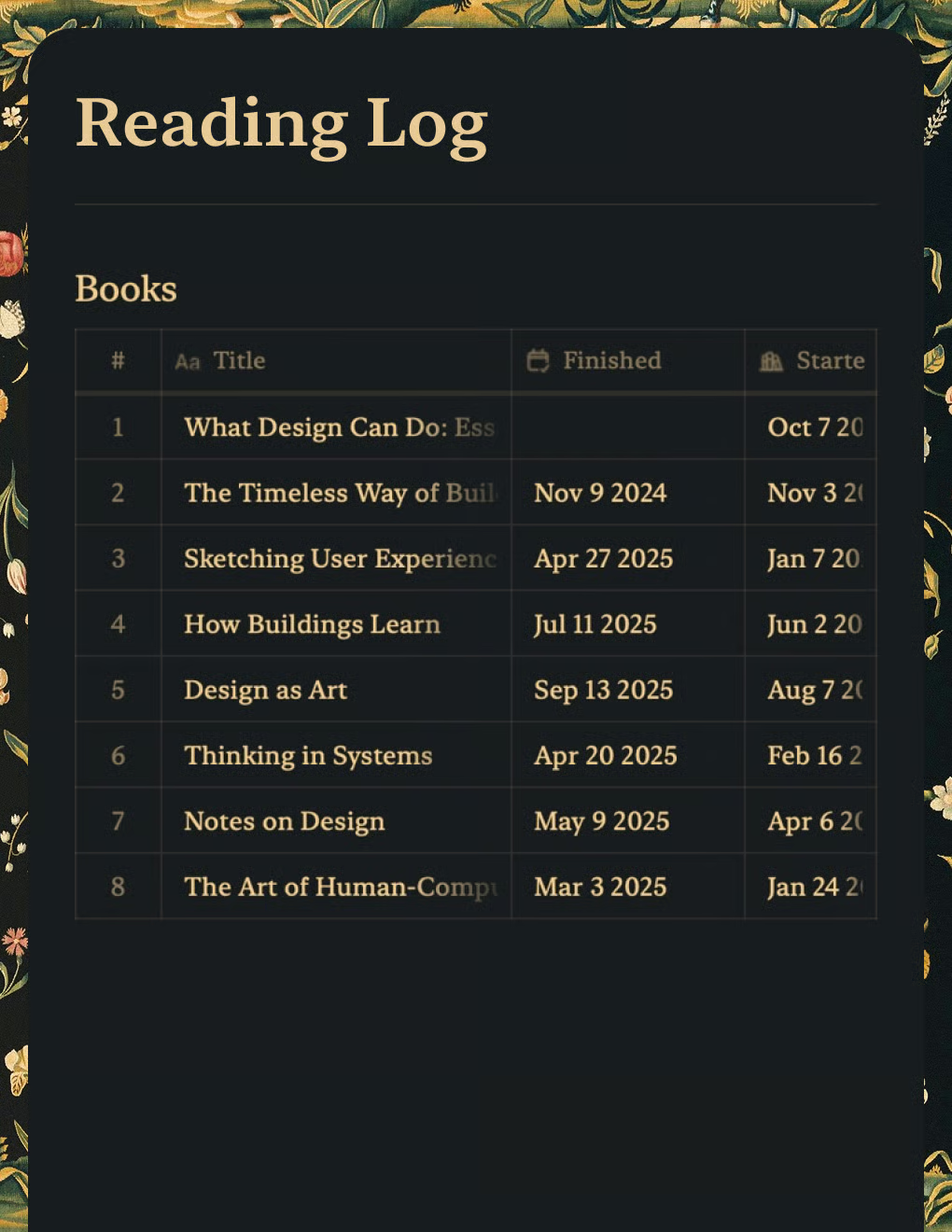
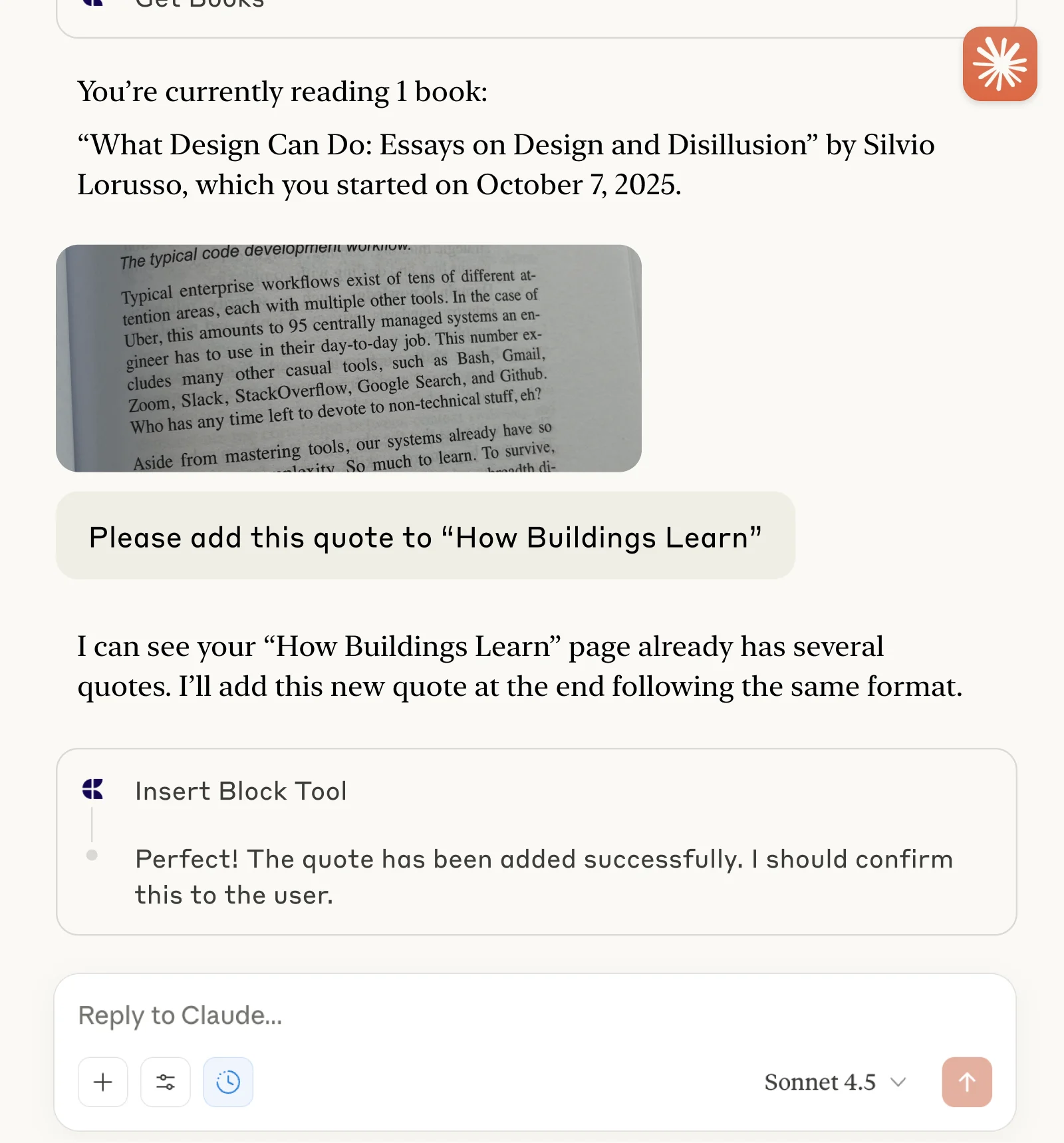
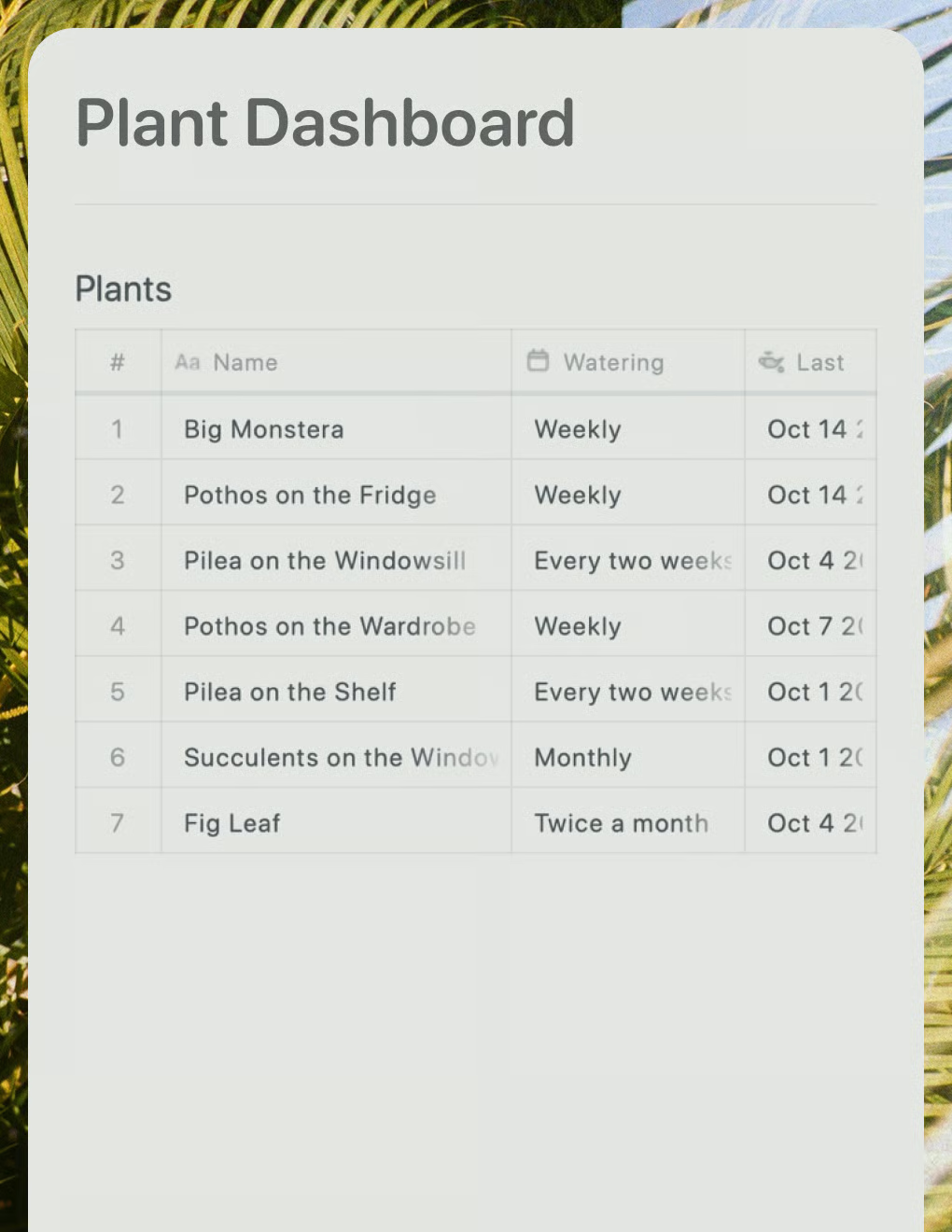
現在你可以向 MCP 用戶端詢問你的 Craft 文件,甚至可以要求更新文件。你可以從下面的例子開始:
點擊範例即可將提示複製到剪貼簿