So verbindest du Craft mit ChatGPT über MCP
Schritt-für-Schritt-Anleitung, um Craft-Dokumente über MCP mit ChatGPT zu verbinden. Lies, durchsuche und aktualisiere deine Notizen direkt aus ChatGPT.

Einen MCP-Konnektor in ChatGPT hinzufügen
Erstelle einen neuen Konnektor in ChatGPT und verwende die MCP-URL, um die beiden Dienste zu verbinden.
Schritt 1
Kopiere diese URL und füge sie in das URL-Feld ein:
https://mcp.craft.do/my/mcpSchritt 2
Schritt 3
Schritt 4
Schritt 5
Du kannst ChatGPT jetzt nach deinen Dokumenten fragen und sie sogar aktualisieren lassen. Probiere zum Einstieg etwas wie Folgendes:
Klicke auf ein Beispiel, um den Prompt in die Zwischenablage zu kopieren
Fehlerbehebung
Ein paar Ideen für den Einstieg
Beispiele durchsuchen
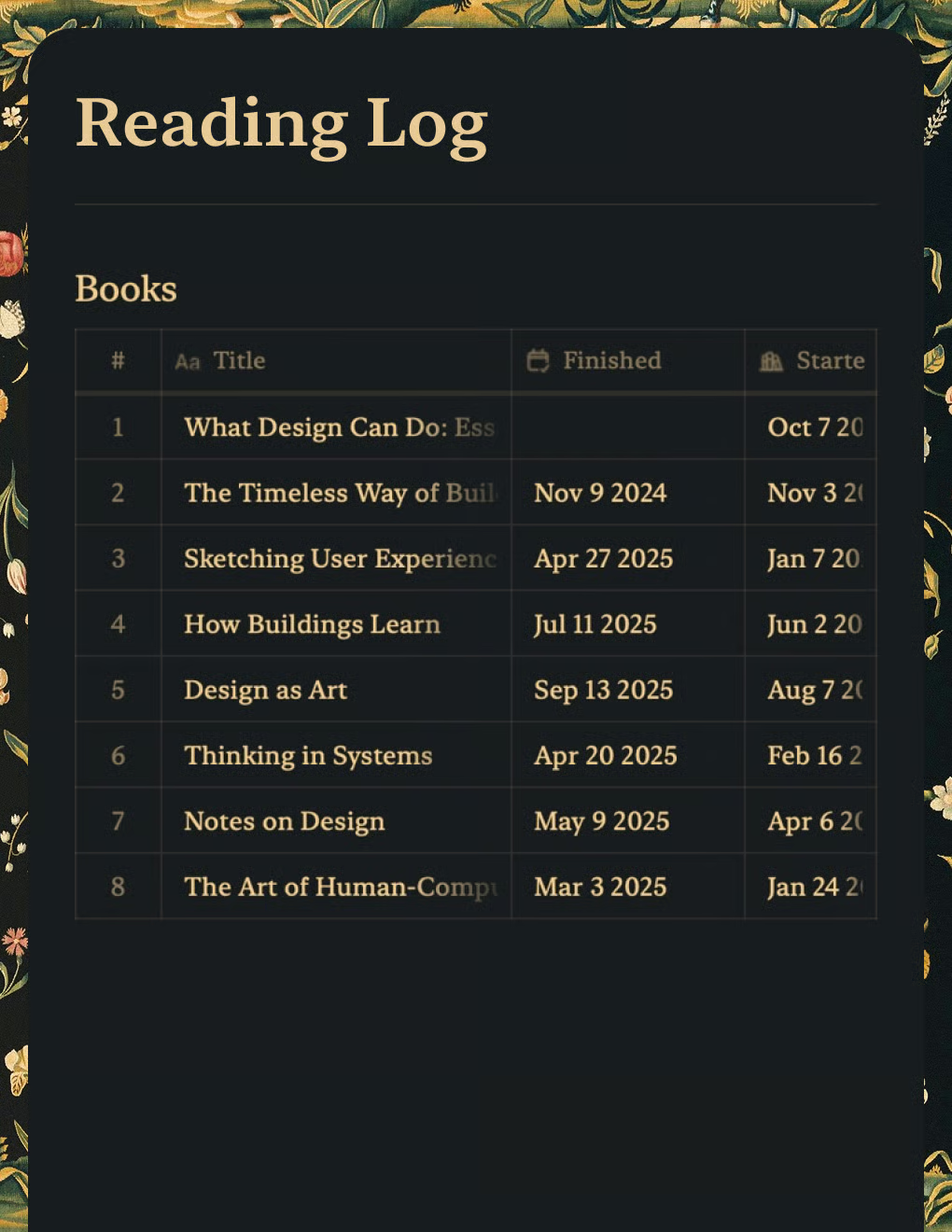
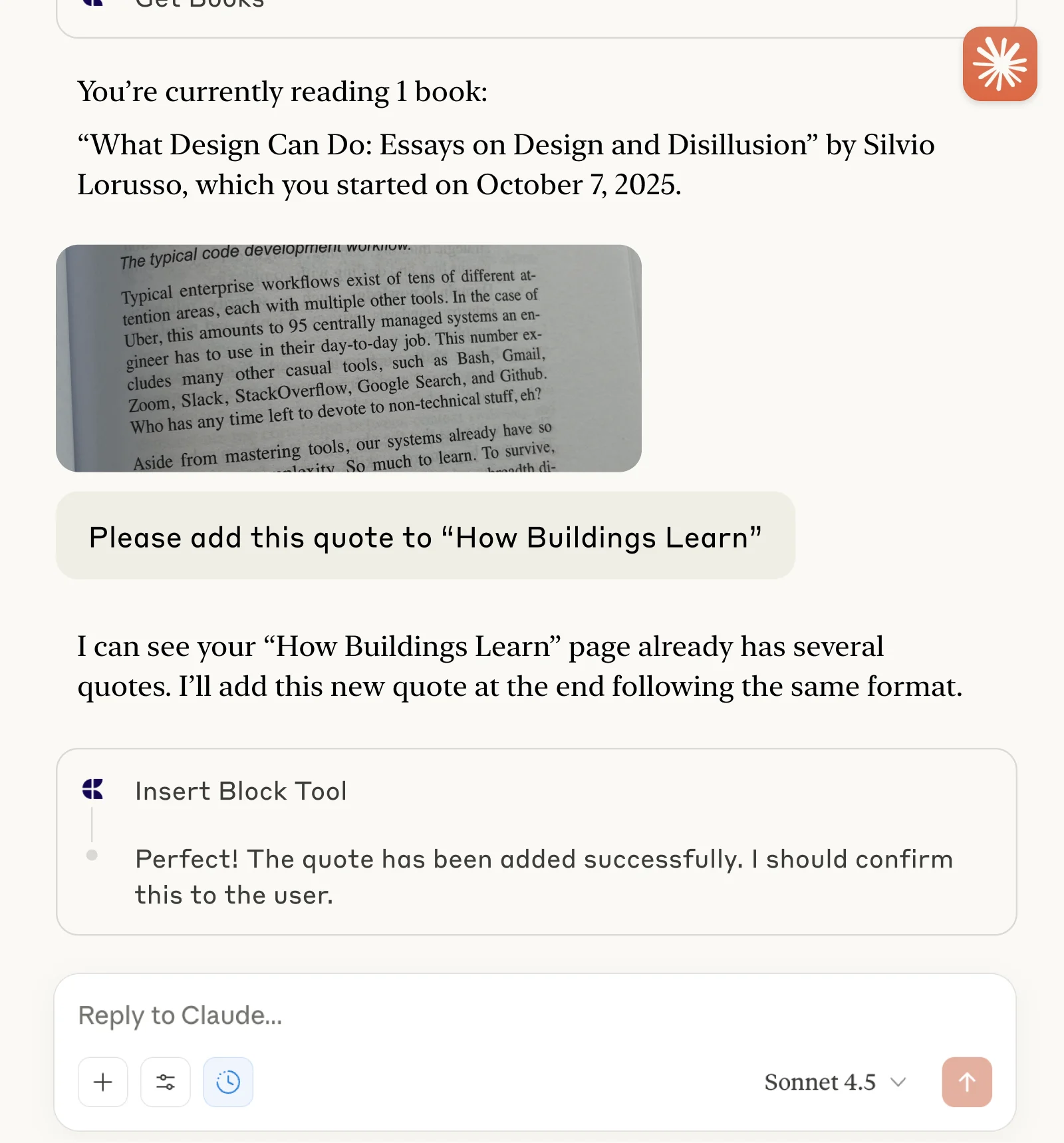
Verfolge Bücher und erfasse Zitate mit Claude oder ChatGPT über MCP.
Mehr erfahren
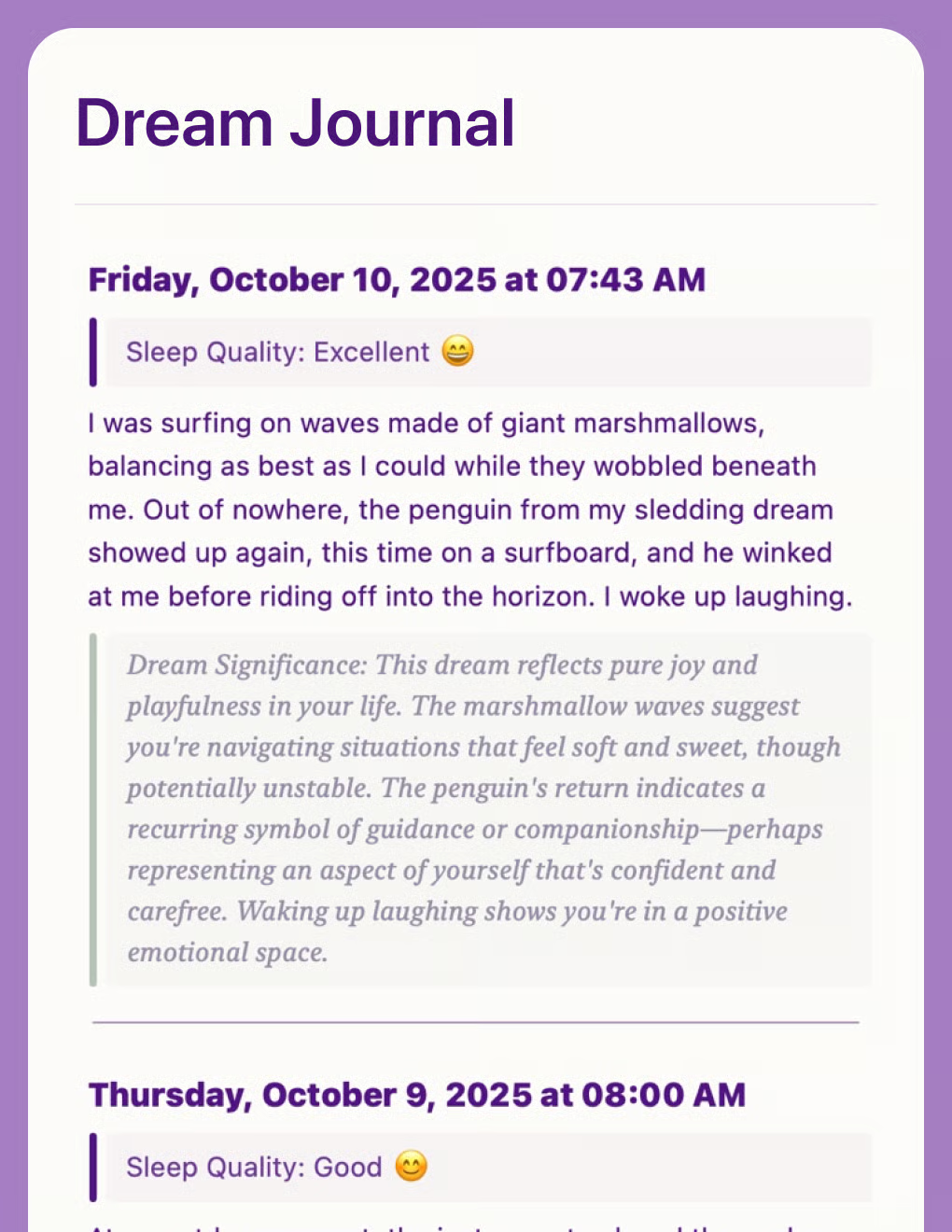
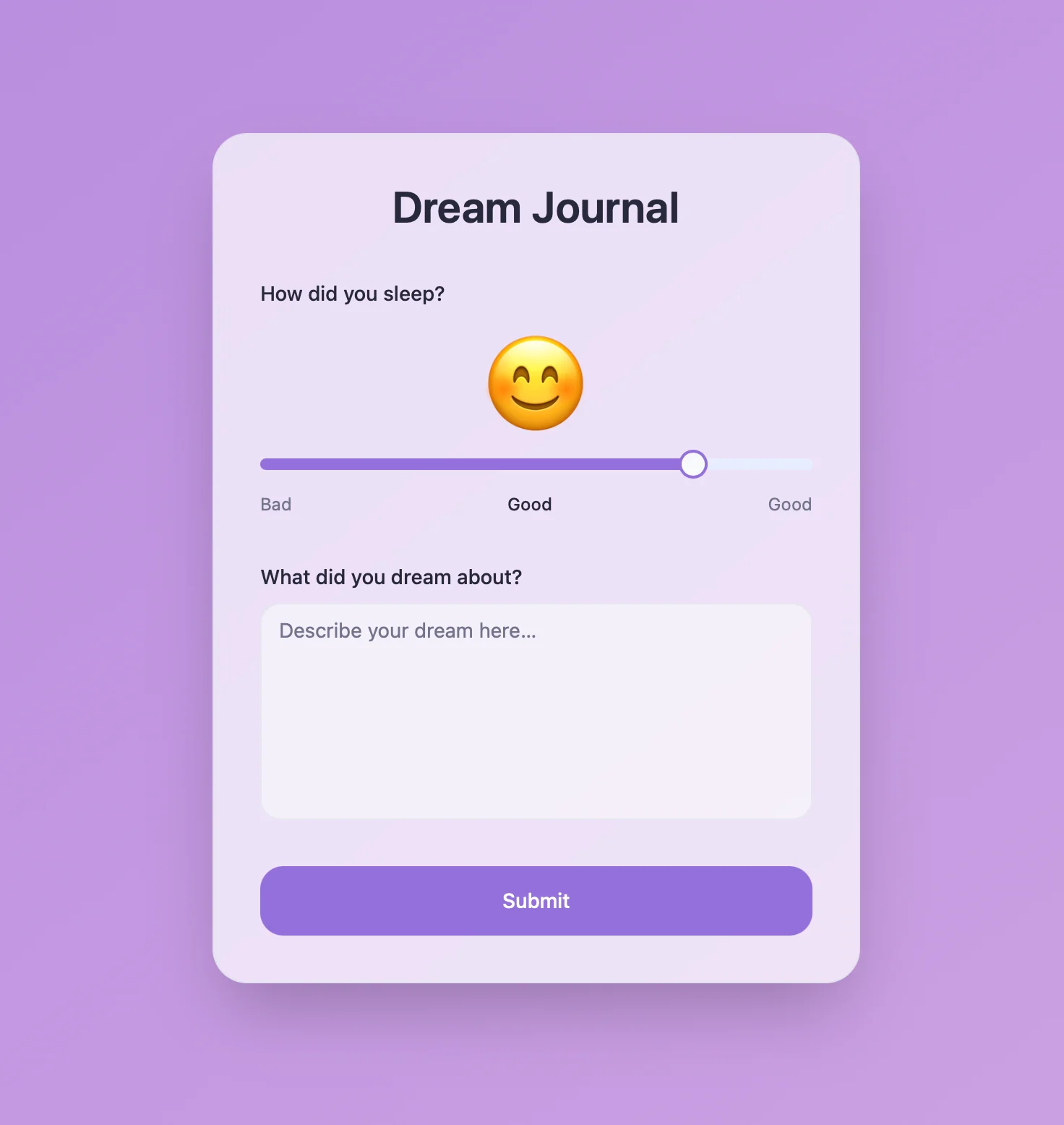
KI-gestütztes Traumtagebuch, das Muster und Themen analysiert. Erstellt mit der Craft API und Lovable.
Mehr erfahren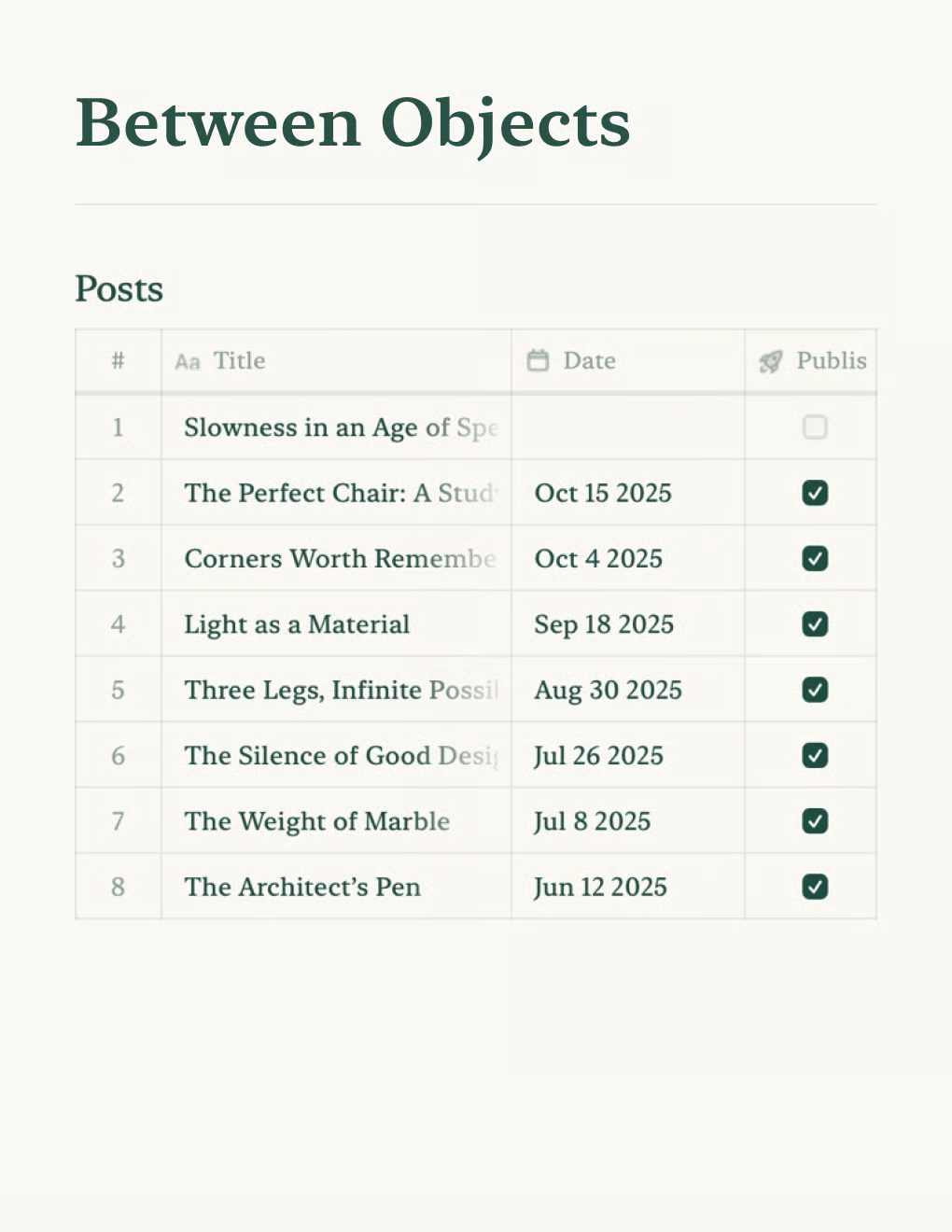
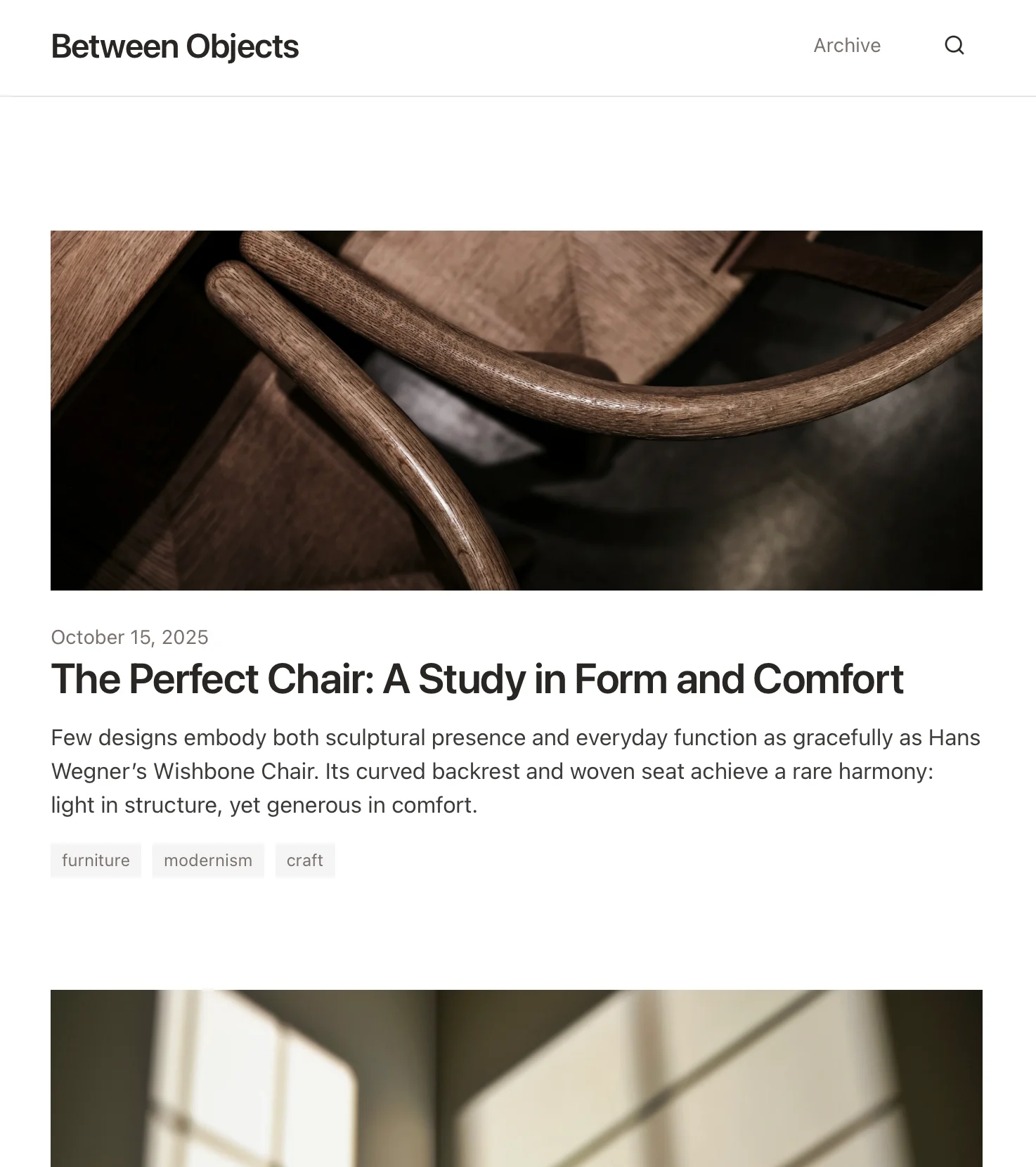
Erstelle einen persönlichen Blog mit Craft-Dokumenten. Inhalte werden automatisch per API synchronisiert – veröffentliche direkt aus deiner Notiz-App.
Mehr erfahren