Automated Daily Digest
Wire an RSS feed to a Craft collection in n8n. New articles appear in your Craft workspace automatically — no copy-pasting, no manual updates.


Creato con Craft e n8n
Costruiscilo tu
Passaggio 1 — Abilita l'accesso API
Enable read/write API access on your Craft document. n8n needs write access to create new collection items and read access to list your collections.
Passaggio 1
Passaggio 2
Passaggio 3
Passaggio 4
Passaggio 5
Passaggio 2 — Install the Craft Node in n8n
Open your n8n instance and go to Settings -> Community nodes. Click Install a community node and search for n8n-nodes-craft. This adds the Craft node with 26 actions — including the one we need: Create collection items. For the full list of available actions, see the n8n setup guide.
Passaggio 3 — Add the RSS Feed Trigger
Create a new workflow in n8n. Click Add first step and select RSS Feed Trigger. Configure it:
- Feed URL — the RSS feed you want to collect, for example:
https://news.ycombinator.com/rss- Poll Times — how often n8n checks for new items (e.g. every minute, every hour)
Click Fetch Test Event to verify the feed returns data. You should see items with title, link, and pubDate fields in the output.
Passaggio 4 — Connect Your Craft Credentials
Click the + after the RSS Feed Trigger and search for Craft. Select the Create collection items action. In the Credential to connect with dropdown, select Create new Craft account credential and fill in:
- API Base URL — paste the URL from Step 1
- API Key — paste the key from Step 1
- Connection Type —
Full Space Connection - Permissions —
Read + Write
Passaggio 5 — Configure the Craft Node
Once the credential is saved, configure the node itself:
- Resource —
Collection - Operation —
Create Items - Collection — pick your target collection from the dropdown (e.g. “News”)
- Items — paste the following JSON to map RSS fields to collection columns:
[{"title": "{{ $json.title }}", "properties": {"link": "{{ $json.link }}"}}]Passaggio 6 — Test and Activate
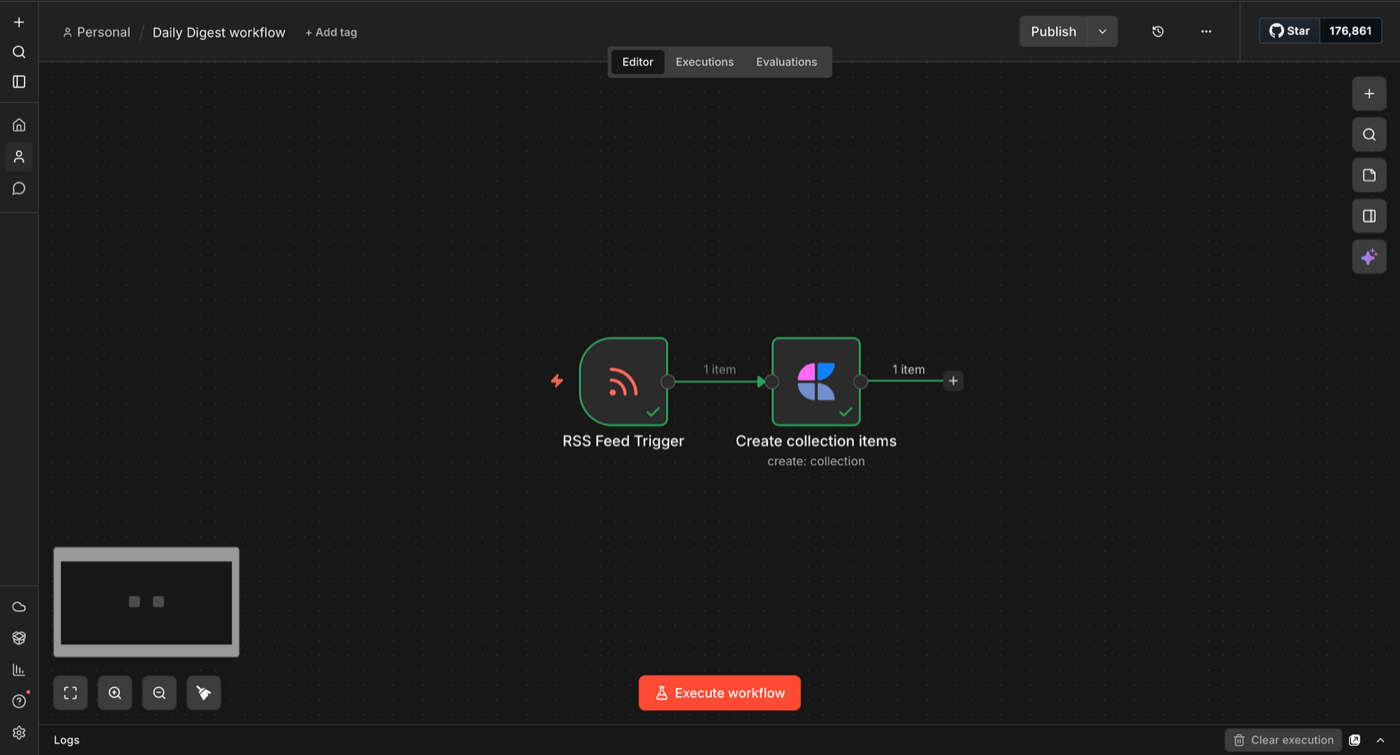
Click Execute workflow to test the full flow. If both nodes show green checkmarks and “1 item”, the RSS entry was successfully saved to your Craft collection.
Once verified, click Publish in the top-right corner to activate the workflow. From now on, n8n will poll your RSS feed on the schedule you set and automatically create new items in your Craft collection.
The Result
New articles from your favorite feeds appear in Craft automatically. No browser tabs, no copy-pasting — just open your collection and everything is there. Swap the RSS feed for any source you want to track: industry news, blog posts, release notes, competitor updates.
Altre idee da provare
Torna alla galleria
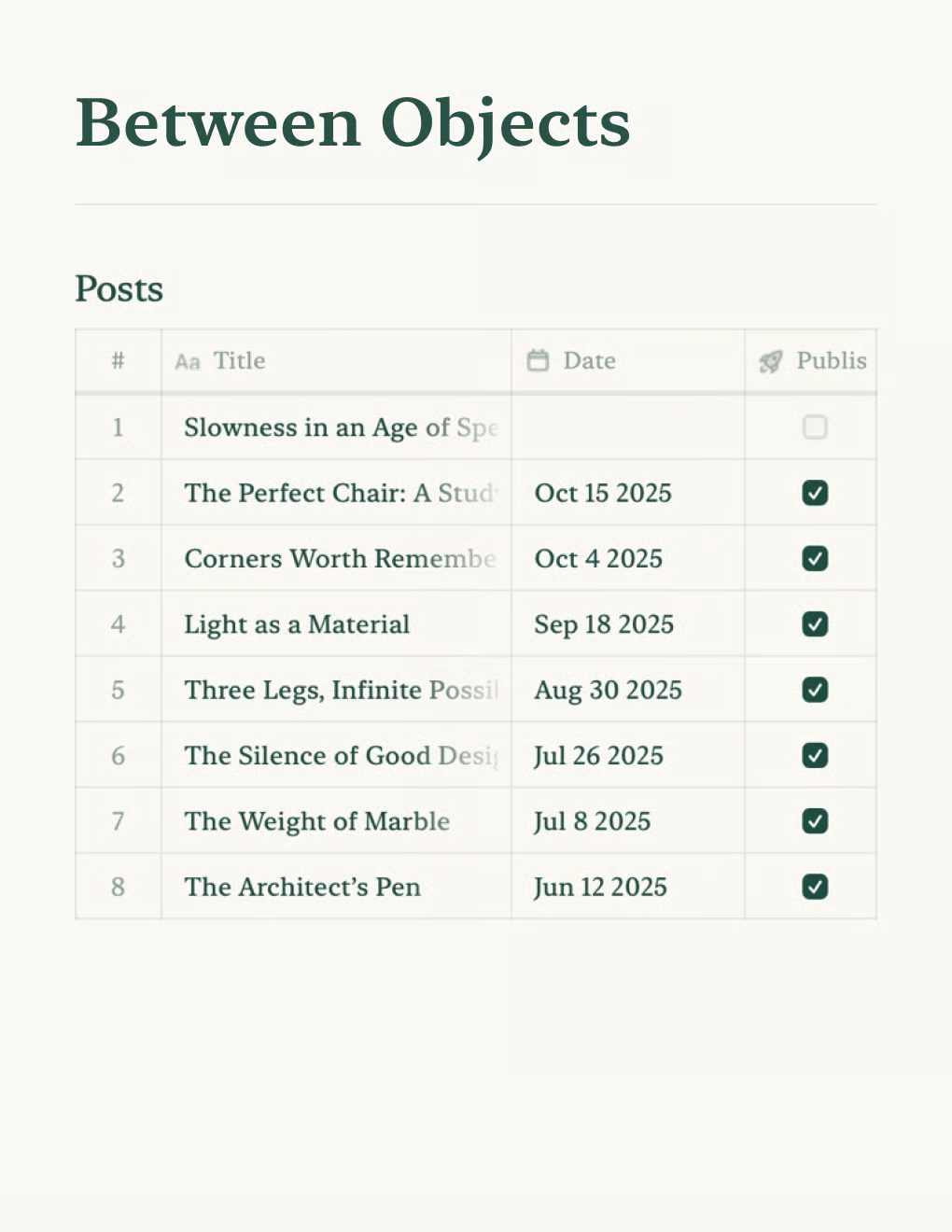
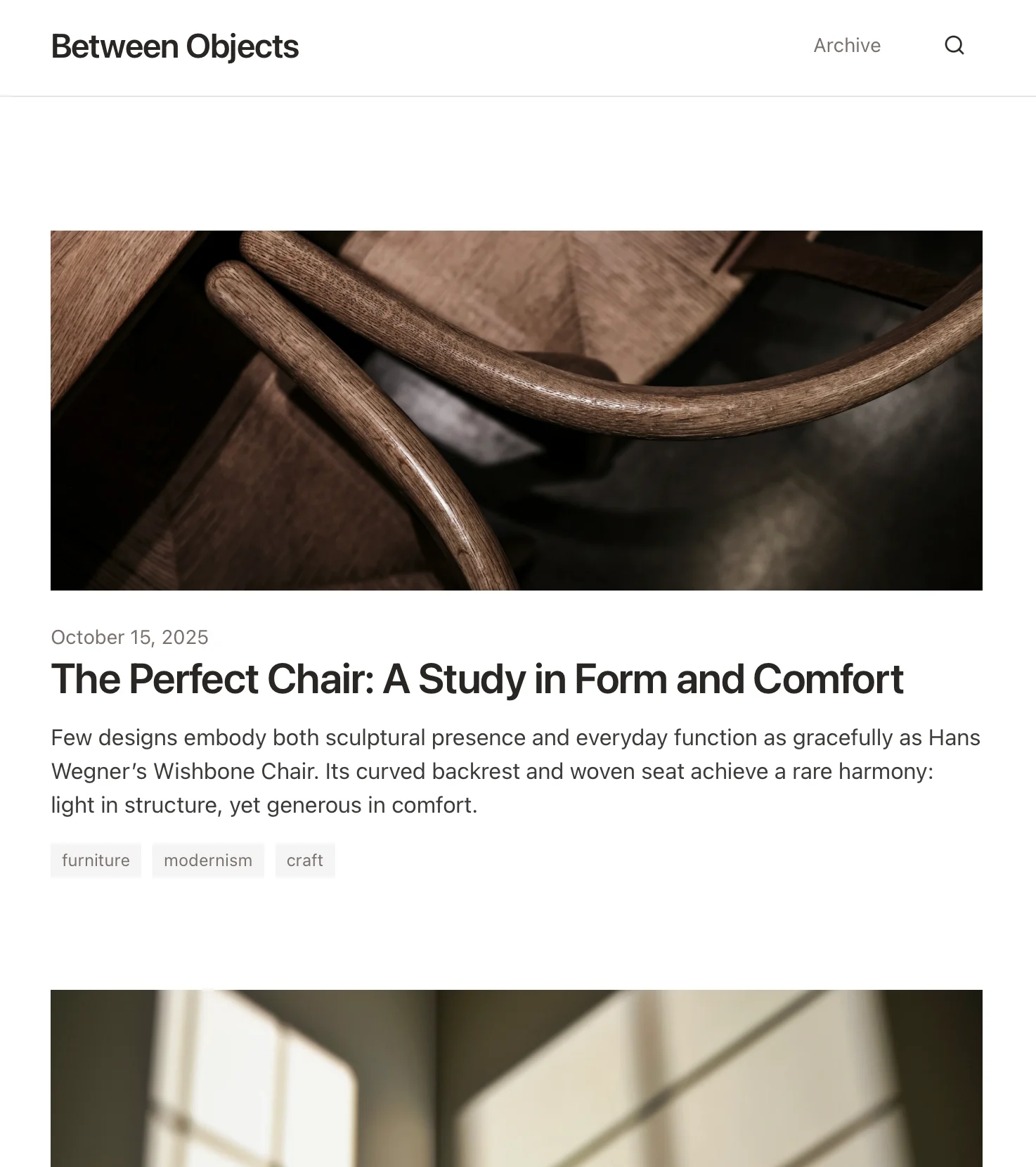
Crea un blog personale basato sui documenti Craft. Sincronizza automaticamente i contenuti via API — pubblica dalla tua app per gli appunti.
Scopri di più

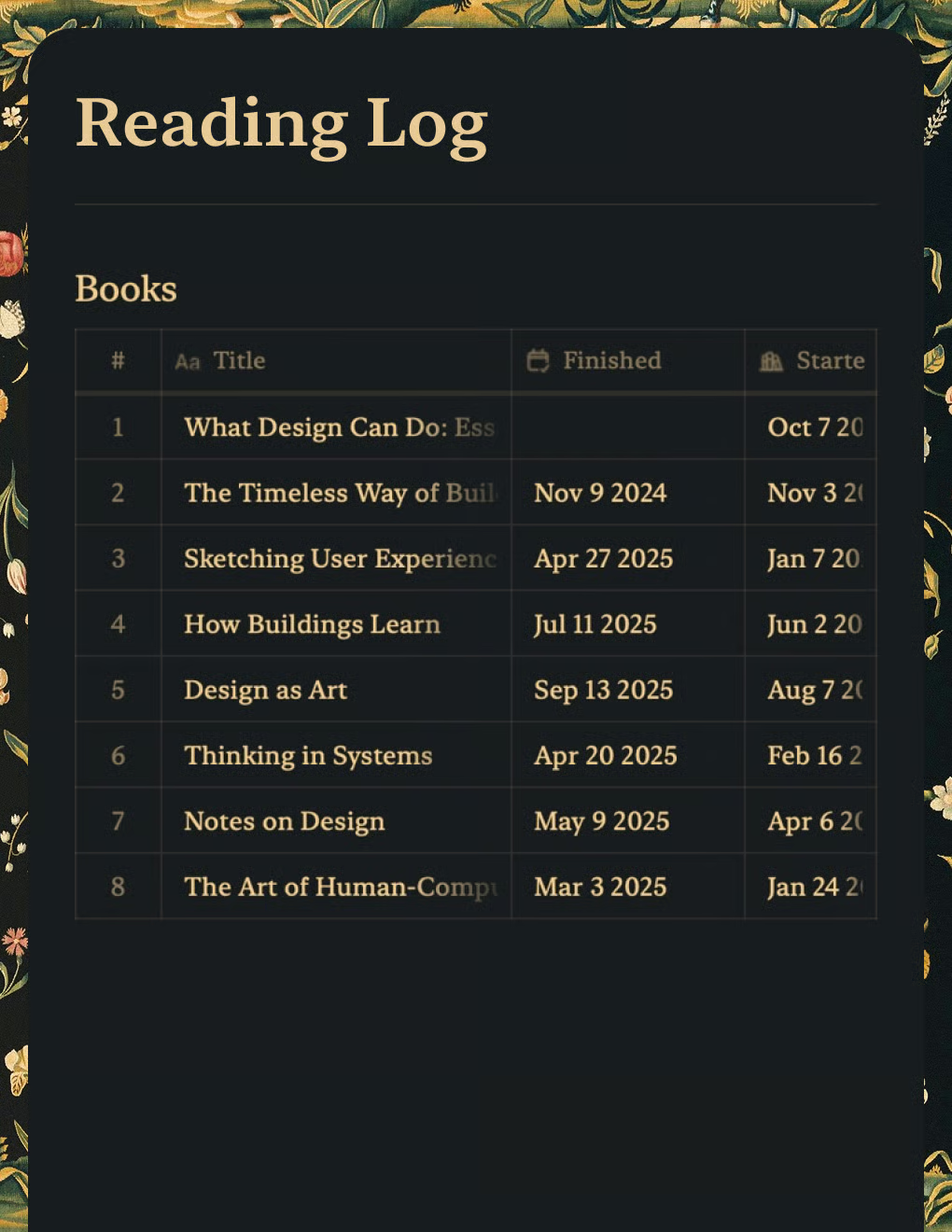
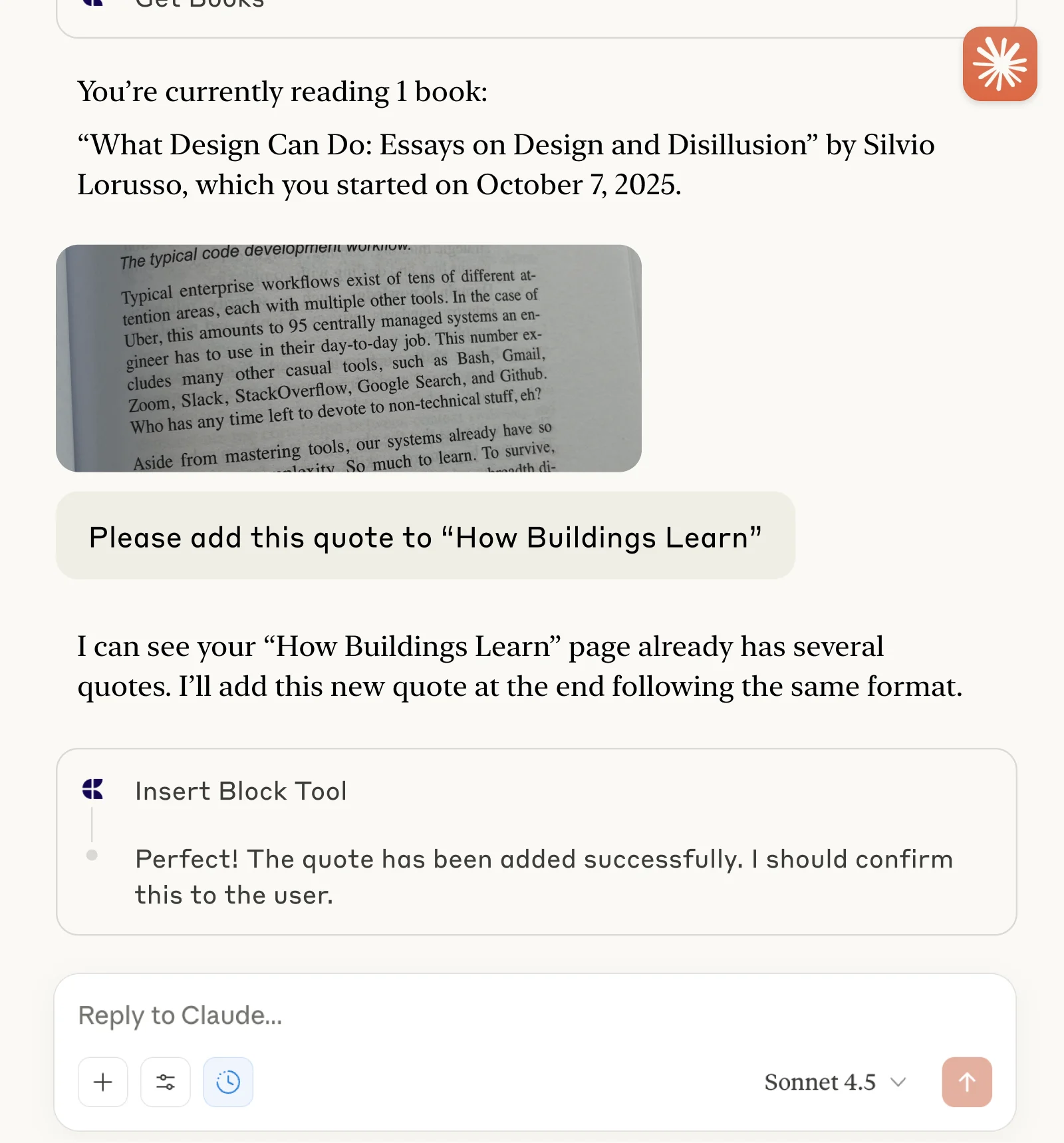
Tieni traccia dei libri e salva citazioni con Claude o ChatGPT tramite MCP.
Scopri di più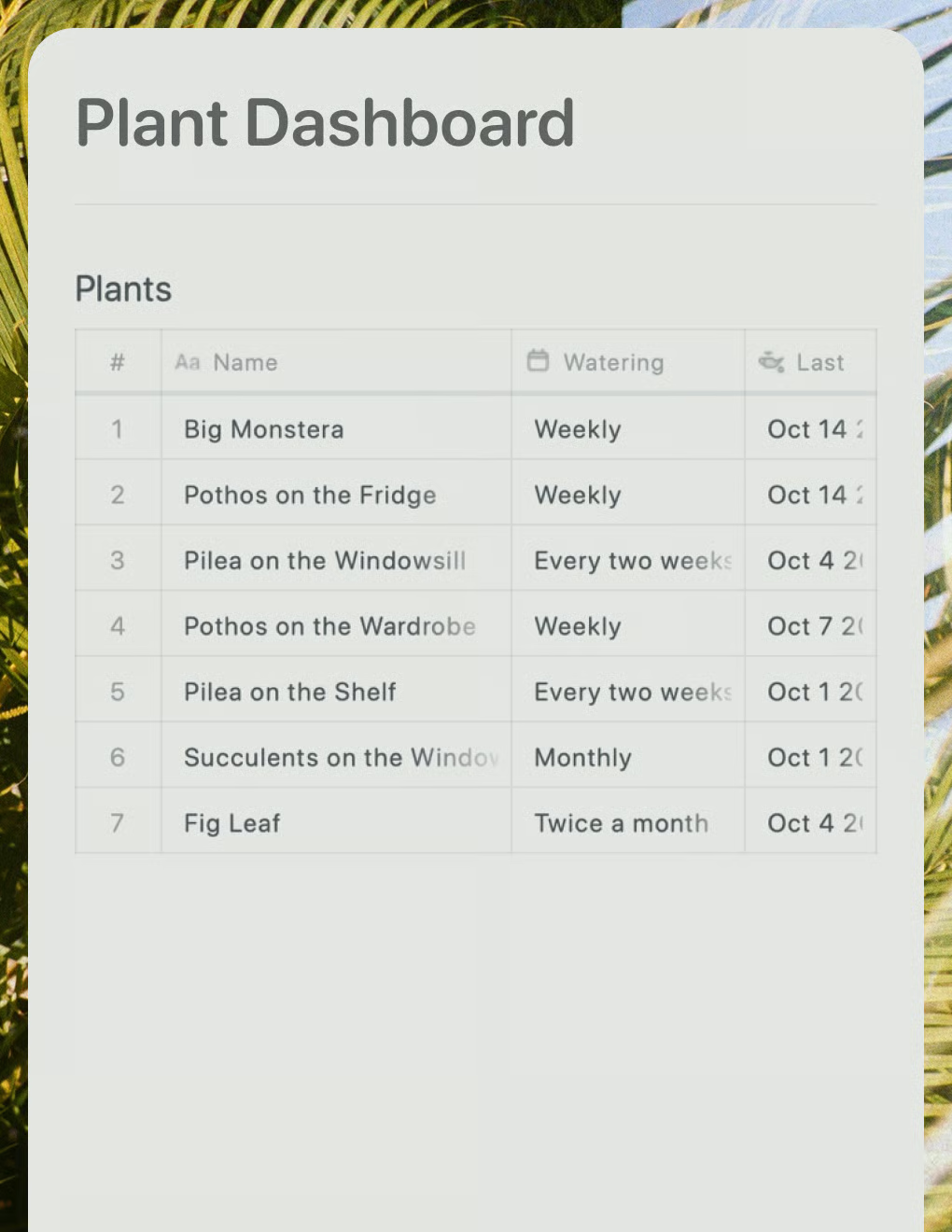
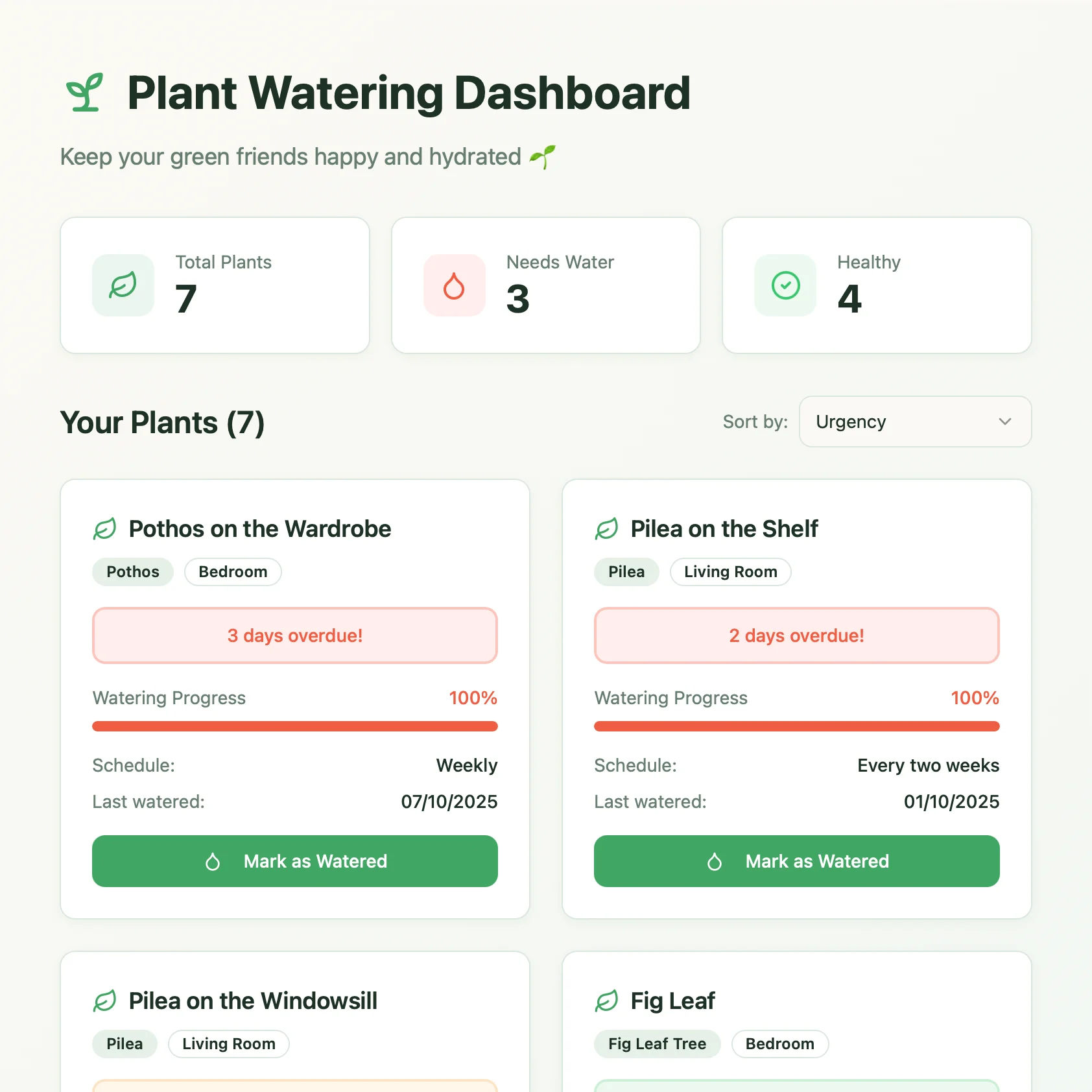
Una dashboard per la cura delle piante creata con Lovable. Recupera i programmi di annaffiatura e i consigli di cura dal tuo documento Craft.
Scopri di più