Come connettere Craft al Claude Code con MCP
Puoi abilitare un server MCP per i tuoi documenti, permettendo a Claude Code di interagire direttamente con i tuoi contenuti. Questa guida ti accompagna nella configurazione della connessione tra Craft e Claude Code tramite MCP.


Aggiungere un connettore MCP in Claude Code
Crea un nuovo connettore in Claude Code e usa l'URL MCP per collegare i due servizi.
Passaggio 1
- Ambito locale (predefinito): specifico del progetto, privato
- Ambito progetto: condiviso con il team tramite il file
.mcp.json - Ambito utente: multi-progetto, uso personale
--scope project | --scope userPassaggio 2
craft con un nome breve che ti permetta di identificare il server MCP. Per impostazione predefinita viene usato l'ambito locale, che mantiene la connessione privata per il tuo progetto corrente.claude mcp add --transport http craft https://mcp.craft.do/my/mcpPassaggio 3
/mcp in Claude Code, seleziona il server MCP appena creato e segui i passaggi nel browser per accedere.Passaggio 4
Passaggio 5
Ora puoi chiedere a Claude Code informazioni sui tuoi documenti e persino farli aggiornare. Prova qualcosa del genere per iniziare:
Fai clic su un esempio per copiare il prompt negli appunti
Alcune idee per iniziare
Sfoglia gli esempi
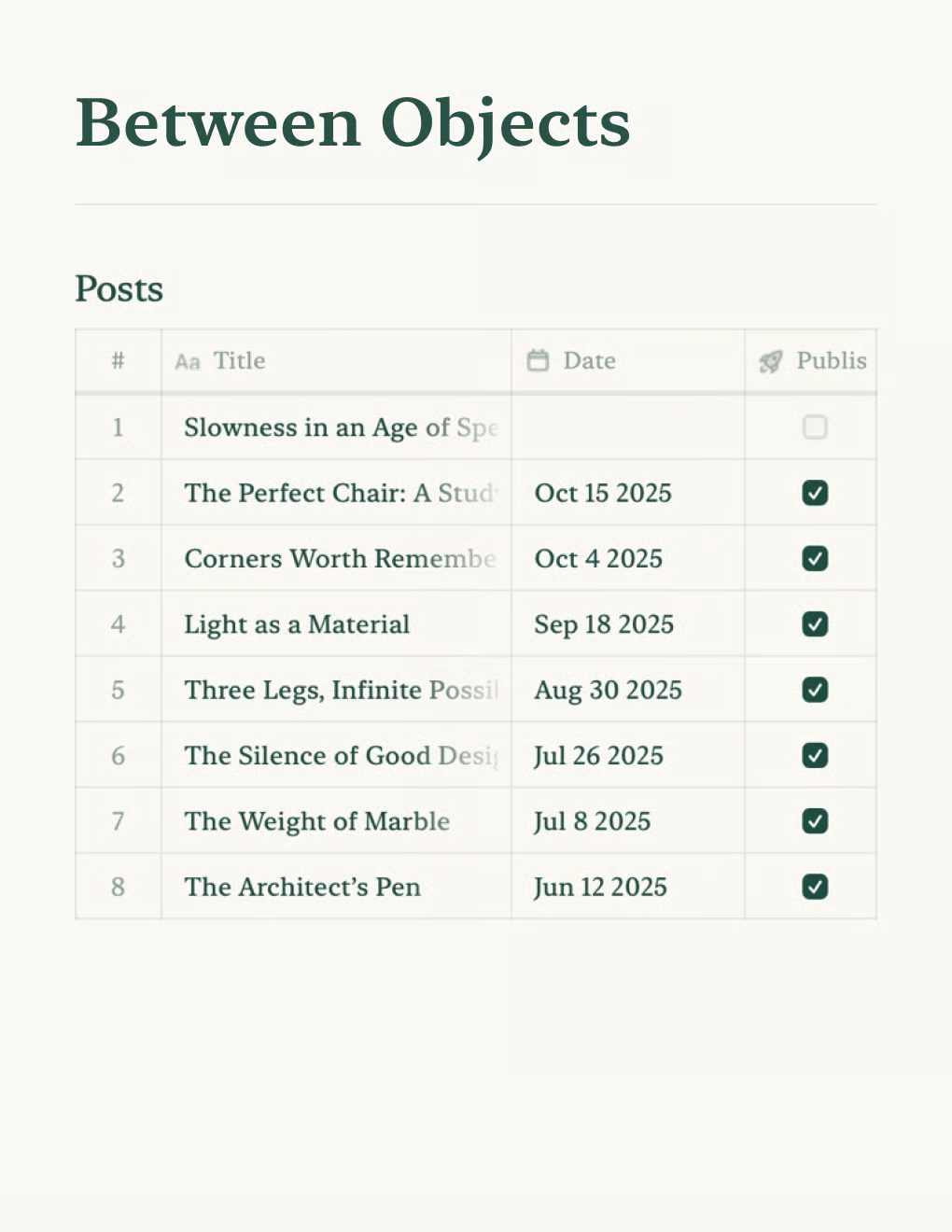
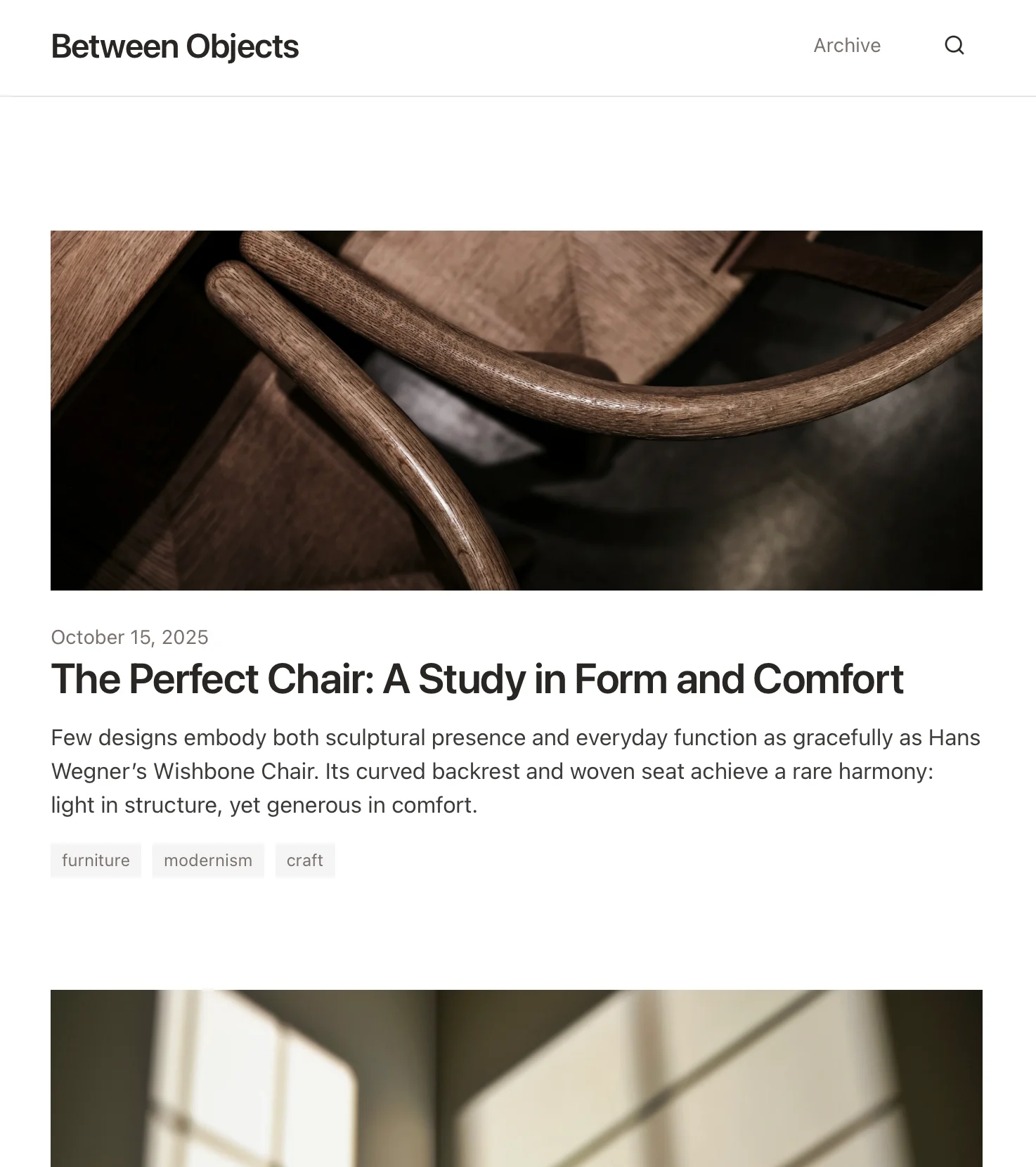
Crea un blog personale basato sui documenti Craft. Sincronizza automaticamente i contenuti via API — pubblica dalla tua app per gli appunti.
Scopri di più

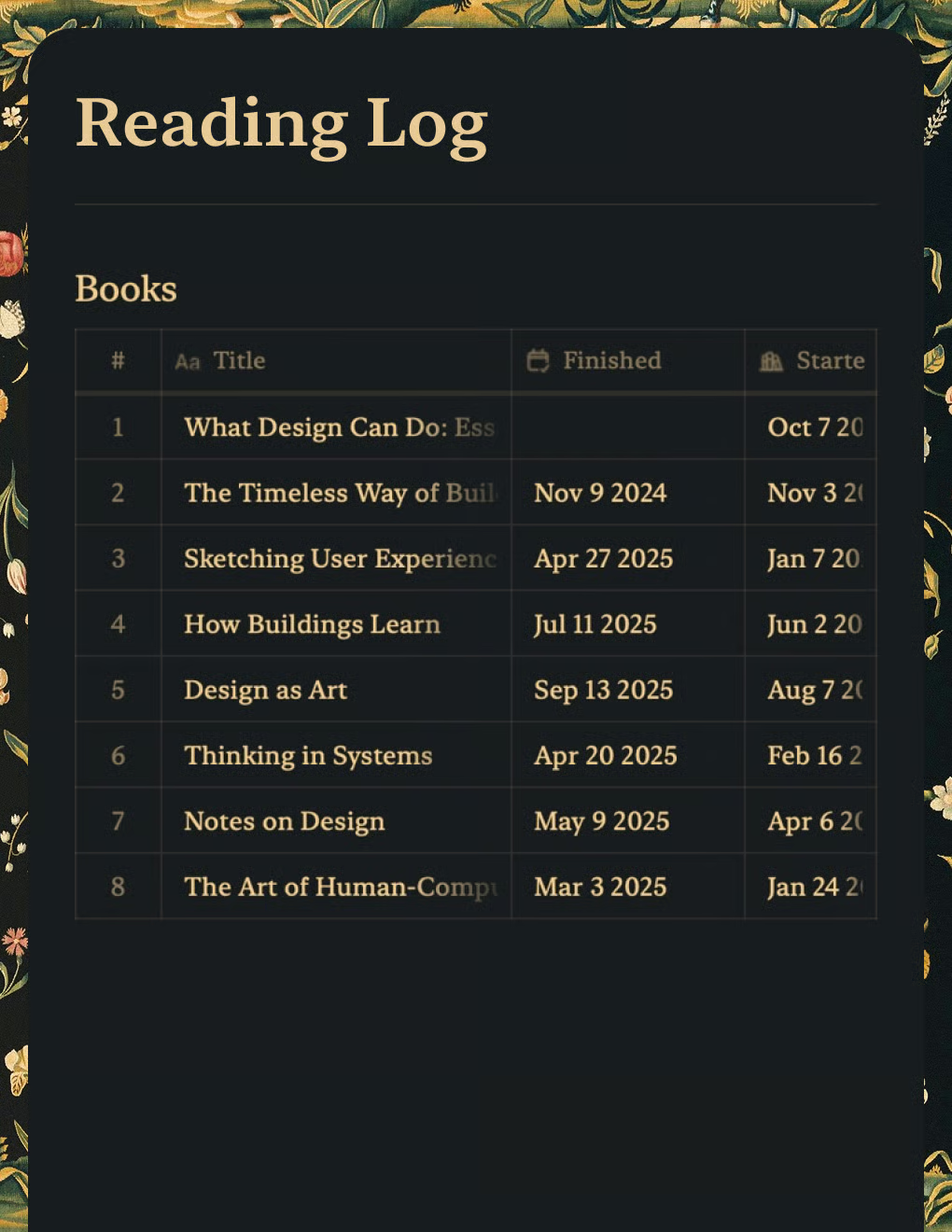
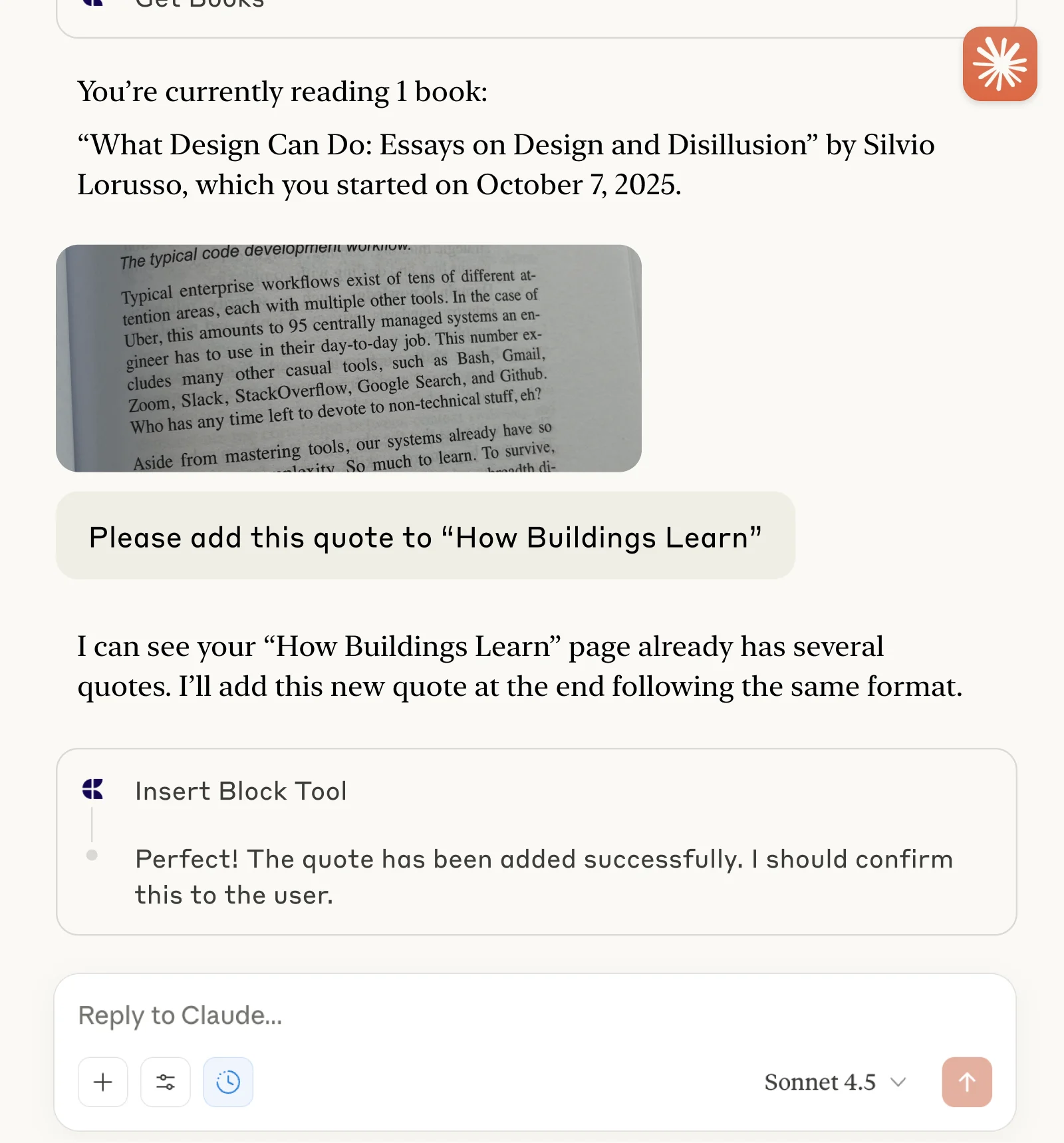
Tieni traccia dei libri e salva citazioni con Claude o ChatGPT tramite MCP.
Scopri di più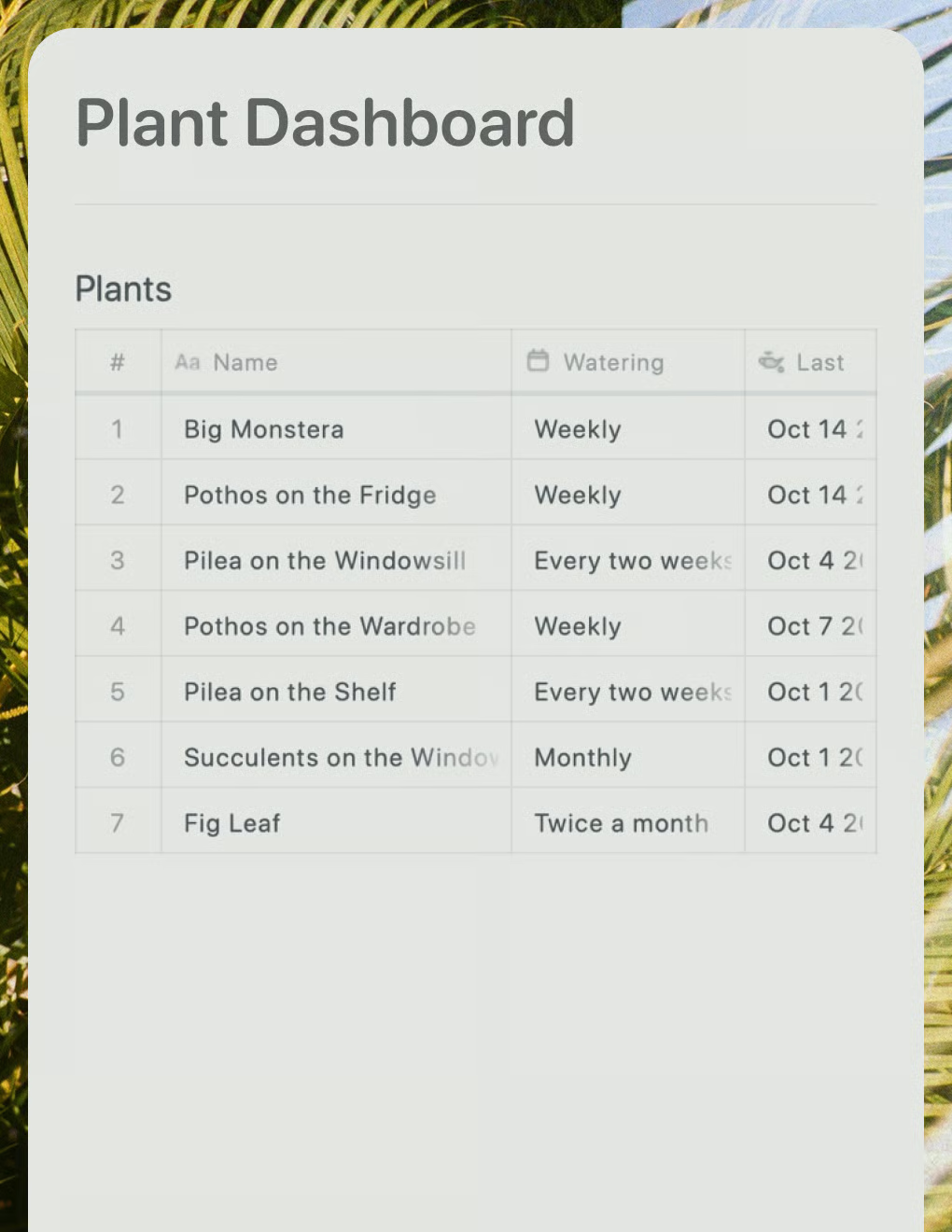
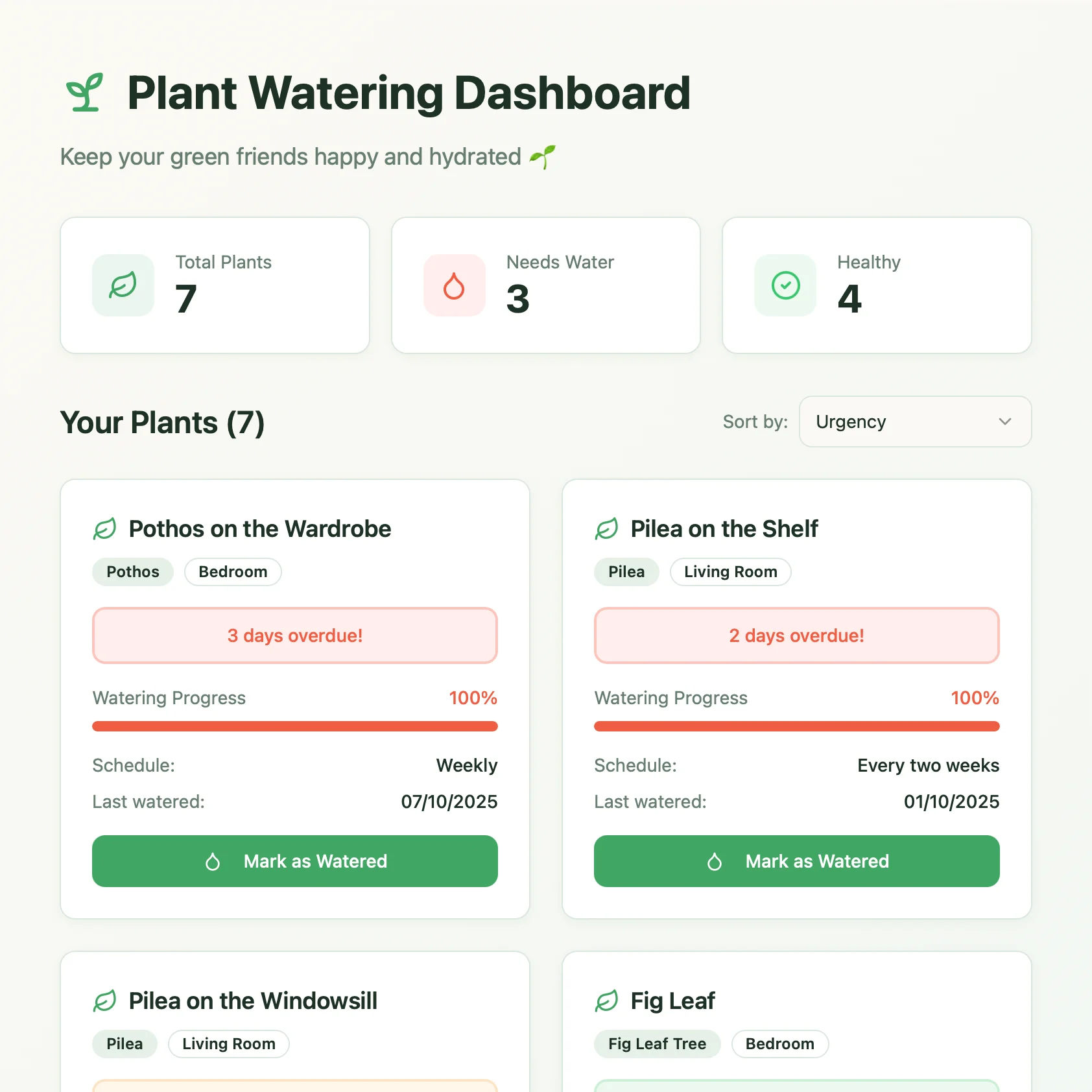
Una dashboard per la cura delle piante creata con Lovable. Recupera i programmi di annaffiatura e i consigli di cura dal tuo documento Craft.
Scopri di più