Craft와 함께 상상하기

Craft API로 Apple Shortcuts에서 빌드하기
API가 활성화되면 Craft 문서로 워크플로를 구동할 준비가 됩니다. Apple 단축어로 자동화하고 문서를 활용해 보세요.
문서용 API 활성화
먼저 API를 활성화해 문서용 API 엔드포인트가 생성될 수 있게 설정해야 합니다. 그 후 Apple Shortcuts에서 해당 API 엔드포인트 URL을 사용해 서버에 연결하세요.
단계 1
“상상해보기” 탭을 열어보세요
단계 2
“첫 번째 API 추가”를 클릭하세요
단계 3
API 연결에 이름을 설정하세요.
단계 4
“문서 추가”를 클릭해 API를 연결할 문서를 선택하세요.
단계 5
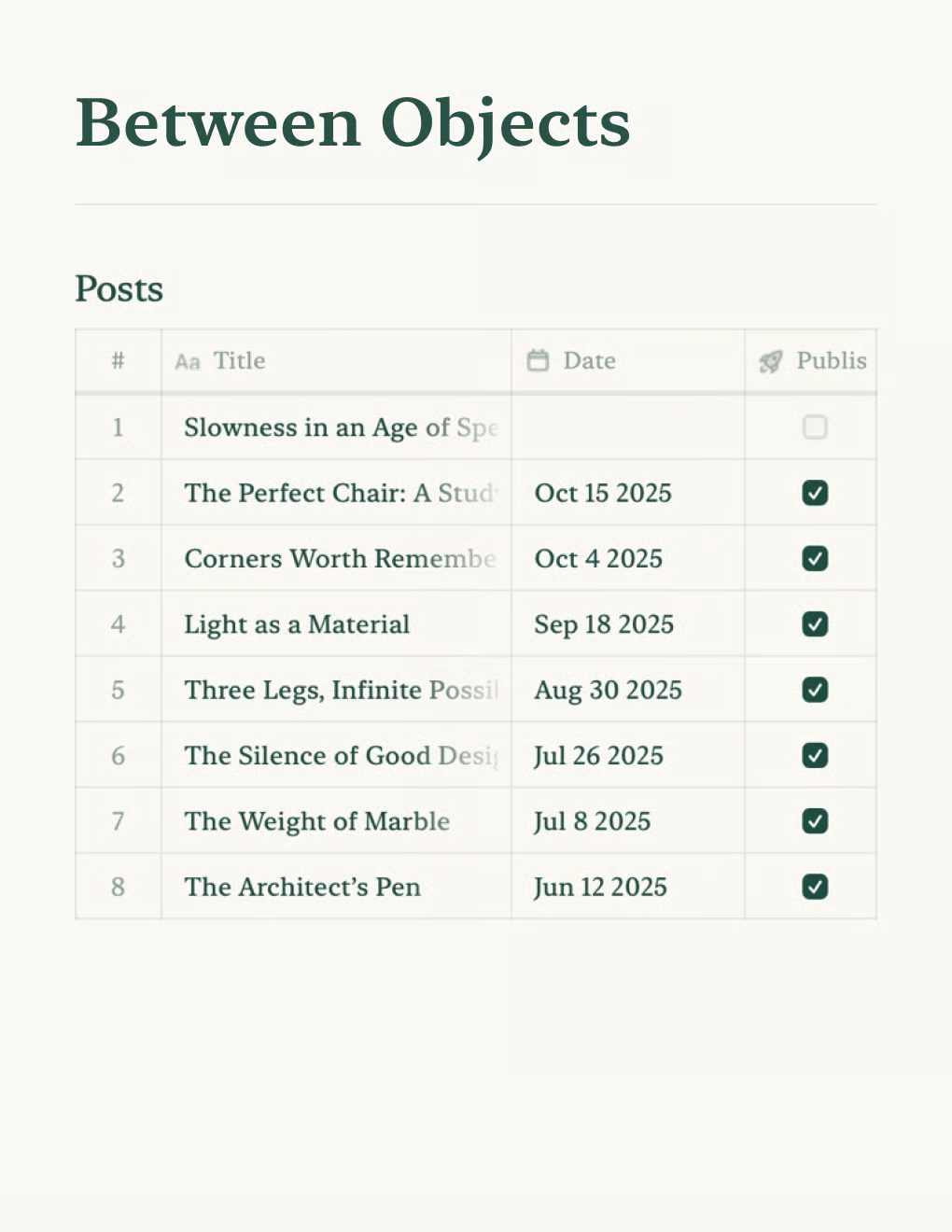
문서와 연결되는 API URL이 이제 상단에 표시됩니다
단계 6
“AI 번들 다운로드” 버튼을 클릭하세요. API 문서와 해당 문서의 내용이 담긴 폴더가 다운로드됩니다.
Apple 단축어에서 API 사용하기
Craft 문서에서 API를 활성화하면, Apple 단축어에서 API를 활용해 작업을 자동화할 수 있습니다.
Apple 단축어를 사용하면 탭 한 번, Siri 음성 명령, 혹은 자동 실행으로 여러 작업을 한꺼번에 처리할 수 있습니다. 다양한 동작을 결합하여 단축어를 만들고, 홈 화면에 추가하거나 Apple Watch에서 실행하거나 공유 시트를 통해 사용할 수 있습니다.
단계 1
단축어에서 새 단축어를 만드세요. 이 예시는 macOS에서 단축어를 만드는 방법을 보여주지만, iOS에서도 동일한 과정이 적용됩니다.
단계 2
단축어의 기본 설정을 구성하세요. 여기서는 음성 메모를 Craft 문서에 저장하는 단축어를 만들어 보겠습니다.
단계 3
URL 내용 가져오기 동작을 사용하면 API 엔드포인트를 통해 Craft 문서를 다룰 수 있습니다. 단축어의 웹 API에 대해 자세히 알아보세요.
단계 4
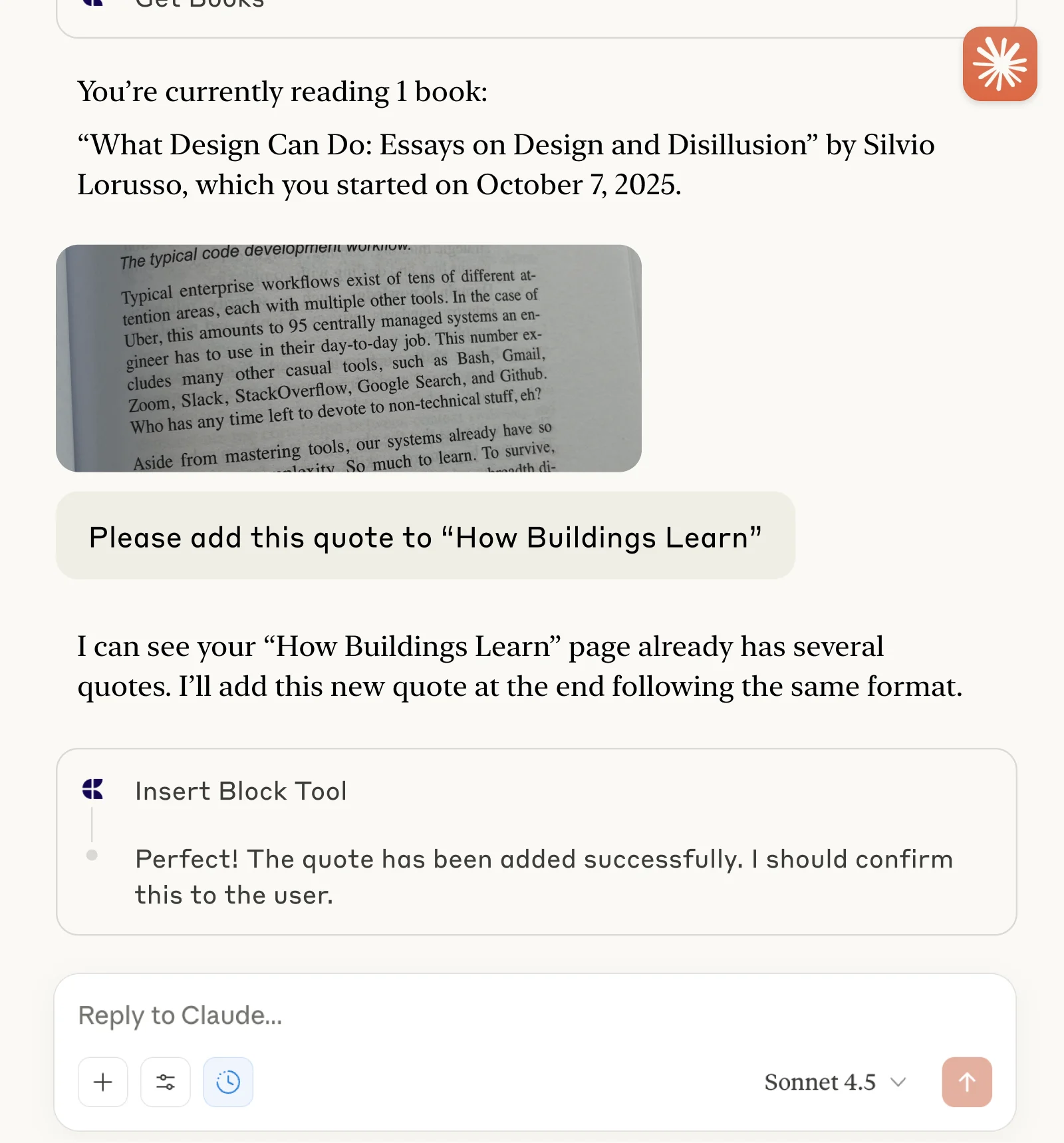
필요한 엔드포인트를 사용하고 올바른 데이터를 전송하도록 API 호출을 설정하세요. 여기서는 음성 메모 텍스트 변환 내용을 텍스트 블록으로 삽입해 보겠습니다. 단축어에서의 JSON 사용법에 대해 자세히 알아보세요.
단계 5
이제 단축어가 준비되었습니다! 잠금 화면에 추가하여 음성 메모를 Craft 문서에 빠르게 저장할 수 있습니다.