Imagine With Craft

MCP로 Craft를 Codex CLI에 연결하는 방법
문서에 MCP 서버를 활성화하면 Codex CLI이 여러분의 콘텐츠와 직접 상호작용할 수 있습니다. 이 가이드는 MCP를 이용해 Craft와 Codex CLI을 연결하는 방법을 단계별로 안내합니다.
Adding an MCP Connector in Codex CLI
Create a new connector in Codex CLI and use the MCP URL to connect the two services.
Step 1
터미널에서 다음 명령어를 실행하여 Craft를 MCP 서버로 추가하세요.
craft 부분을 원하는 설명적인 이름으로 바꿔도 됩니다.codex mcp add --transport http craft https://mcp.craft.do/my/mcpStep 2
Craft 인증 페이지가 표시되는 브라우저 창이 열립니다. 연결하려는 공간을 선택하고 "승인"을 클릭하여 액세스 권한을 부여하세요.
You can now ask Codex CLI about your documents, and even have them updated. Try something like this to get started:
Click an example to copy the prompt to your clipboard
Some Ideas to Get You Started
Browse Examples

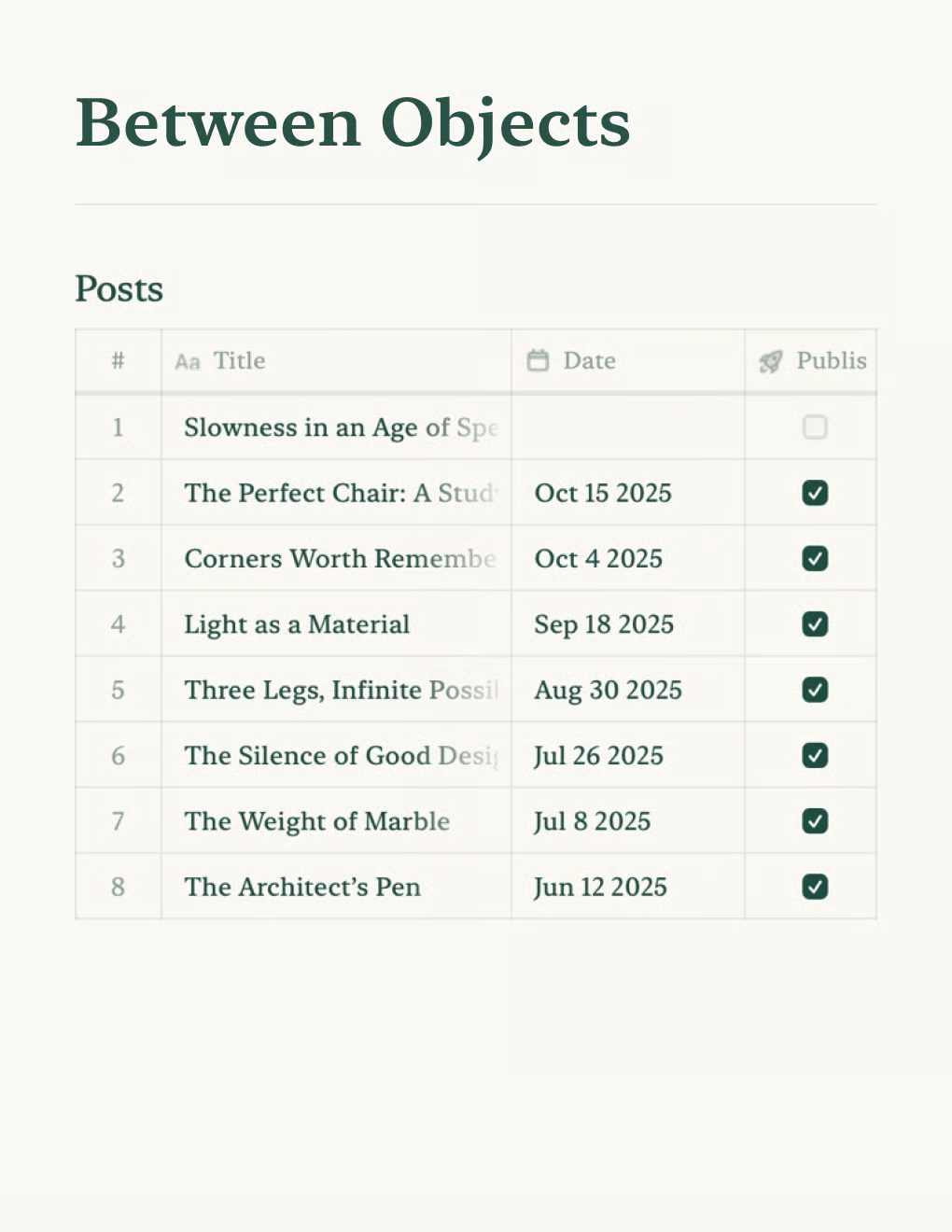
Personal Blog
Build a personal blog powered by Craft docs. Auto-syncs content via API — publish from your notes app.
더 알아보기

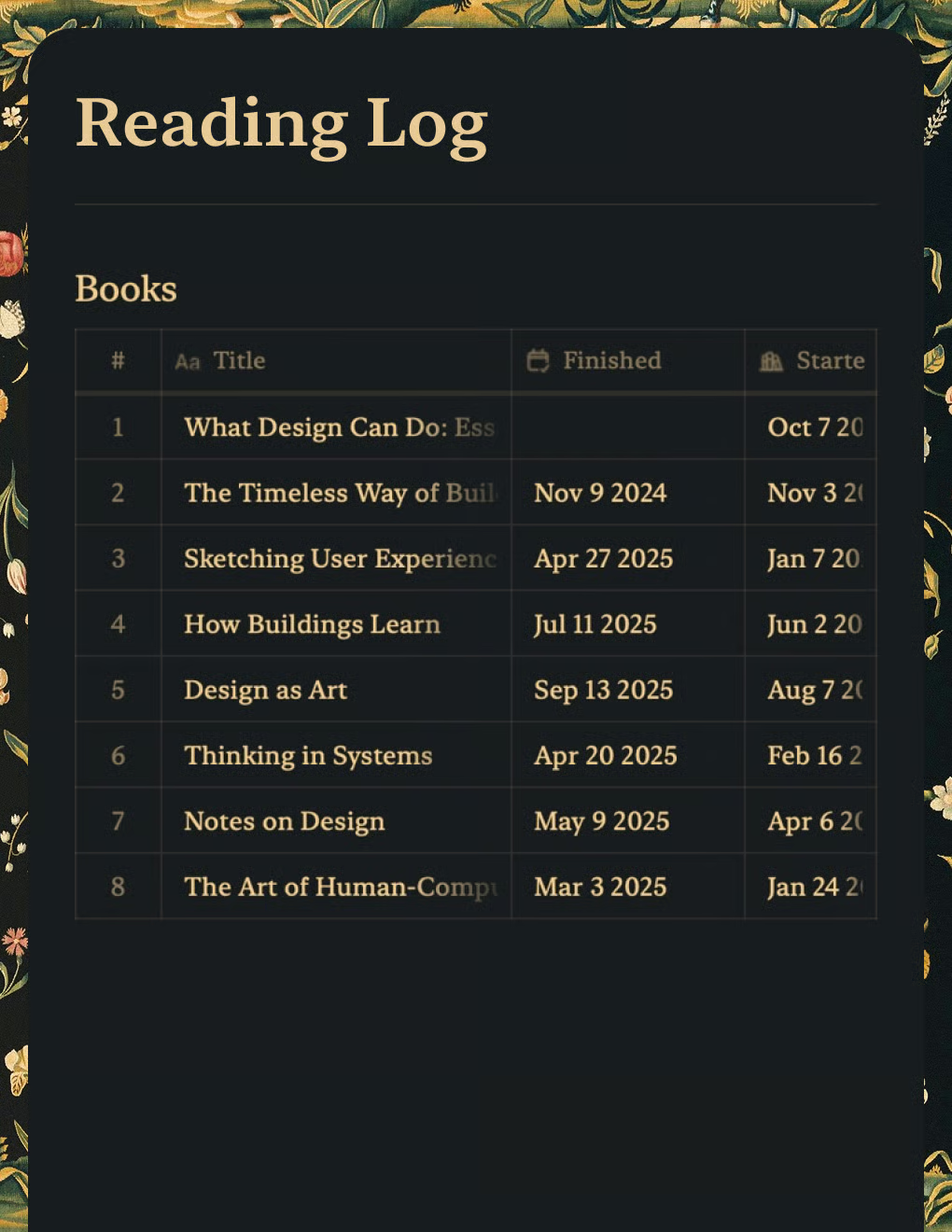
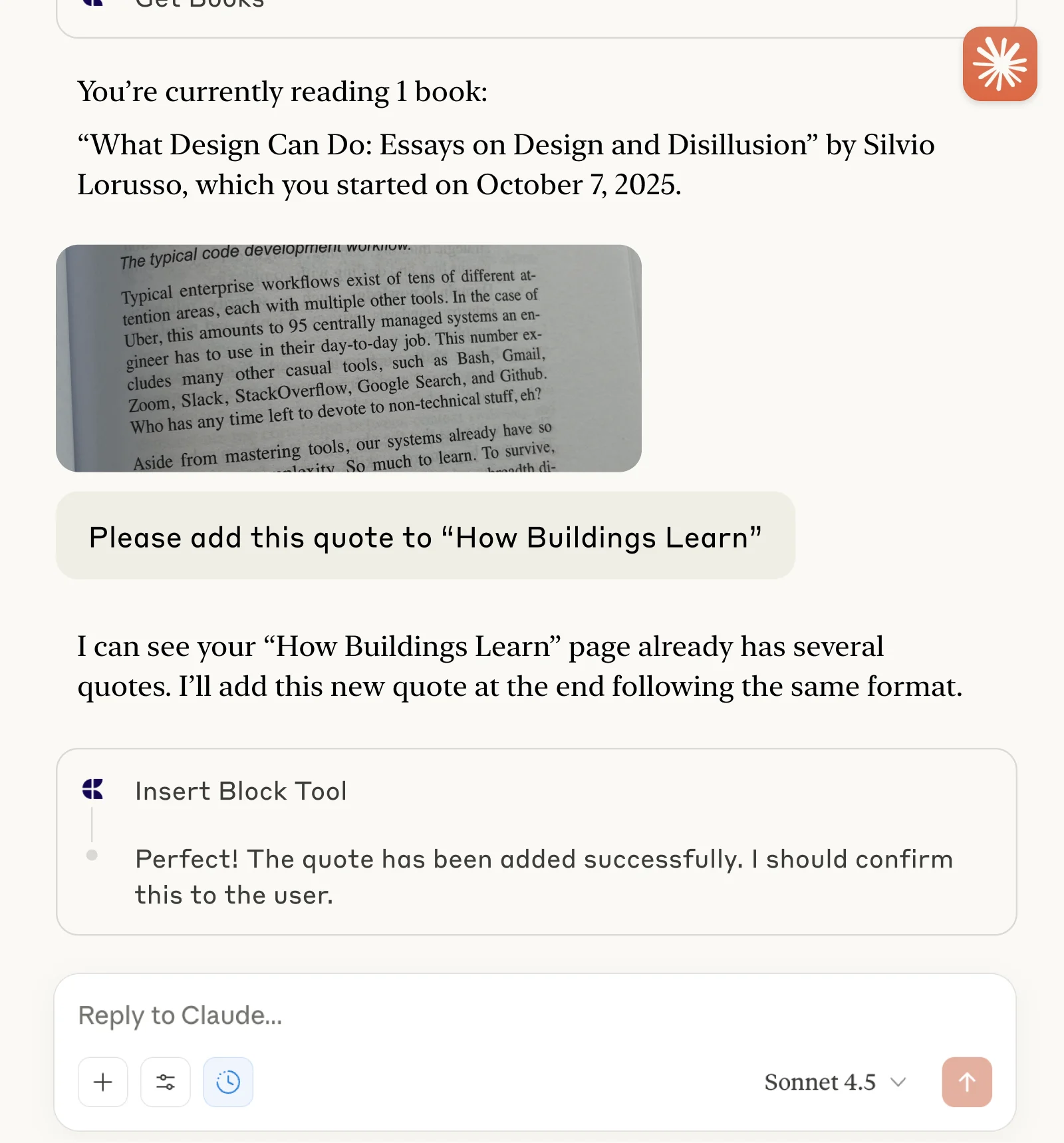
Reading Log
Track books and capture quotes with Claude or ChatGPT via MCP.
더 알아보기

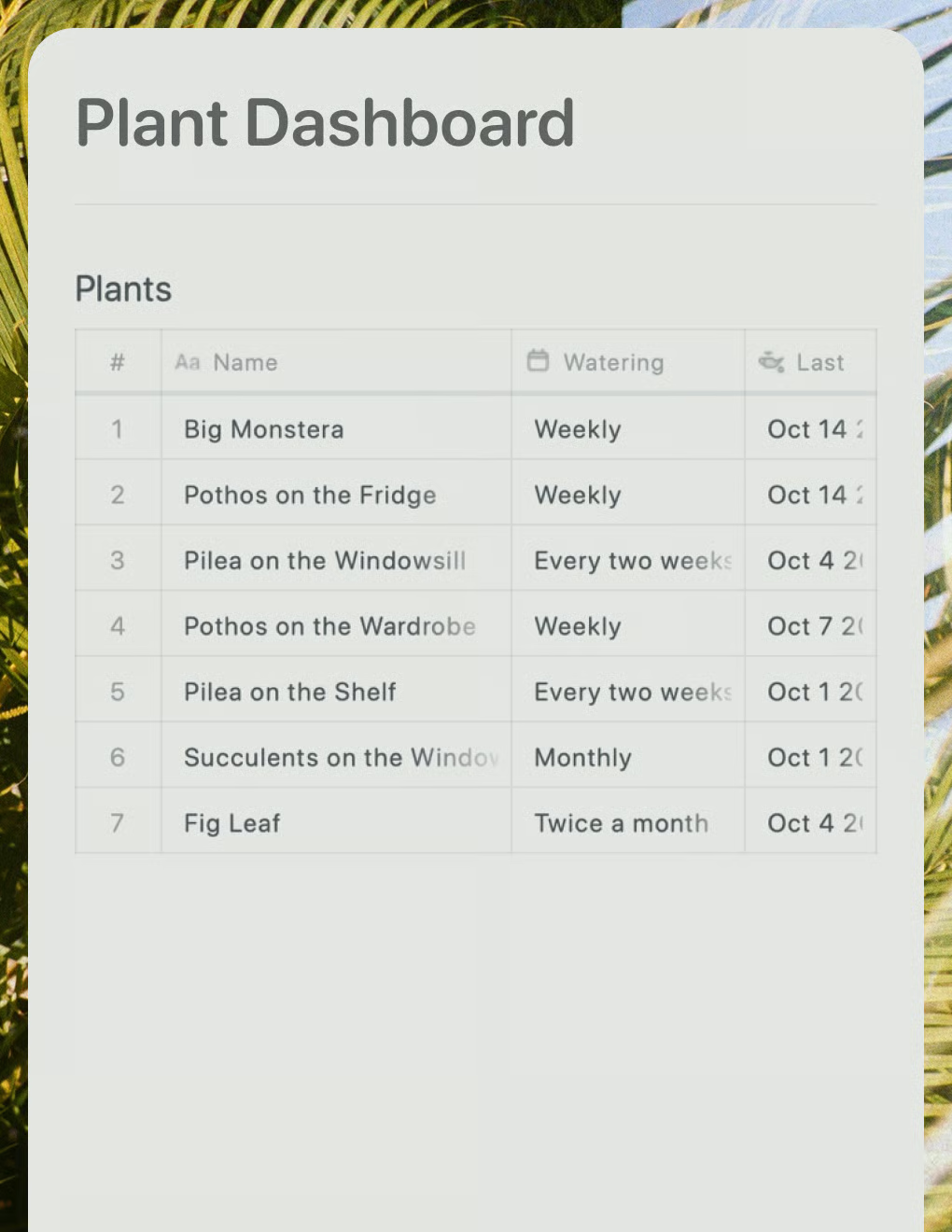
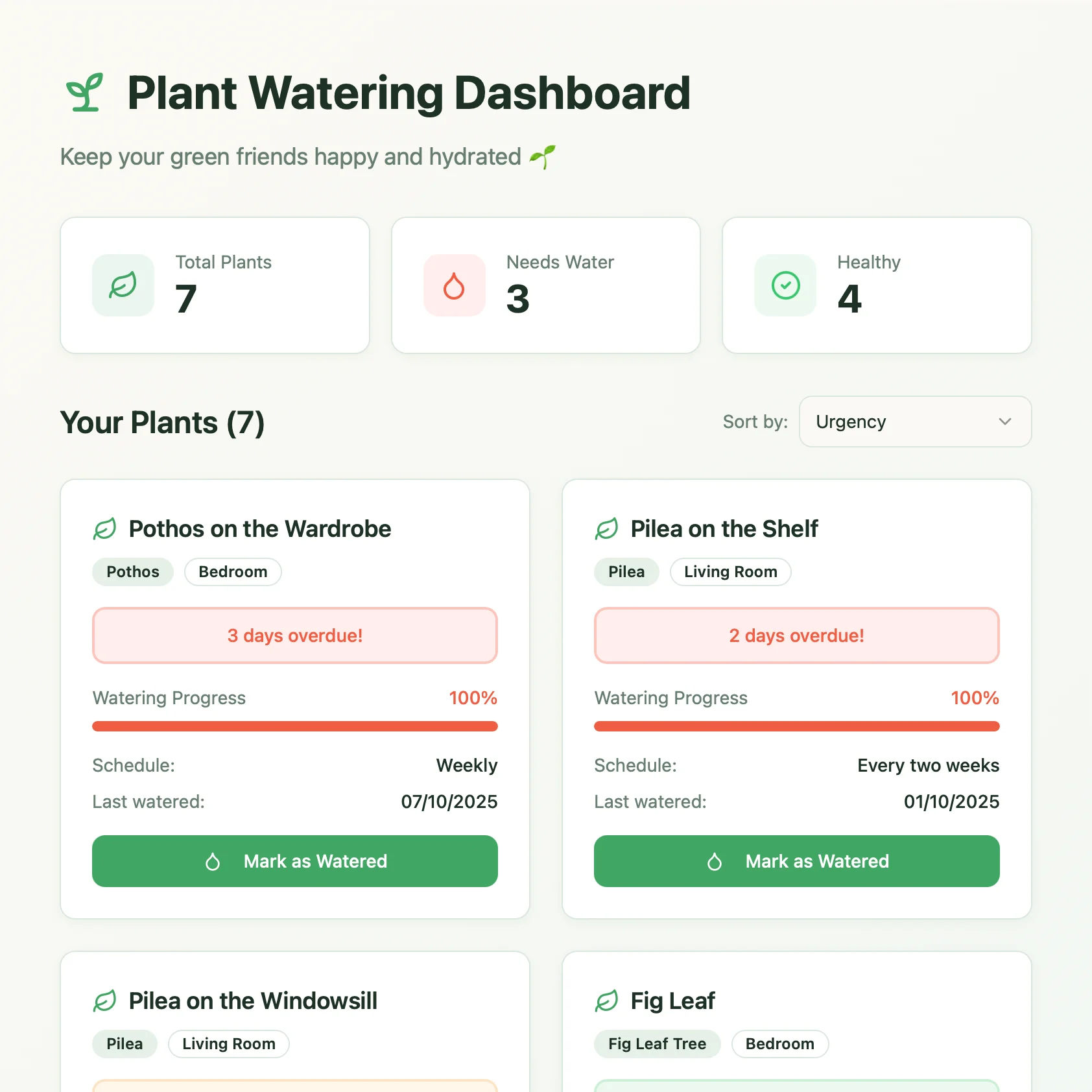
Plant Dashboard
A live plant care dashboard built with Lovable. Pulls watering schedules and care tips from your Craft doc.
더 알아보기