Craft와 함께 상상하기

MCP로 Craft를 Mistral Le Chat에 연결하는 방법
MCP를 통해 Craft 문서를 Mistral Le Chat에 연결하는 단계별 가이드입니다. Mistral Le Chat에서 직접 노트를 읽고, 검색하고, 업데이트하세요.
Mistral Le Chat에서 MCP 커넥터 추가하기
Mistral Le Chat에서 새 커넥터를 만들고 MCP URL을 사용하여 두 서비스를 연결하세요.
단계 1
Mistral Le Chat 커넥터 페이지로 이동하세요. 사이드바 → 커넥터에서도 찾을 수 있습니다.
이 URL을 복사하여 URL 입력란에 붙여넣으세요.
https://mcp.craft.do/my/mcp단계 2
“+ 커넥터 추가”를 클릭하고 “사용자 지정 MCP 커넥터” 탭을 선택합니다. 커넥터에 의미 있는 이름을 지정하고 MCP URL을 붙여넣습니다. “추가”를 클릭하여 연결을 생성합니다.
단계 3
Craft 인증 페이지가 표시되는 브라우저 창이 열립니다. 연결하려는 공간을 선택하고 "승인"을 클릭하여 액세스 권한을 부여하세요.
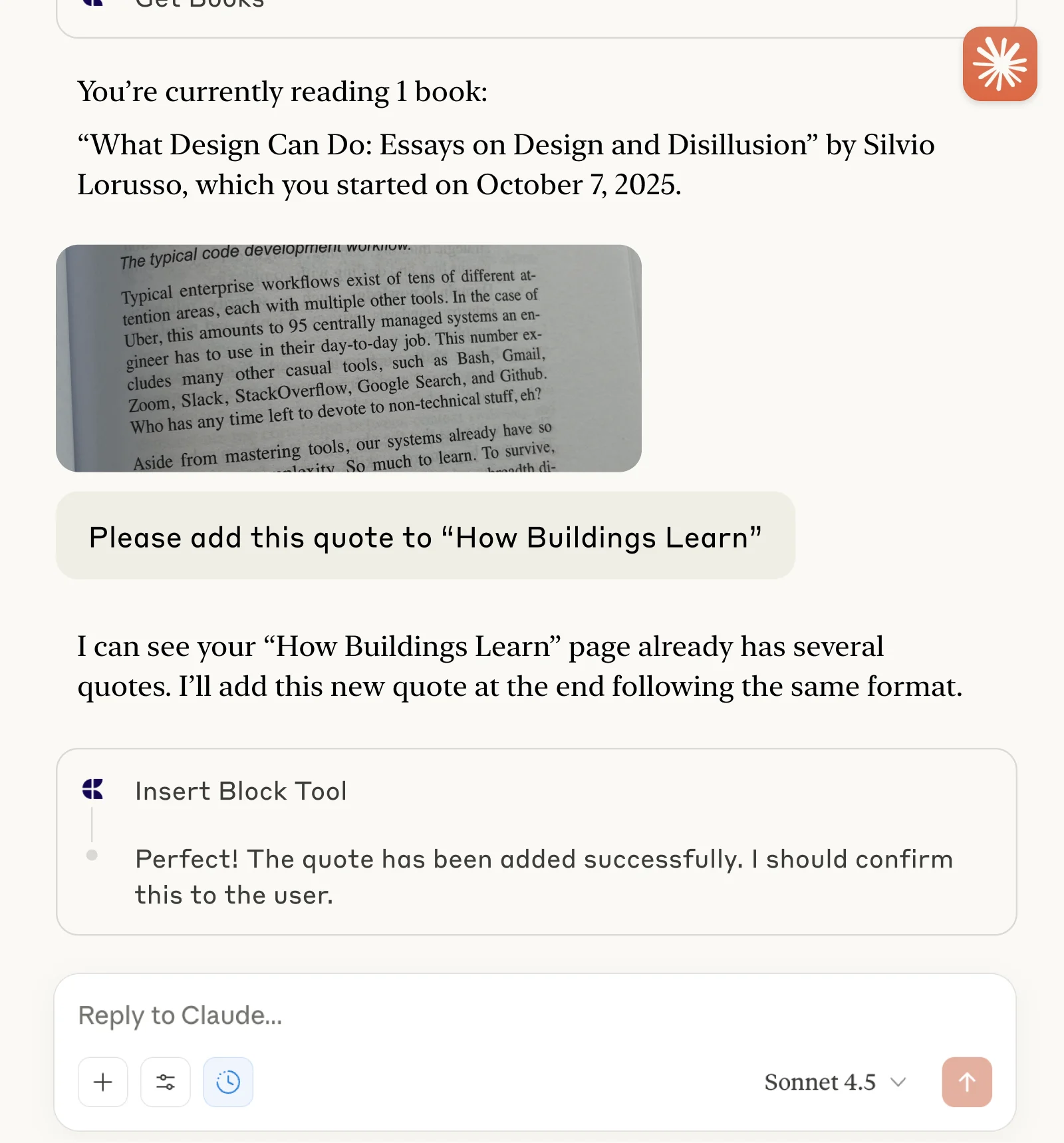
이제 Mistral Le Chat에 문서에 대해 질문하고 업데이트할 수도 있습니다. 다음과 같이 시작해 보세요:
예시를 클릭하면 프롬프트가 클립보드에 복사됩니다