Usa l’API di Craft per creare con n8n
Usa l'API di Craft per creare app su n8n. Recupera i tuoi documenti, sincronizza i contenuti e crea strumenti personalizzati basati sui tuoi dati Craft.

Abilitare l'API per i documenti
Per prima cosa, devi abilitare l'API affinché Craft possa configurare un endpoint API per i tuoi documenti. Poi, utilizza l'URL dell'endpoint API per connetterti al server da n8n.
Passaggio 1
Passaggio 2
Passaggio 3
Passaggio 4
Passaggio 5
Passaggio 6
Utilizzare l'API in un prompt di n8n
Una volta abilitata l'API per i tuoi documenti Craft, puoi concentrarti sulla scrittura di un prompt che n8n utilizzerà per generare il tuo progetto.
Affinché n8n possa utilizzare l'API e comprendere la struttura del tuo documento, allega l'AI bundle al tuo prompt. Questo bundle è un documento markdown che contiene il contenuto attuale del tuo documento Craft e la documentazione dell'API.
Passaggio 1
Passaggio 2
Passaggio 3
Alcune idee per iniziare
Sfoglia gli esempi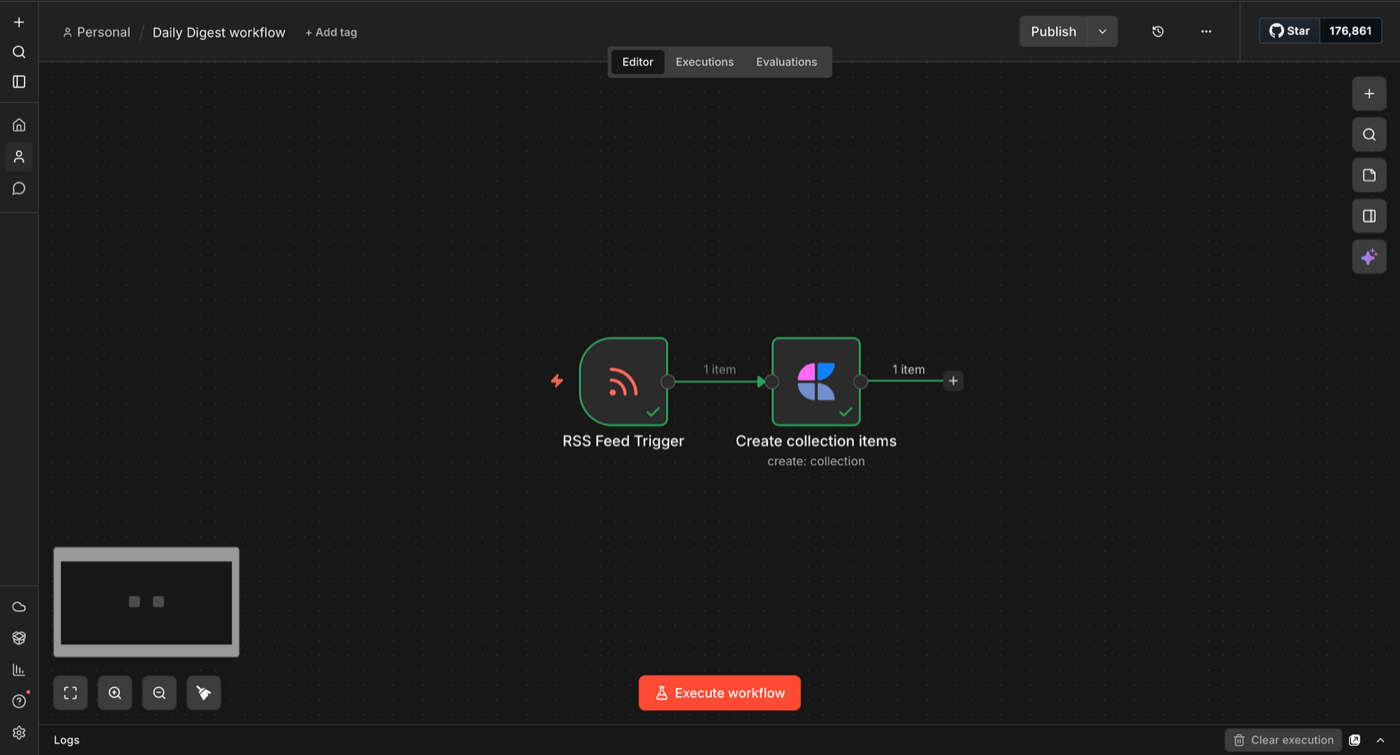
Automatically collect RSS news and save it straight into a Craft collection — hands-free.
Scopri di più
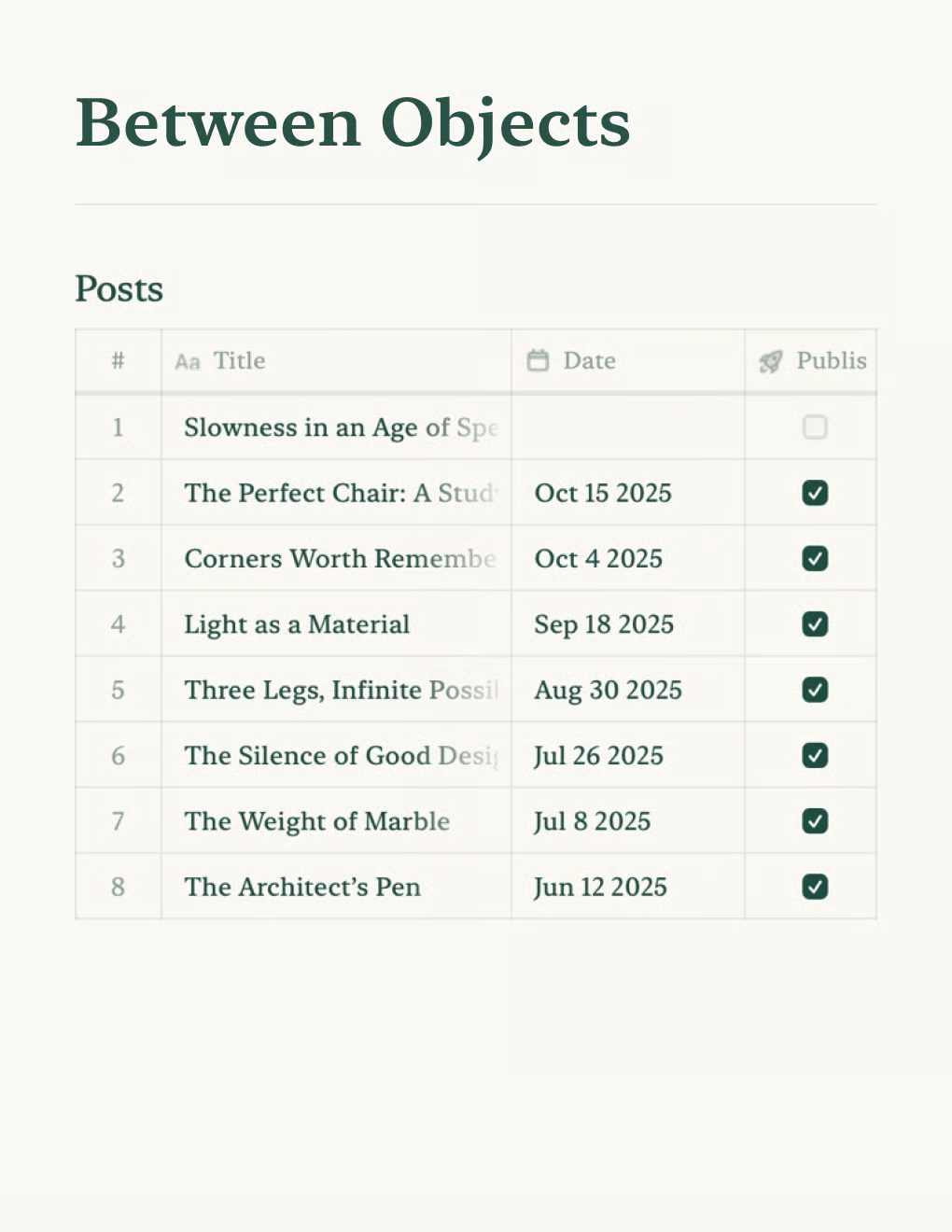
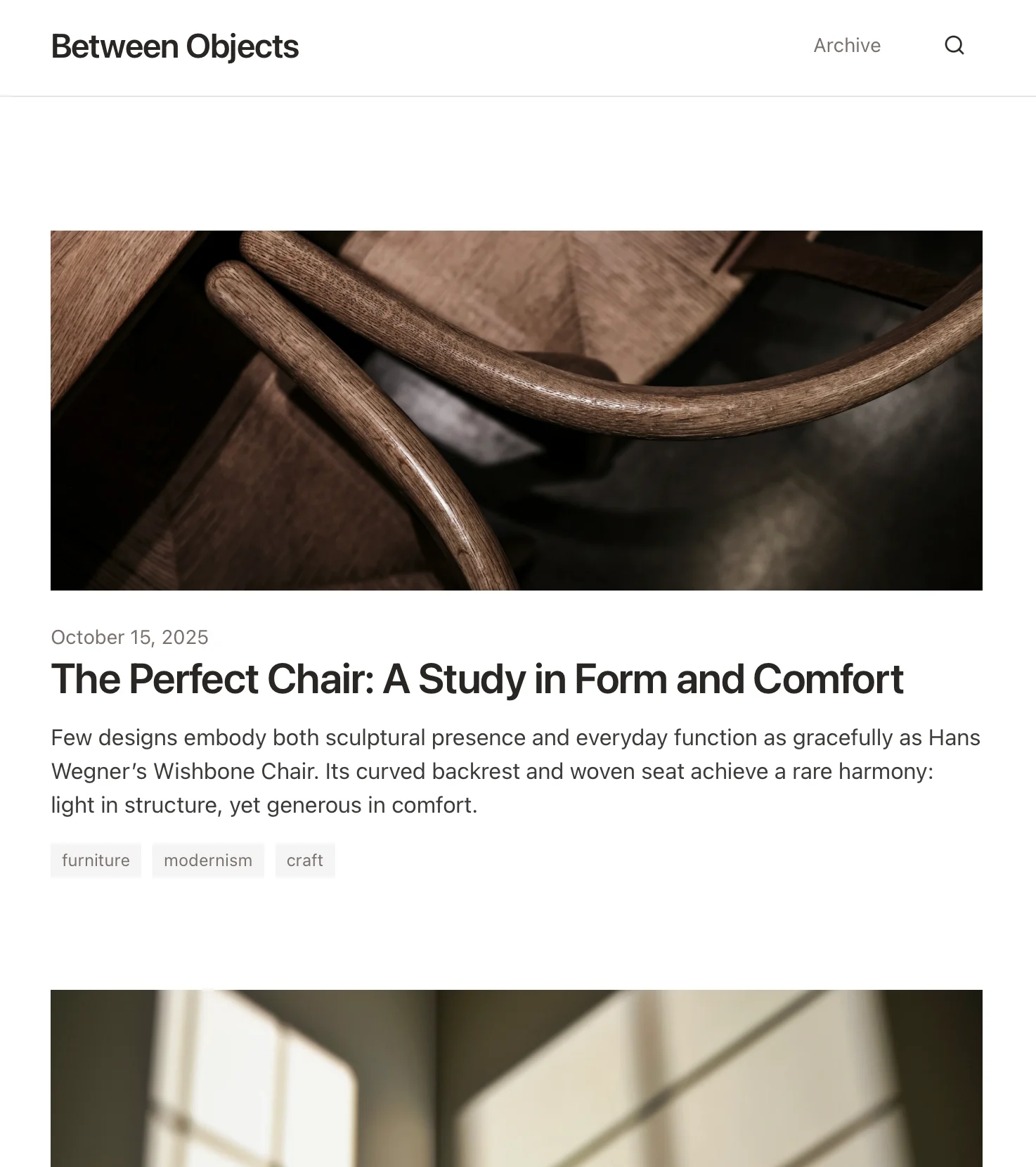
Crea un blog personale basato sui documenti Craft. Sincronizza automaticamente i contenuti via API — pubblica dalla tua app per gli appunti.
Scopri di più

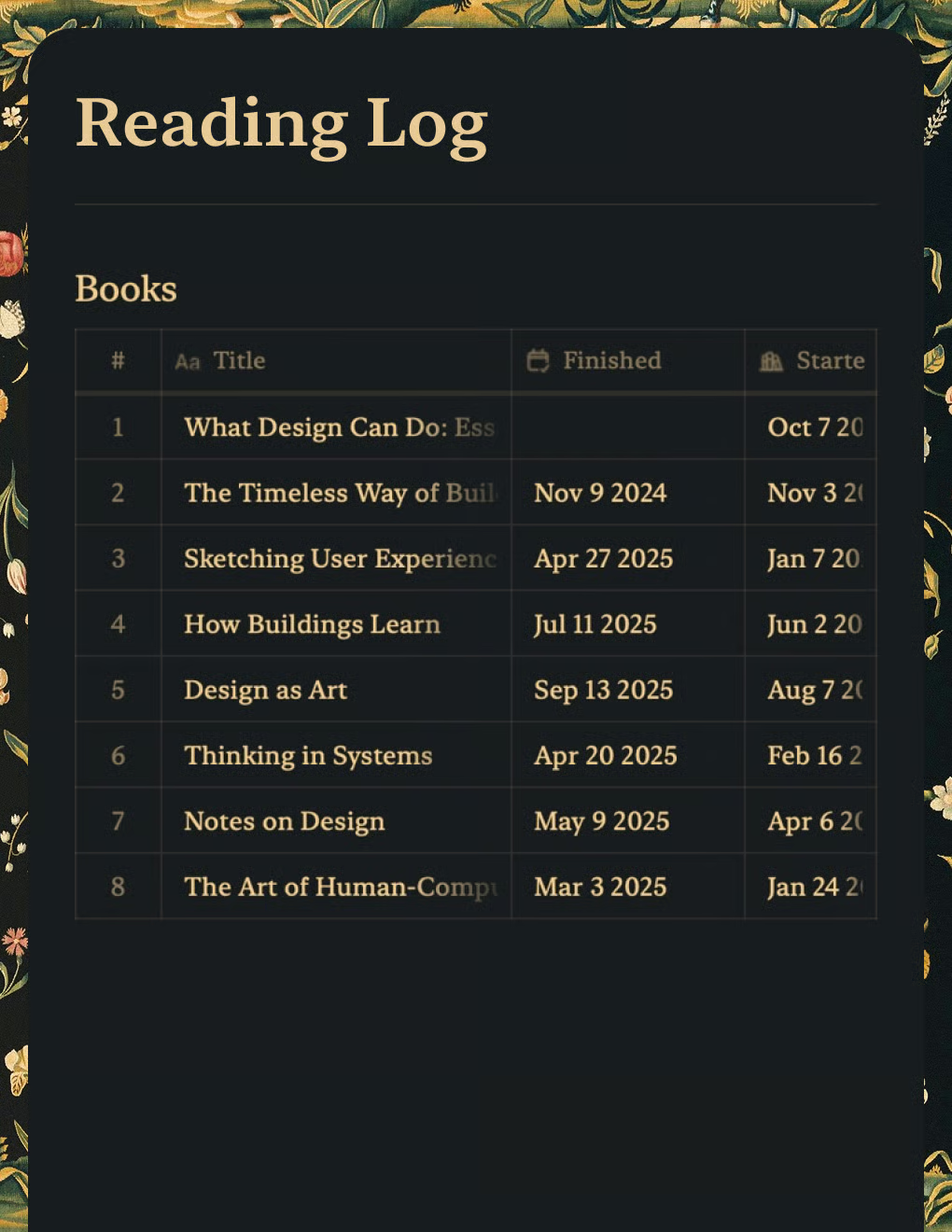
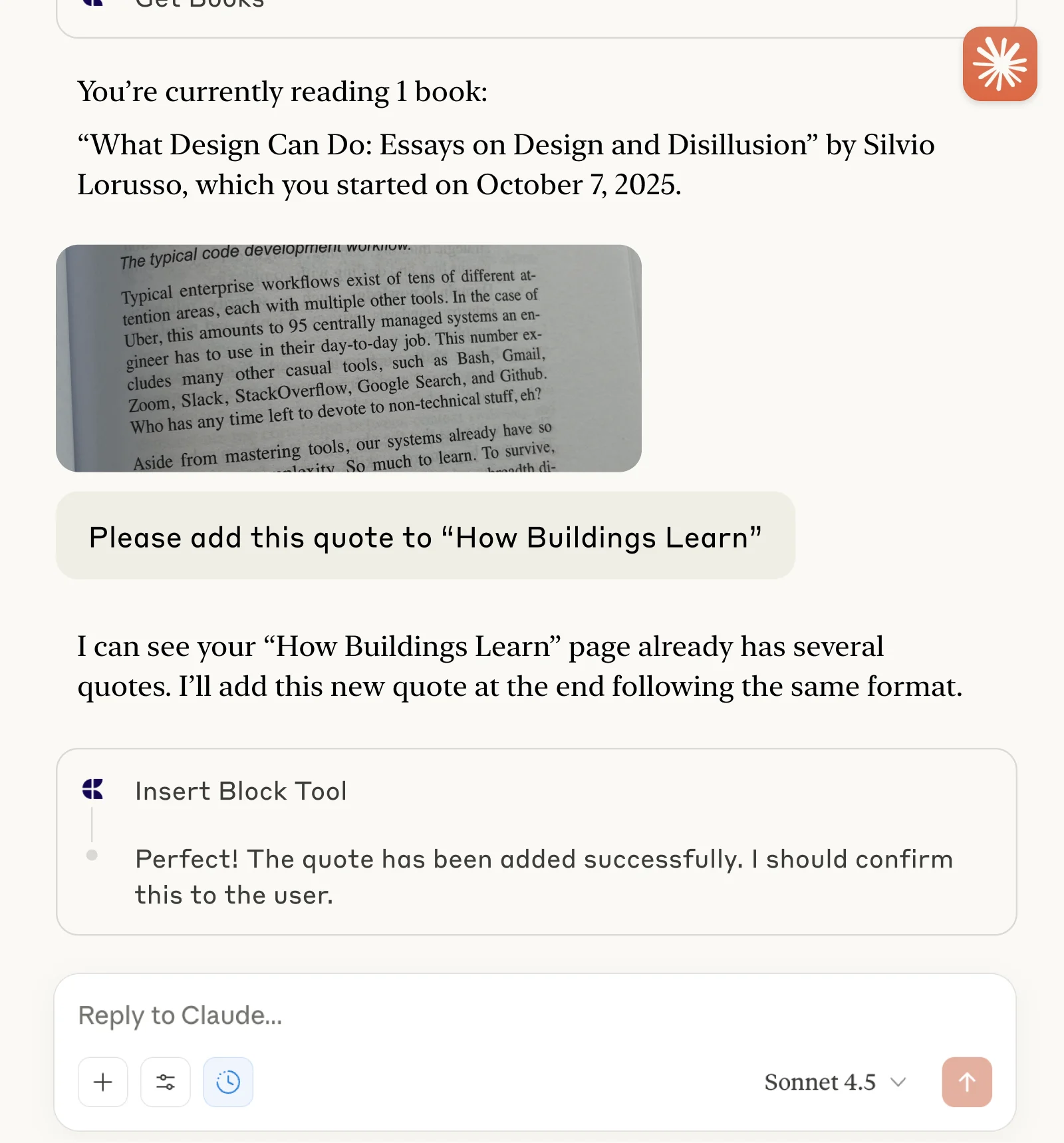
Tieni traccia dei libri e salva citazioni con Claude o ChatGPT tramite MCP.
Scopri di più