Come connettere Craft al Claude con MCP
Puoi abilitare un server MCP per i tuoi documenti, permettendo a Claude di interagire direttamente con i tuoi contenuti. Questa guida ti accompagna nella configurazione della connessione tra Craft e Claude tramite MCP.


Aggiungere un connettore MCP in Claude
Crea un nuovo connettore in Claude e usa l'URL MCP per collegare i due servizi.
Passaggio 1
Passaggio 2
Copia questo URL e incollalo nel campo URL:
https://mcp.craft.do/my/mcpPassaggio 3
Passaggio 4
Passaggio 5
Ora puoi chiedere a Claude informazioni sui tuoi documenti e persino farli aggiornare. Prova qualcosa del genere per iniziare:
Fai clic su un esempio per copiare il prompt negli appunti
Alcune idee per iniziare
Sfoglia gli esempi
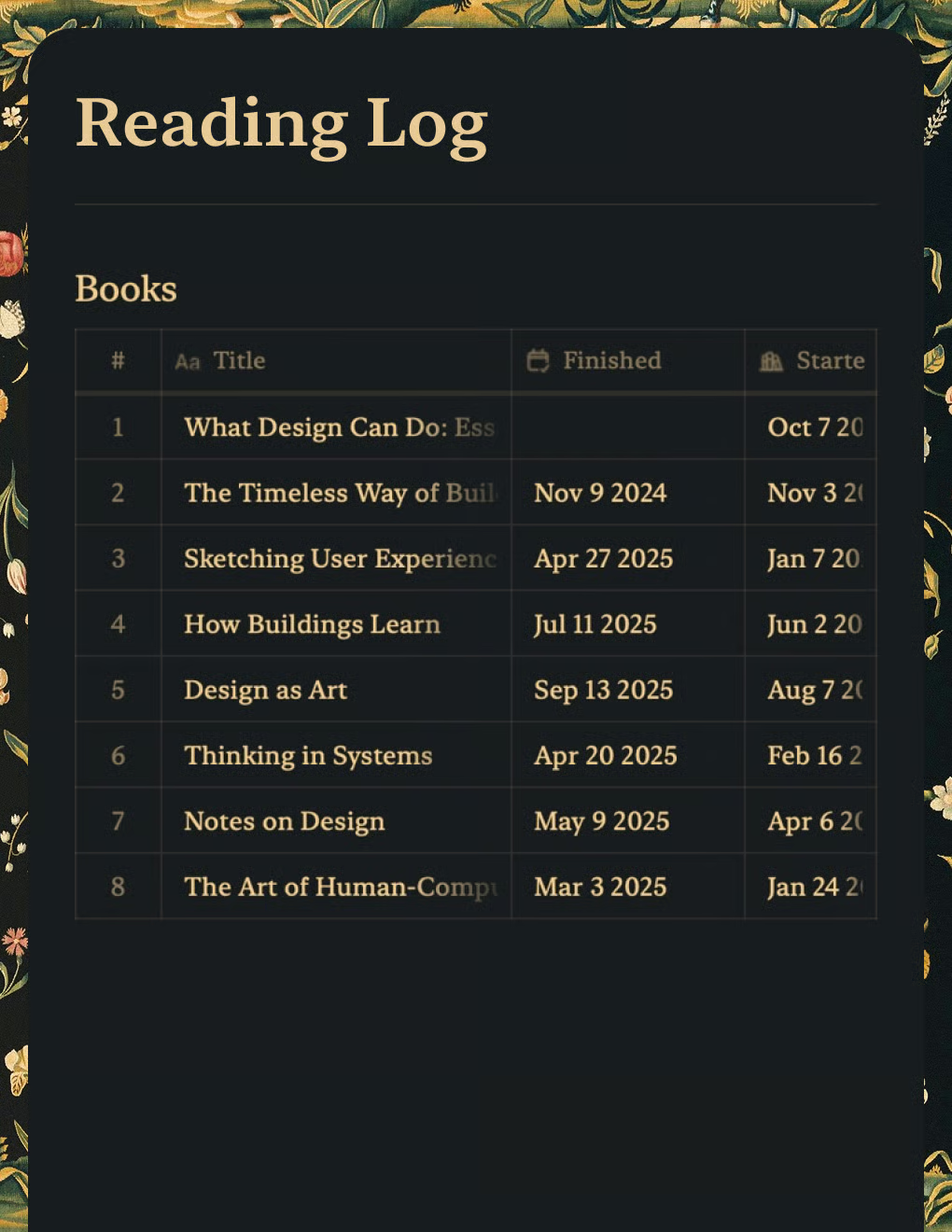
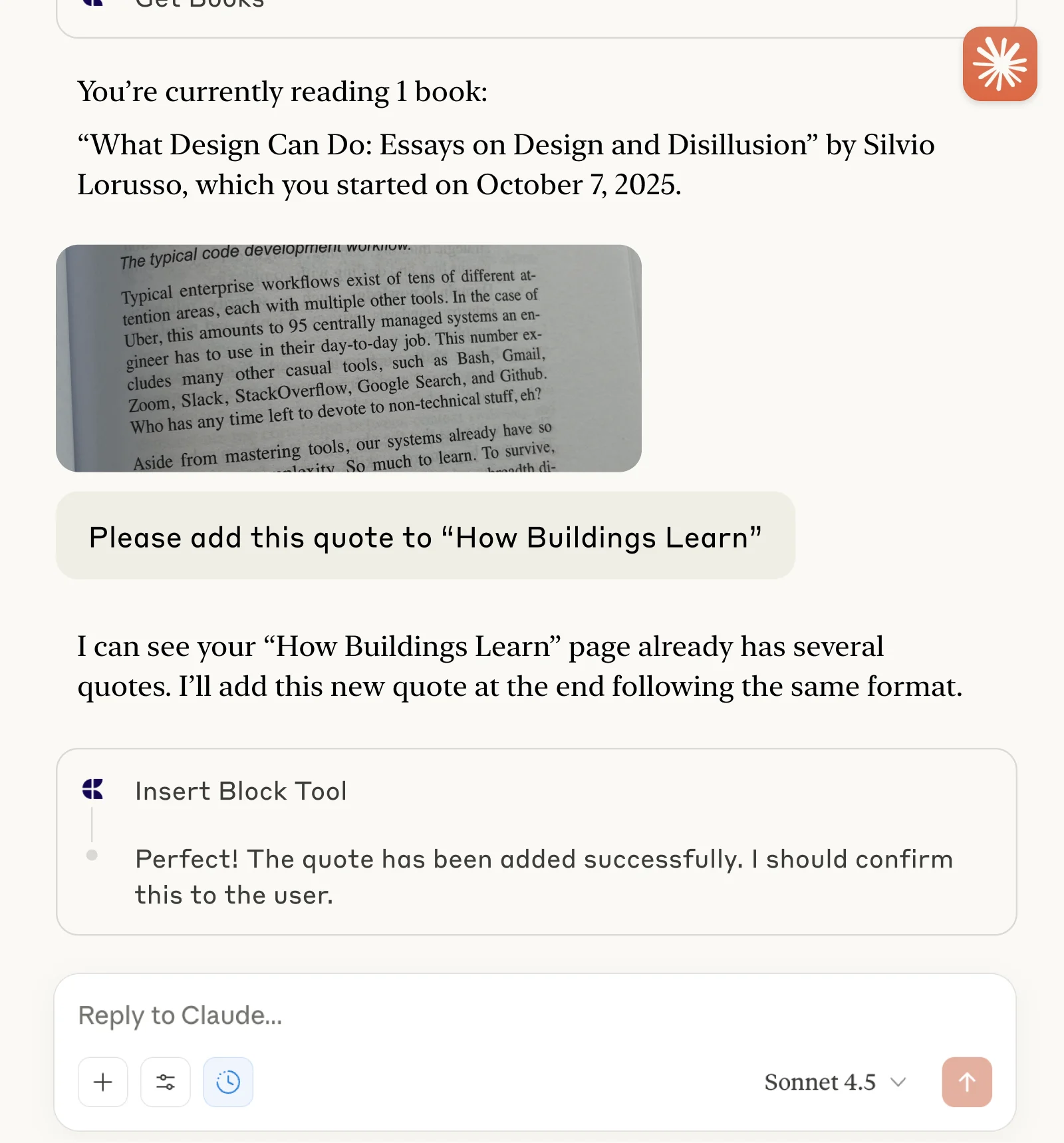
Tieni traccia dei libri e salva citazioni con Claude o ChatGPT tramite MCP.
Scopri di più
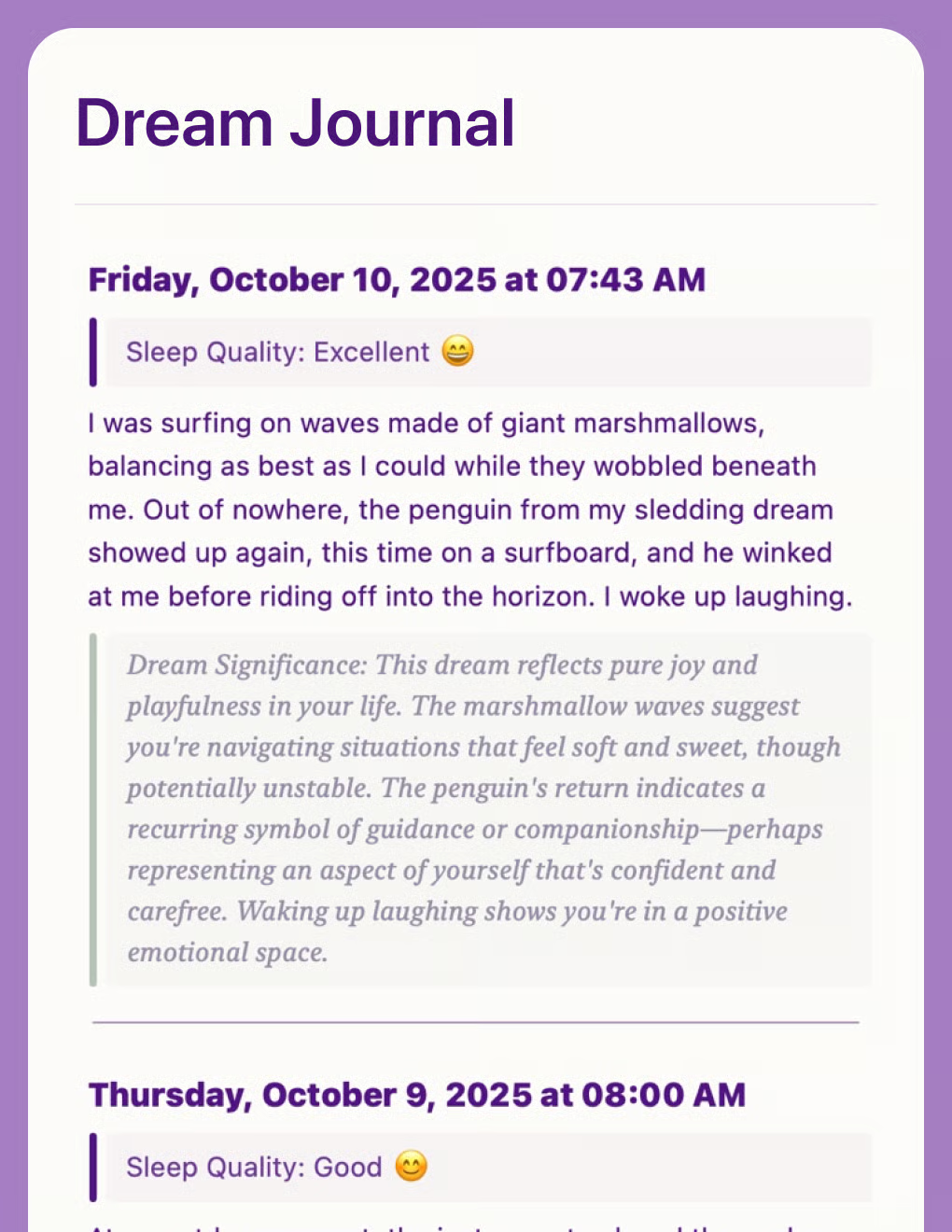
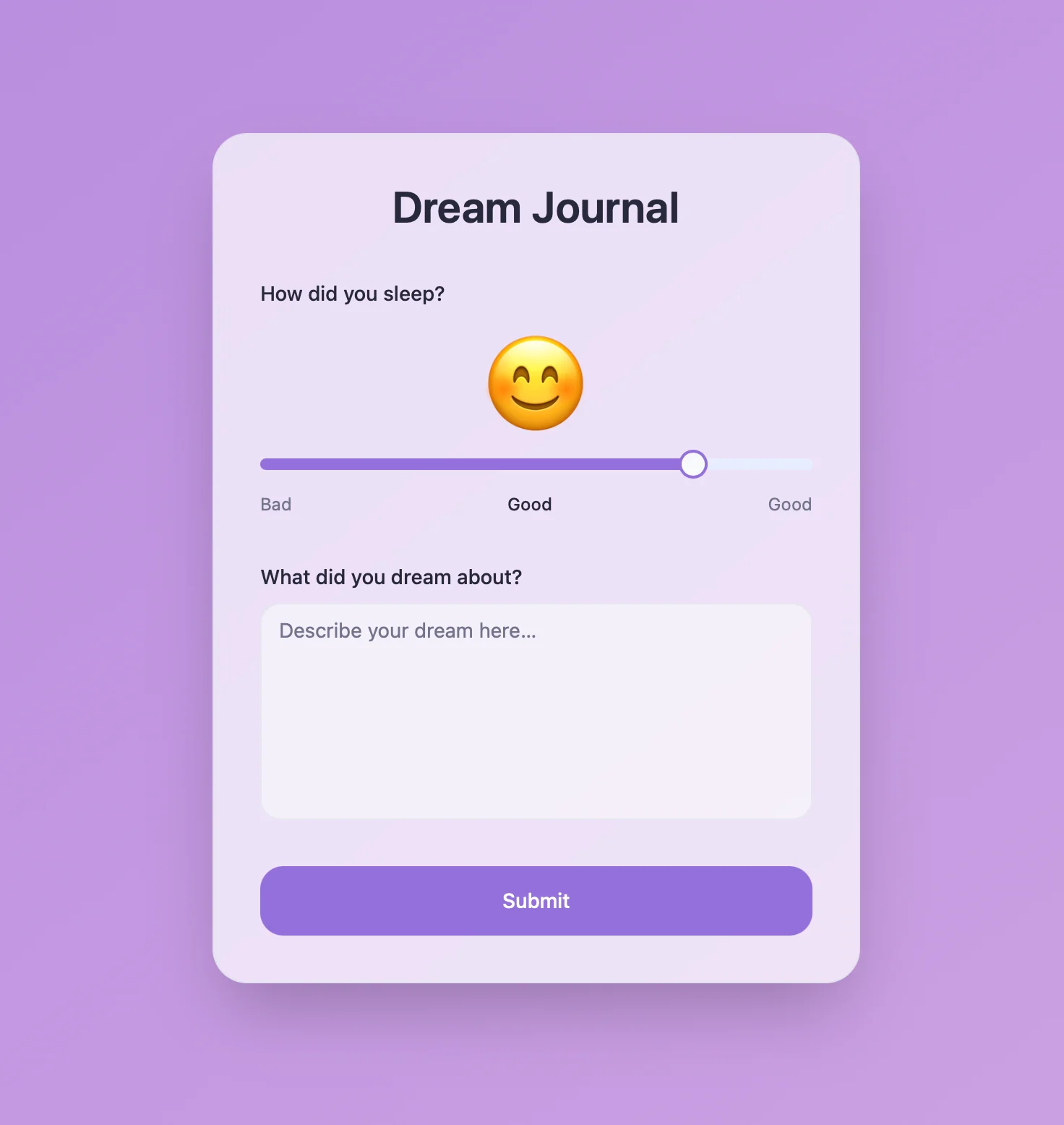
Diario dei sogni con intelligenza artificiale che analizza schemi e temi ricorrenti. Creato con Craft API e Lovable.
Scopri di più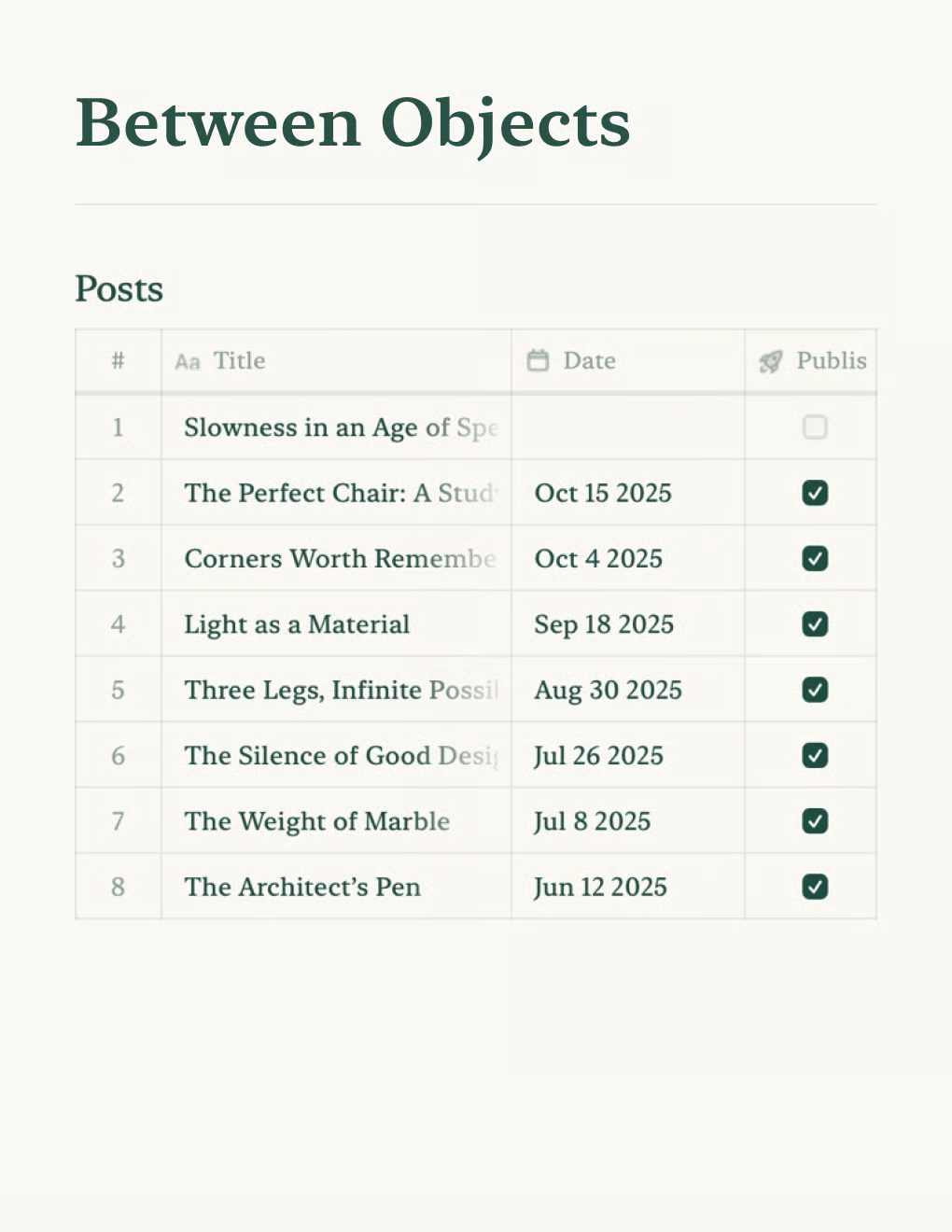
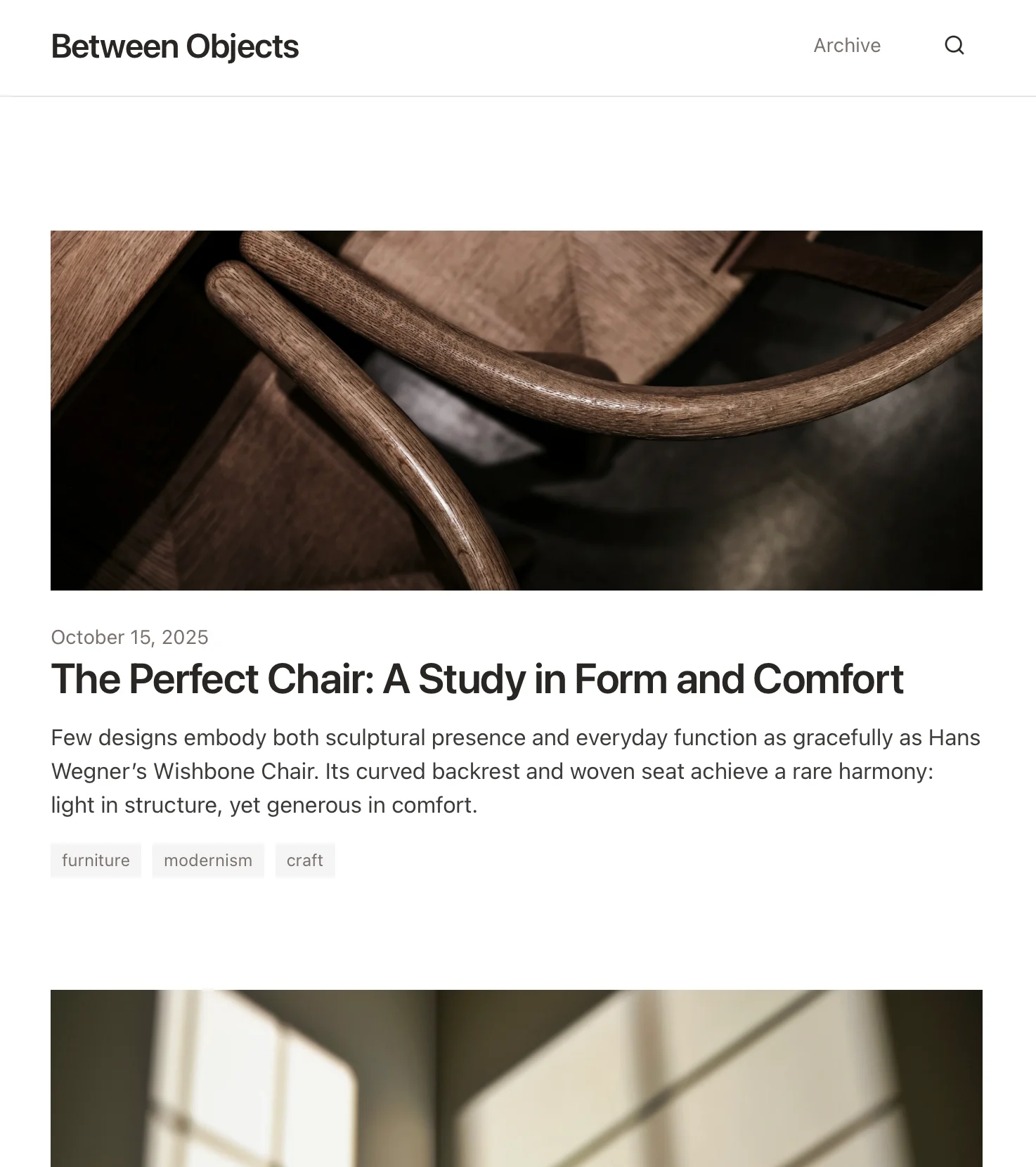
Crea un blog personale basato sui documenti Craft. Sincronizza automaticamente i contenuti via API — pubblica dalla tua app per gli appunti.
Scopri di più