
Động não khi đi dạo
Ý tưởng hay thường đến khi bạn rời bàn làm việc, rồi bị quên mất. Quy trình này cho phép bạn vừa đi dạo vừa động não thành tiếng với chế độ giọng nói của ChatGPT, sau đó lưu và sắp xếp mọi thứ vào một tài liệu Craft có cấu trúc — để ý tưởng không rơi rớt trên đường về.
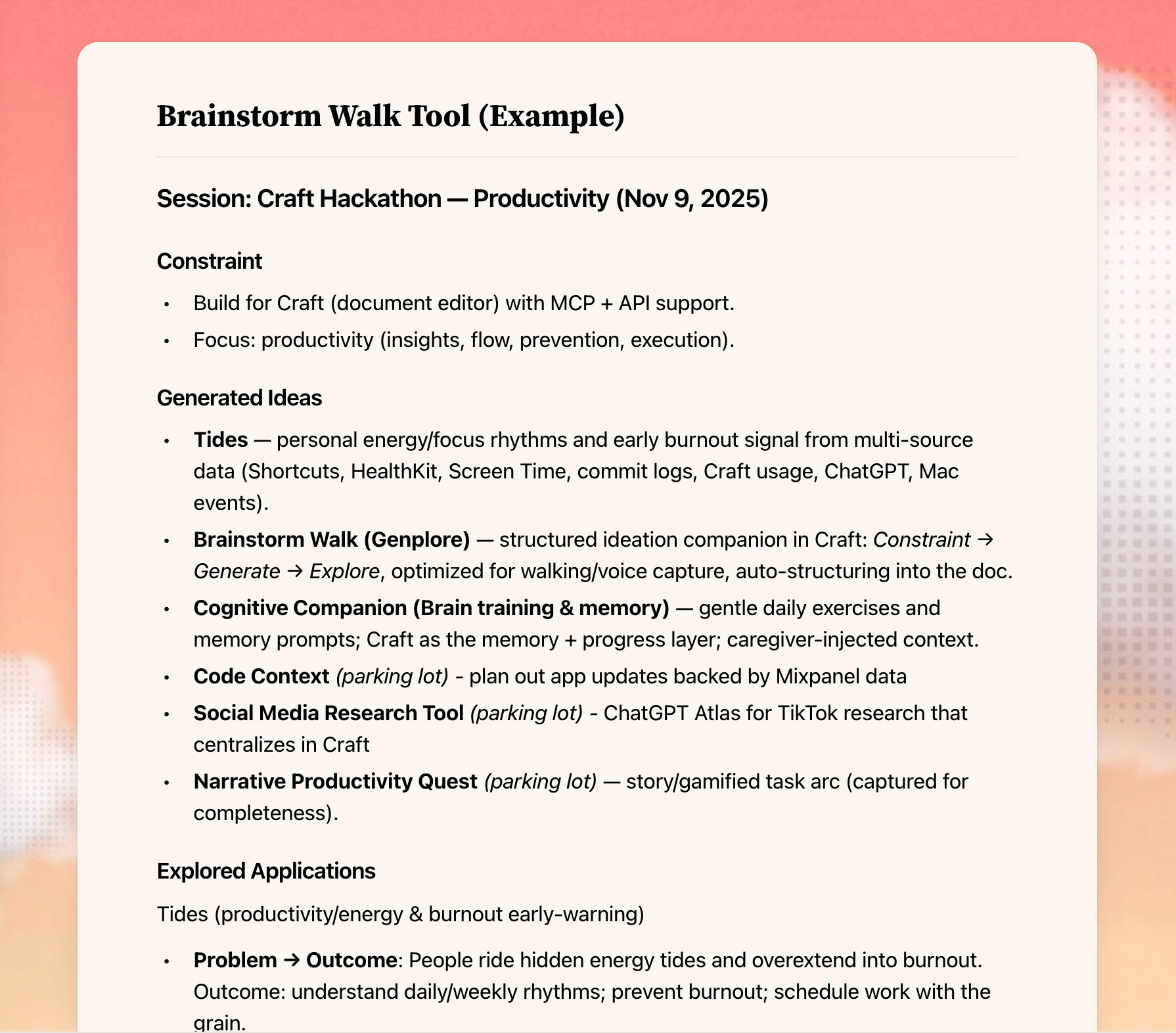



Được xây dựng bởi Andreas Ink với Craft và ChatGPT
Tự xây dựng
Bước 1 – Set Up Your Craft Brainstorm Document
Create a Craft document where your brainstorming ideas will be organized. Copy the following Brainstorm Tool template into your document:
## Brainstorm Tool
### Instructions
**Context**
We are going for a brainstorming walk and using the Genplore brainstorming model. First we'll generate ideas given some constraint, then we'll explore how it can work practically. After the walk, I'll ask for you to save the ideas using the Brainstorm Tool.
**Example**
**Constraint**
AirPods Accelerometer / Gyroscope in an iOS app
**Generated Ideas**
- Beep in my ear when I have bad posture
- Measure workout reps / make sure I have good pushup technique
- Count drink intake from head movement
- Spatial Audio for people with visual impairments
**Explored Applications**
- PodPosture
- Beep in my ear when I have bad posture
- Detect change in forward acceleration
- Ability to change sensitivity
- People will want this because they have bad neck pain from working too much
*Below is where you'll enter ideas...*
### Constraint
*This can be a certain technology, problem, or experience / point of view I have.*
### Generated Ideas
*High level concepts you arrive at because of the constraint*
### Explored Applications
*Lower level how this would work, why people would use it etc*
Bước 2 – Enable Craft MCP
Set up Craft’s MCP (Model Context Protocol) connection to ChatGPT or Claude. Name the connector: “Brainstorm” and set the description to: “Used to save ideas from brainstorming.”
Bước 3 – Prepare Your AI for the Walk
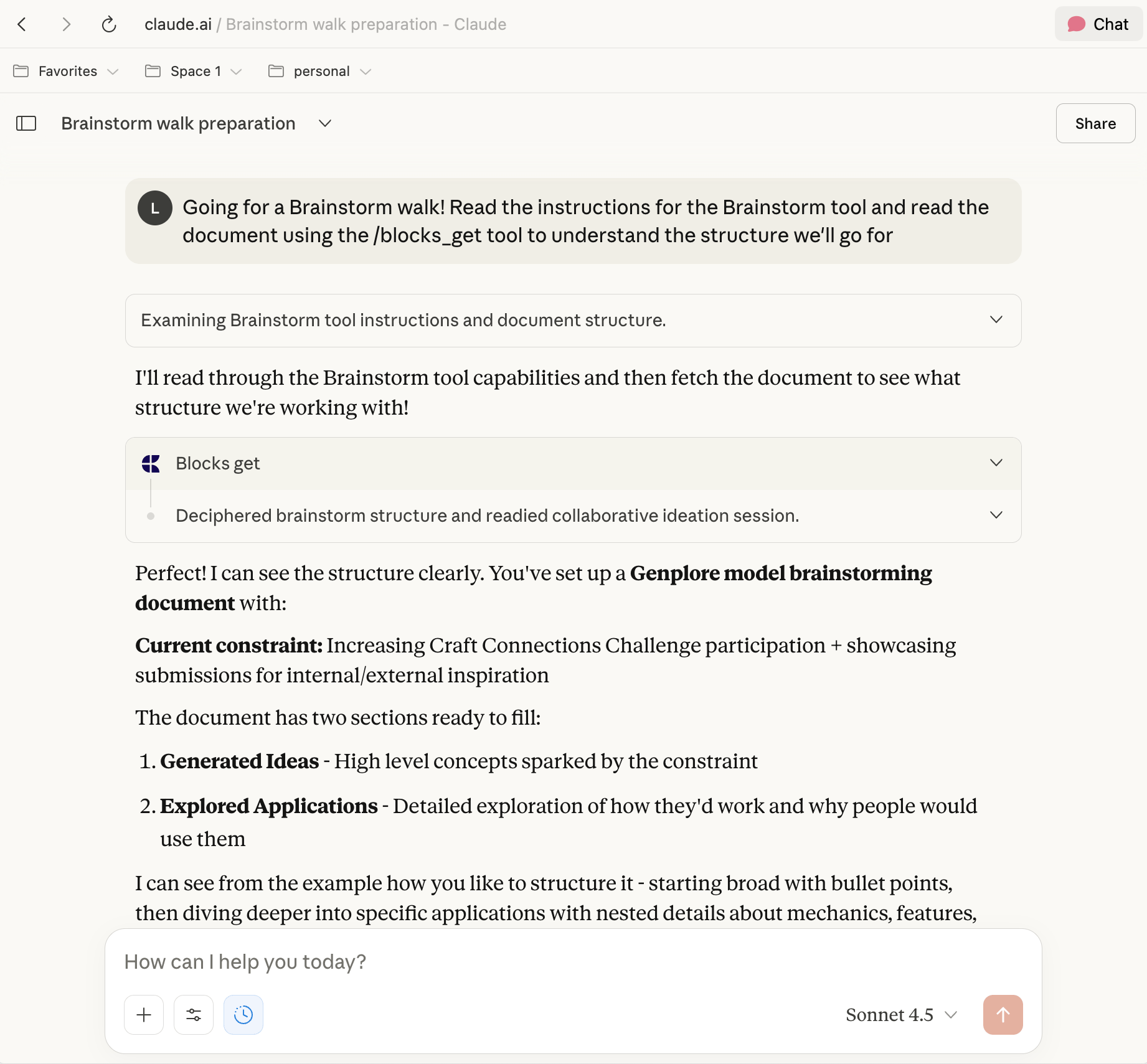
In your ChatGPT or Claude chat (with MCP enabled), type this prompt:
Going for a Brainstorm walk, read the instructions for the Brainstorm tool and read the document using the /blocks_get tool to understand the structure we'll go for
This tells the AI to read your Brainstorm Tool template and understand the structure you’ll be using.
Bước 4 – Define Your Constraint
Before you start walking, decide on your constraint. This can be:
- A certain technology (e.g., “AirPods Accelerometer”)
- A problem you’re trying to solve
- An experience or point of view you have
Constraints help generate better ideas than open-ended brainstorming.
Bước 5 – Start Your Walk and Talk
Head out for your walk and open ChatGPT or Claude’s voice mode in the same chat. Brainstorm out loud:
- Share ideas as they come to mind
- Ask the AI clarifying questions
- Explore ideas deeper through conversation
- Let the movement help your thinking flow
Bước 6 – Let ChatGPT Organize Your Ideas
When you’re done walking, prompt the AI to save the ideas using the Brainstorm Tool. Ask something like:
Now save all the ideas we brainstormed to my Brainstorm Tool in Craft using the structure we discussed
The AI will organize everything into:
- Generated Ideas (the raw ideas from your walk)
- Explored Applications (the practical applications you discussed)
Bước 7 – Review and Iterate
Open Craft and review what the AI captured:
- Add your own notes
- Combine related ideas
- Mark ideas for follow-up
- Start working on the strongest concepts
The Result
You get more ideas, better ideas, and they’re organized and ready to act on – all without sitting at a desk. Your walks become productive thinking time instead of just exercise, and your best ideas are captured before they fade away. Copy the template above and adapt it for your own brainstorming style.
Thêm nhiều ý tưởng để bạn thử
Quay lại thư viện

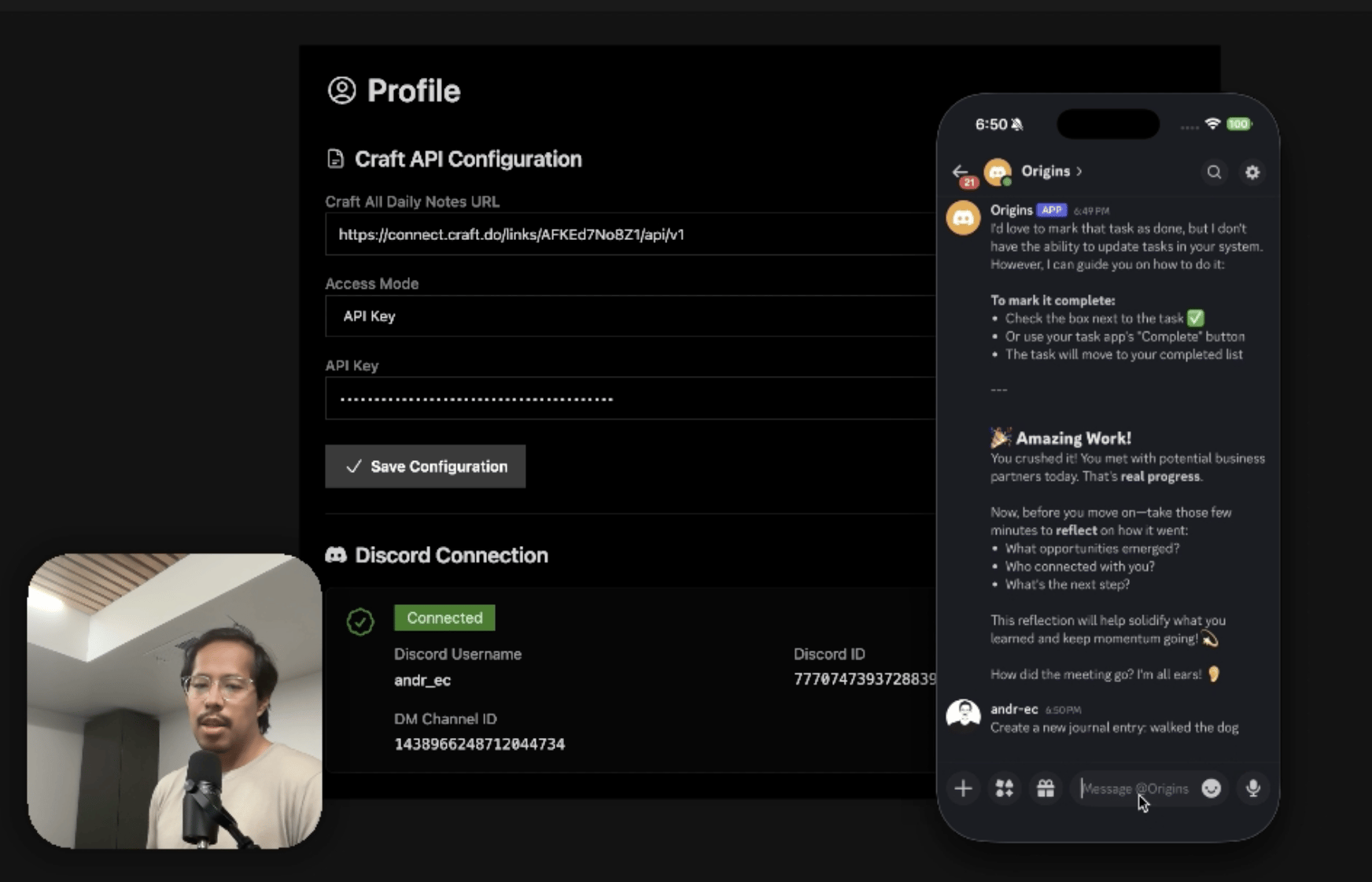
Huấn luyện viên AI đọc mục tiêu của bạn trong Craft và nhắc bạn giữ cam kết qua Discord.
Tìm hiểu thêm
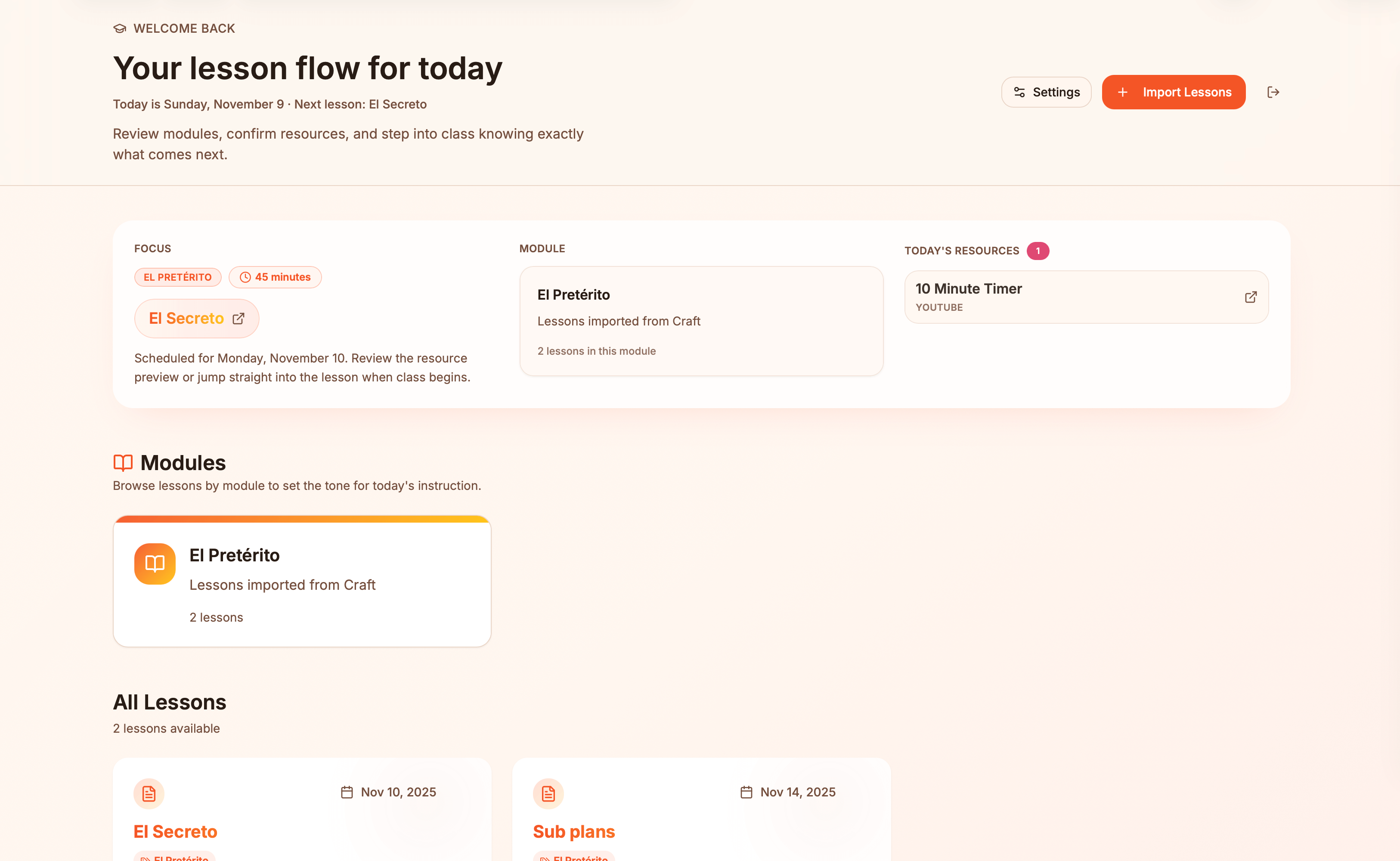
Giáo án trong Craft trở thành slide trình chiếu trực tiếp — luôn đồng bộ, không cần sao chép-dán.
Tìm hiểu thêm
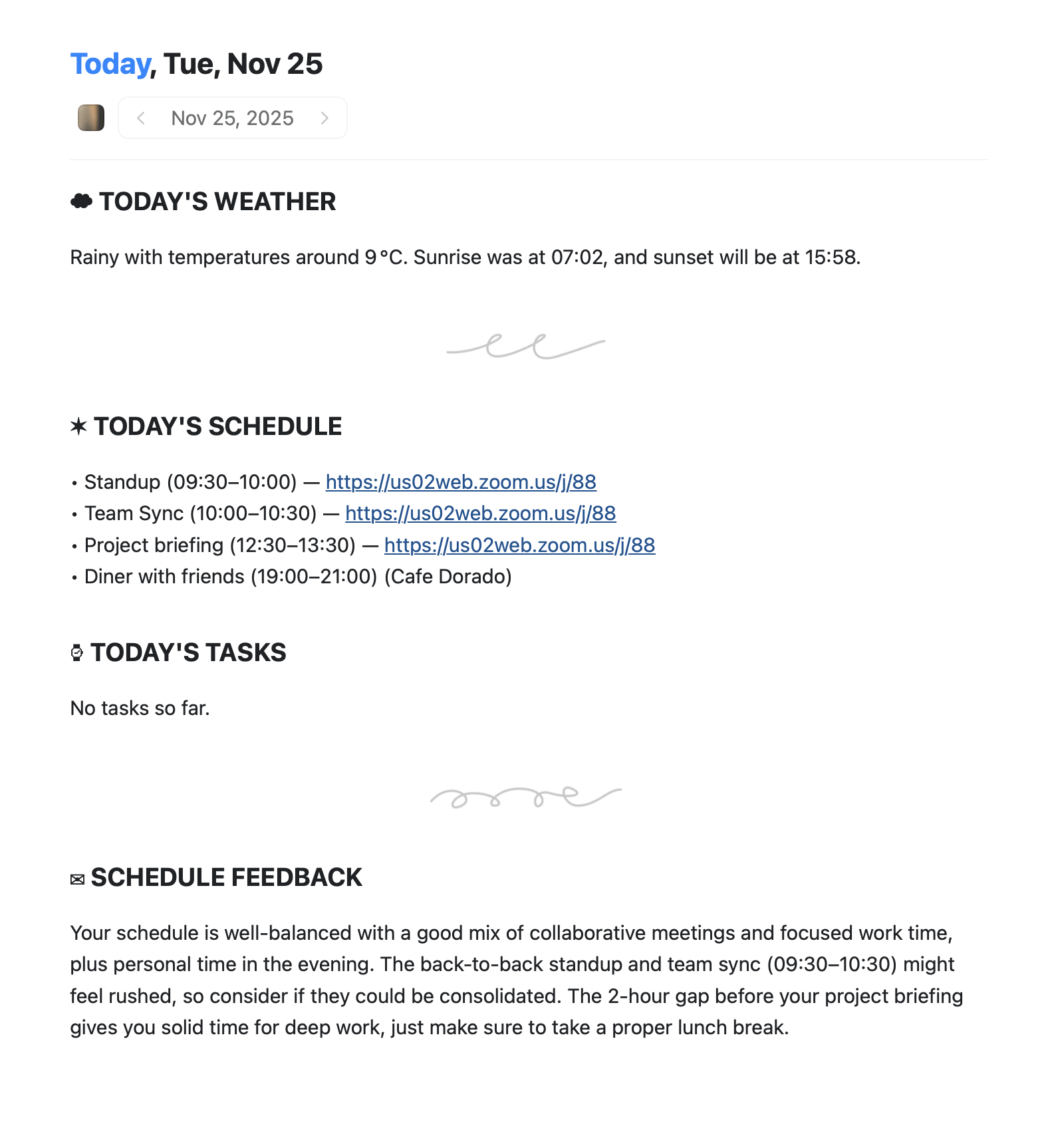
Một phím tắt Apple viết lịch trình buổi sáng thẳng vào ghi chú hằng ngày trong Craft.
Tìm hiểu thêm