
Kho tài liệu sống
Tài liệu tĩnh nhanh lỗi thời và chẳng ai đọc. Lưu tài liệu kỹ thuật trong Craft và kết nối qua MCP, lập trình viên có thể truy vấn trực tiếp từ IDE — nhận câu trả lời nhanh, chính xác về toàn bộ kiến trúc hệ thống thay vì phải nhắn hỏi đồng nghiệp hay lục tìm trong code.
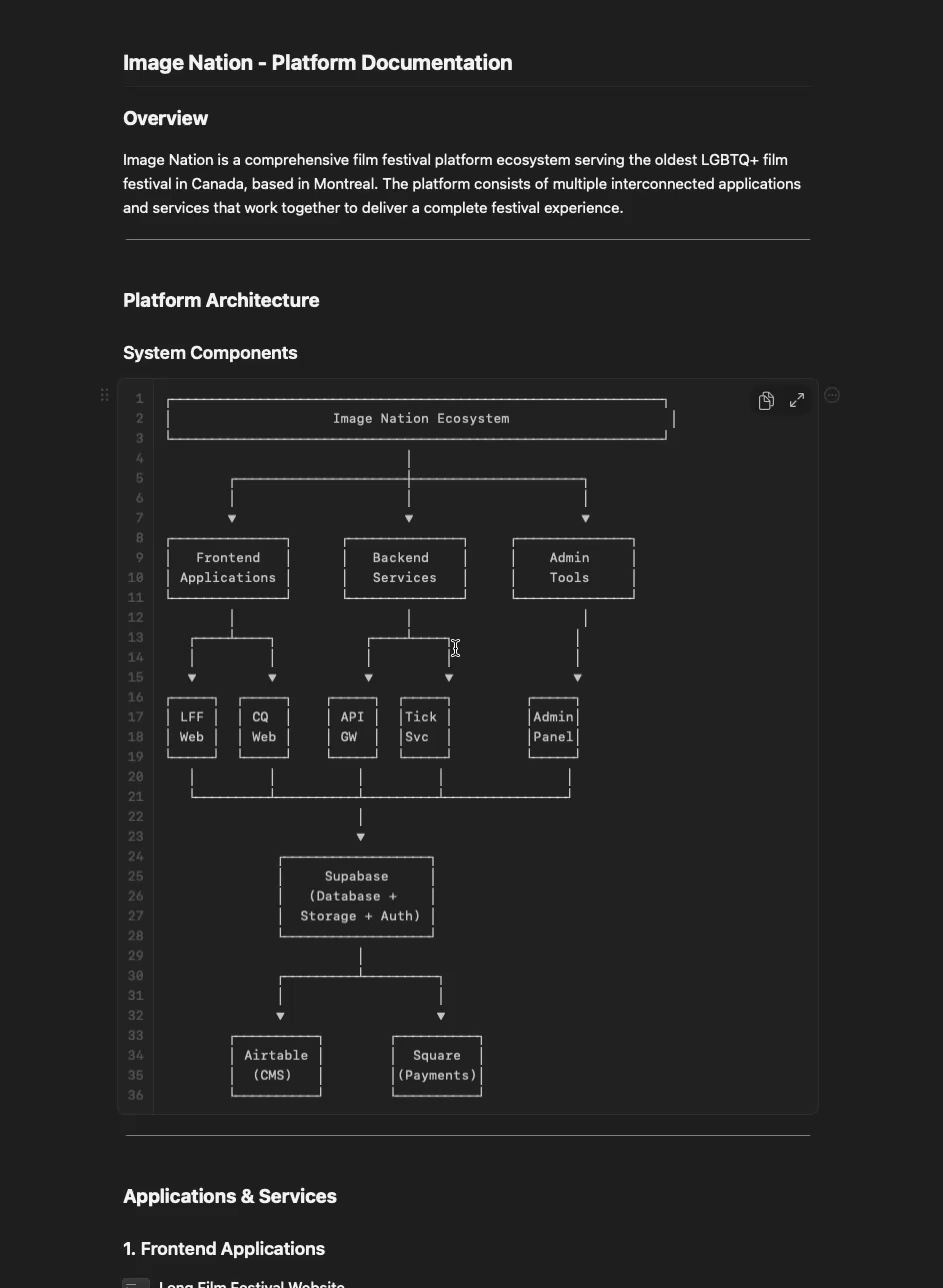
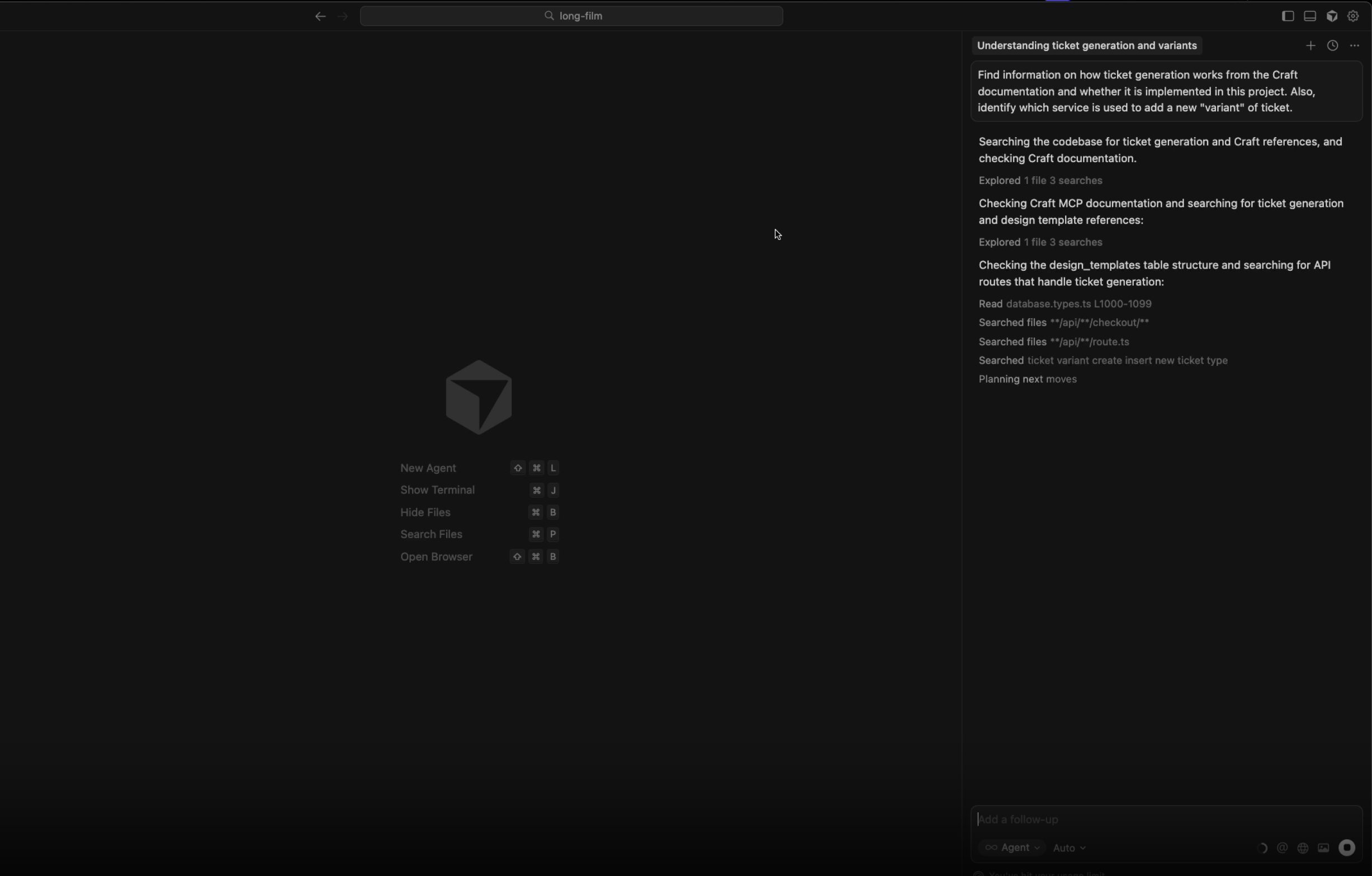


Được xây dựng bởi một người dùng Craft với Craft và Claude
Tự xây dựng
Bước 1 – Organize Your Documentation in Craft
Create a hierarchical documentation structure in Craft:
- Main overview page – High-level architecture and system design
- Subpages per service – One page for each microservice with:
- Service description and purpose
- API endpoints and schemas
- Database models
- Key implementation details
- Dependencies and connections
- Example code and usage patterns
Structure it consistently so AI can parse it reliably.
Bước 2 – Include Comprehensive Details
For each service, document:
- What it does – Clear description of the service’s purpose
- How it connects – Relationships to other services
- API documentation – Endpoints, parameters, responses
- Database schema – Tables, relationships, key fields
- Code examples – Real examples of how to use it
- Common patterns – How developers typically interact with it
Bước 3 – Enable Craft MCP
Set up Craft’s MCP (Model Context Protocol) connection to Claude. This allows Claude to read your entire documentation structure through your IDE.
Bước 4 – Set Up Cursor with Claude
In Cursor (or your preferred IDE with Claude integration):
- Enable Claude as your AI assistant
- Connect it to your Craft MCP documentation
- Configure it to read your documentation when answering questions
Bước 5 – Create Custom Instructions for Claude
Add instructions to your Cursor setup:
You have access to our complete technical documentation in Craft via MCP. When a developer asks a question:
1. Search the documentation for relevant services and code
2. Provide the complete context (which services are involved, how they connect)
3. Show exact code examples from the documentation
4. Explain the flow across services
5. Suggest the affected files and changes needed
Bước 6 – Start Asking Questions
Developers can now ask questions directly in their IDE:
→ Claude reads Craft docs → Shows complete flow from frontend through backend to PDF generation
→ Claude reads Craft docs → Lists all affected services and provides ready code
→ Claude reads Craft docs → Points to exact service, file, and code
Nhấp vào các ví dụ để sao chép prompt hướng dẫn vào khay nhớ tạm của bạn.
Bước 7 – Keep Documentation Updated
Maintain your Craft documentation as your codebase evolves:
- Update service descriptions when architecture changes
- Add new API endpoints as they’re created
- Document new patterns and common solutions
- Keep examples current with your actual code
The documentation stays the source of truth, and Claude always has the latest context.
Impact the Creator Notices
| Task | Before | After | Speed Gain |
|---|---|---|---|
| Info lookup | 45 min | 3 min | 15x faster |
| Feature implementation | 2 hours | 10 min | 12x faster |
| Debugging | 3 hour | 20 min | 9x faster |
| Onboarding new devs | 2-4 weeks | 2-3 days | 7x faster |
The Result
Your Craft documentation becomes a team intelligence hub – an AI-queryable knowledge base that developers can ask questions to directly from their IDE. Instead of searching, asking colleagues, or reading through code, developers get instant, accurate answers with full context across your entire microservice architecture.
Thêm nhiều ý tưởng để bạn thử
Quay lại thư viện
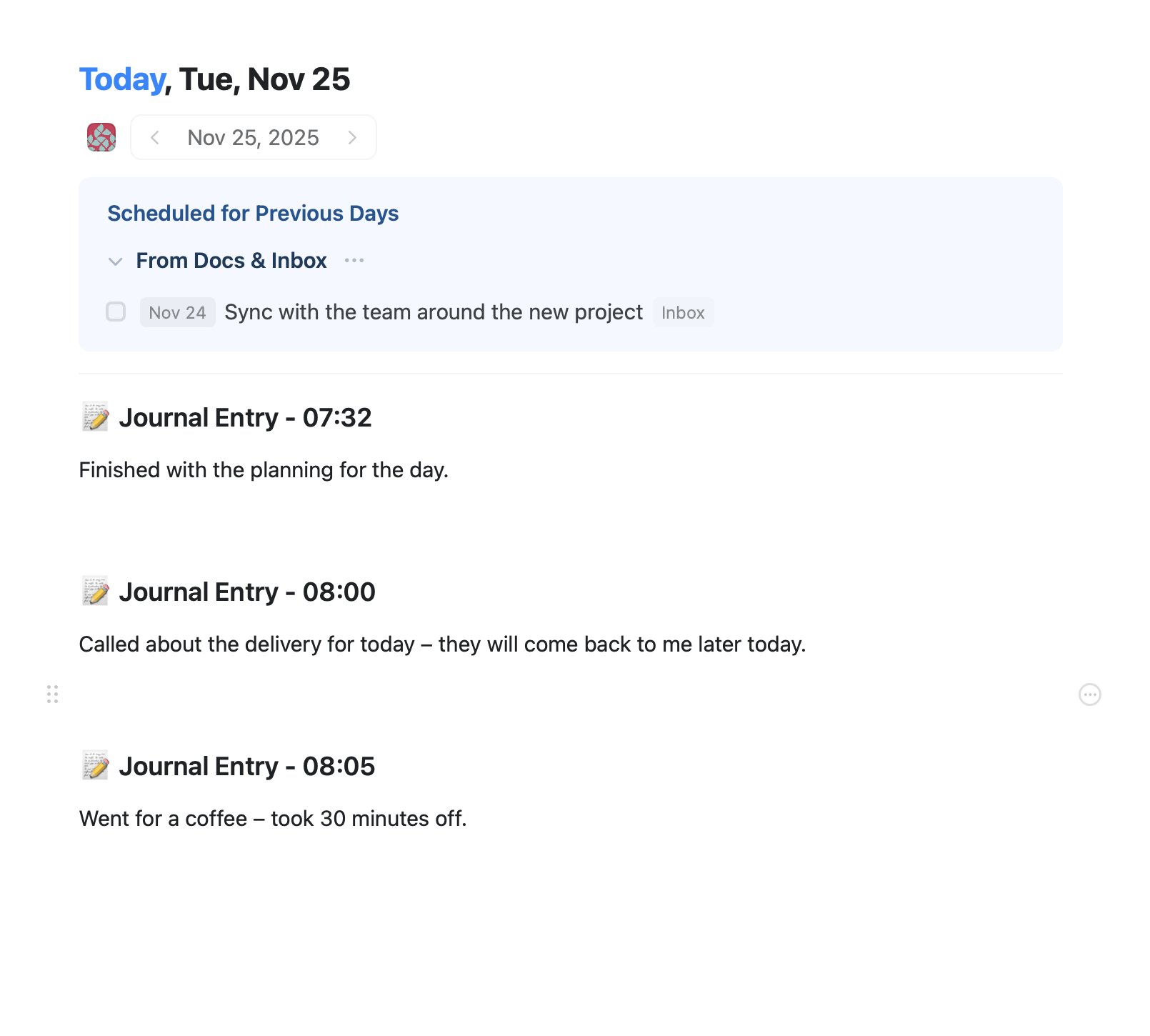
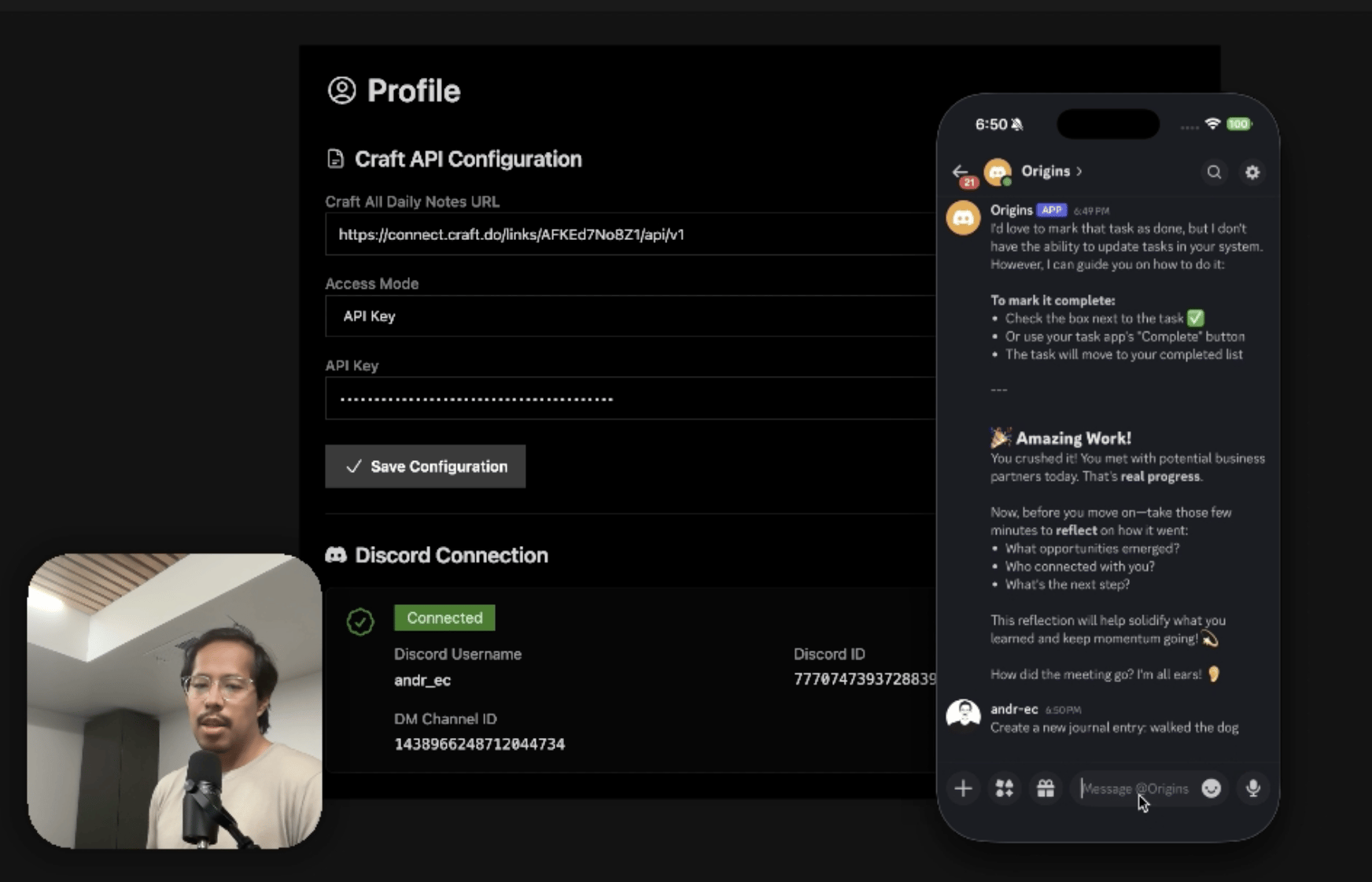
Huấn luyện viên AI đọc mục tiêu của bạn trong Craft và nhắc bạn giữ cam kết qua Discord.
Tìm hiểu thêm
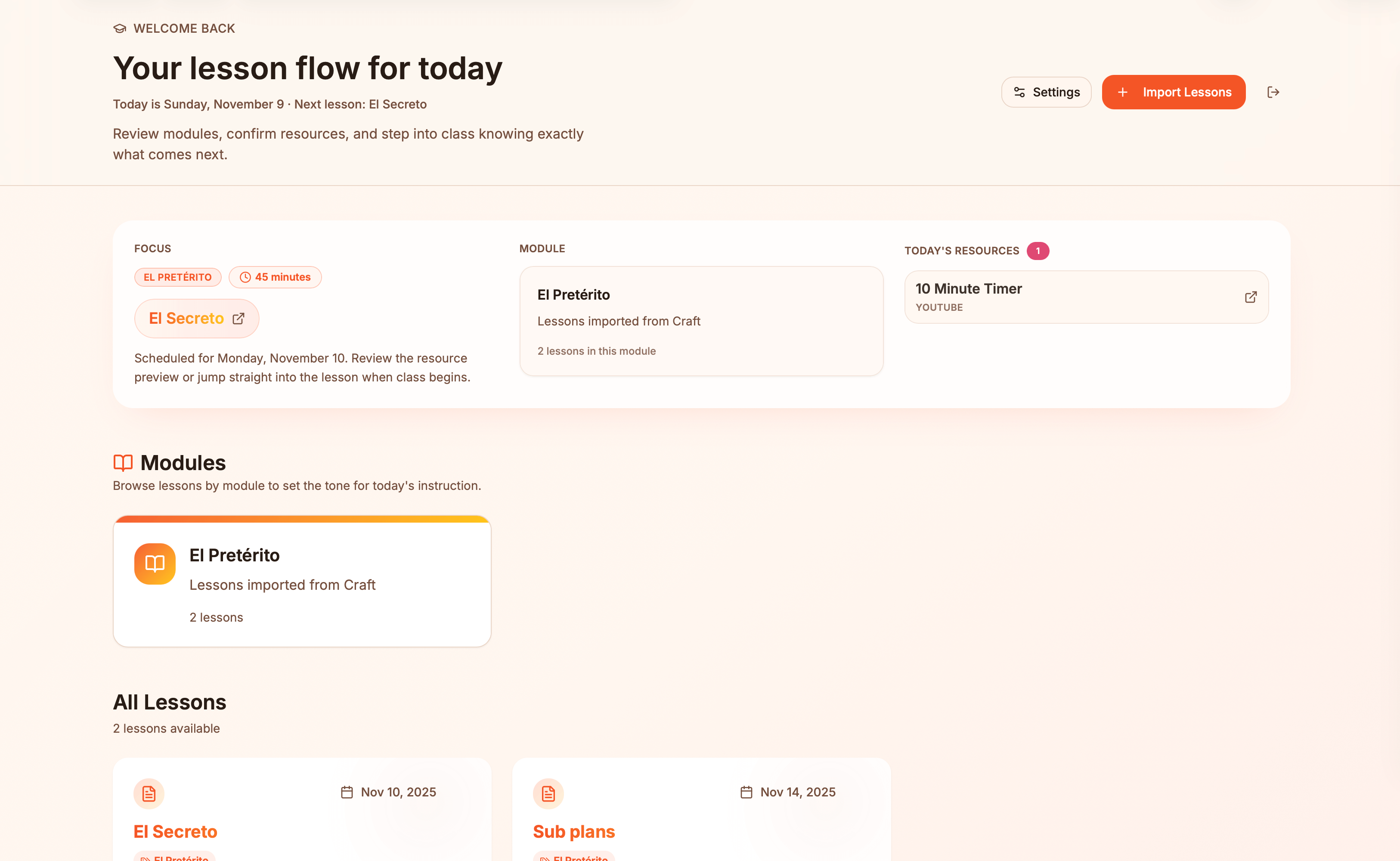
Giáo án trong Craft trở thành slide trình chiếu trực tiếp — luôn đồng bộ, không cần sao chép-dán.
Tìm hiểu thêm
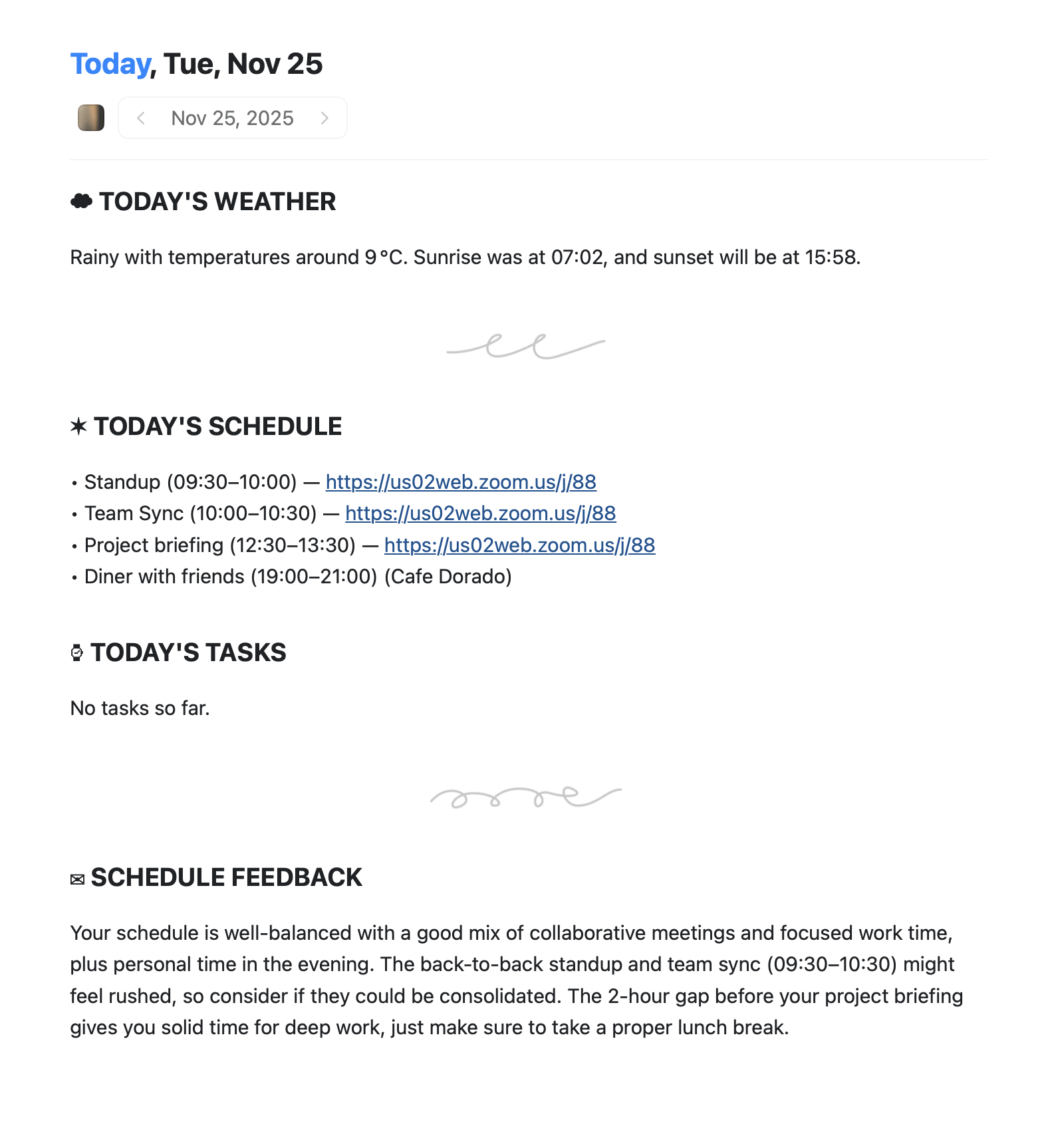
Một phím tắt Apple viết lịch trình buổi sáng thẳng vào ghi chú hằng ngày trong Craft.
Tìm hiểu thêm