Craft Update - Quick Entry, Daily Notes template support, Quality of Life improvements
Introducing Quick Entry for Mac, Daily Notes template support, import improvements, 60+ quality-of-life updates, and our Summer Survey.

Craft Update - Quick Entry, Daily Notes template support, Quality of Life improvements
Hi there,
We’ve prepared another big update: an OS-level Quick Entry for Mac (with a customizable keyboard shortcut) so you can capture any thought or task in seconds and stay in your flow. You can now also set a template for your Daily Notes, and we’ve improved our imports for Google Docs, Notion, and Evernote, plus added Apple Notes as a brand-new option. And we didn’t forget the smaller things either: 60+ improvements across all platforms.
Our Annual Summer Survey is still live this week, so let us know your feedback and what you’d like to see next in Craft!
Annual Summer Survey is still live this week
To become the best personal productivity app, we are always eager to hear your feedback, ideas, and pain points. Every year, we send out our Summer Survey, where you have the opportunity to make an impact on our roadmap.
Whether it’s a brand new feature or an improvement, now you have a chance to tell us in our Big Summer Survey 2026 Edition. The Survey should take around 6 minutes and, if you fill it out, you'll not only have an impact on the future of Craft, but you'll also have a chance to win one of 10 lifetime Family subscriptions that we're giving away to those who fill out the survey.
Fill out the Survey and have a chance to win one of 10 lifetime subscriptions
Quick Entry
Available on Mac
With Quick Entry, you can capture anything the moment it comes to mind, a thought, a task, an idea, without switching away from what you’re doing. Combined with the recent Tasks improvements, nothing you write down during the day gets lost.
Quick Entry opens up a whole new way of interacting with Craft and embeds it even deeper into your daily life.
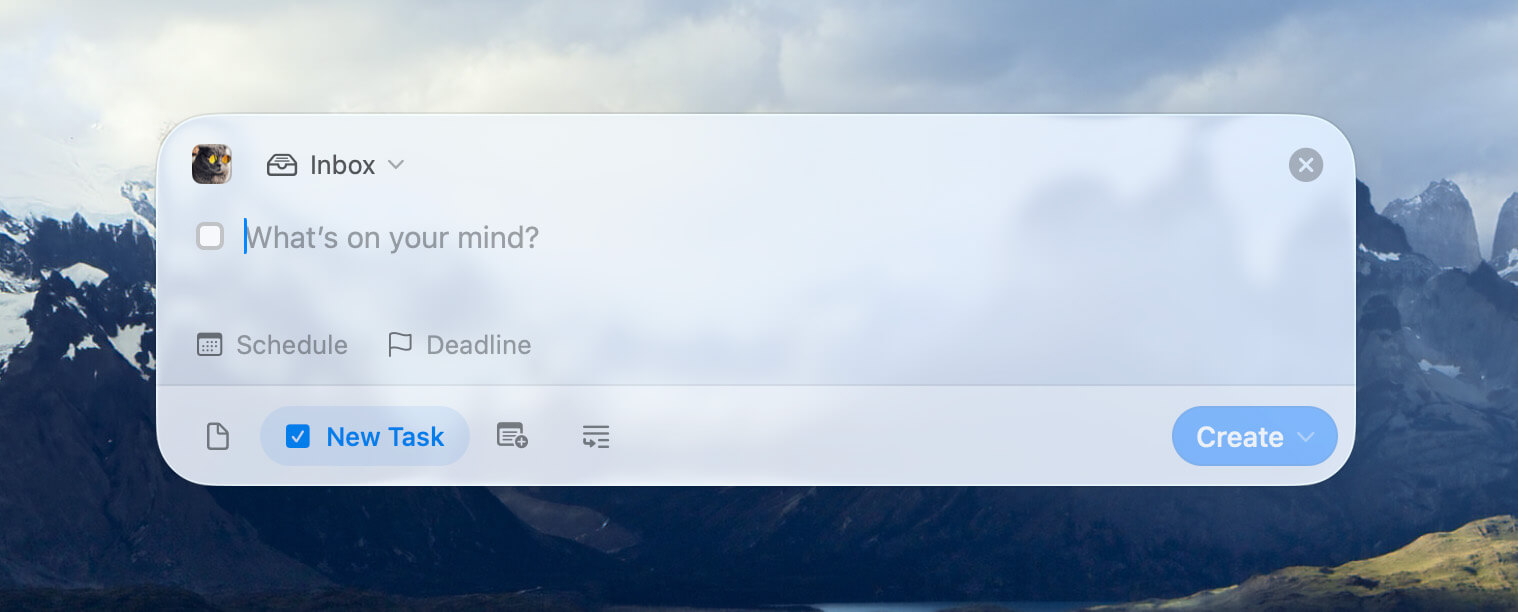
While Craft is running, press the Quick Entry shortcut (⌃ Space by default) from anywhere in macOS to quickly create a new document or task, add to a Daily Note, or append to an existing document.
- Custom Keyboard Shortcut: Record your own Quick Entry keyboard shortcut in Settings → Advanced
- Keyboard Support: Press
⌘ 1,⌘ 2,⌘ 3, or⌘ 4to switch modes,⇧ ⌘ Oto choose the destination,⇧ ⌘ Uto select a Space (Tabin the Space switcher to switch between accounts),⇧ ⌘ Sto set a scheduled date, and⇧ ⌘ Dto set a deadline. Press⌘ ⏎to capture, or⇧ ⌘ ⏎to capture and open, or⌥ ⌘ ⏎to capture and continue. - Markdown Support: Use Markdown syntax in the Quick Entry panel to format your note
Template support for Daily Notes
Available on Mac, iPhone, iPad
Daily Notes are a powerful daily driver for many of us - whether you use it for journaling, planning your day, or running a single shared Daily Note with your team.
Now you can set a template under Settings → Templates to automatically apply whenever a new Daily Note is created - no more manual copy paste!
Import improvements
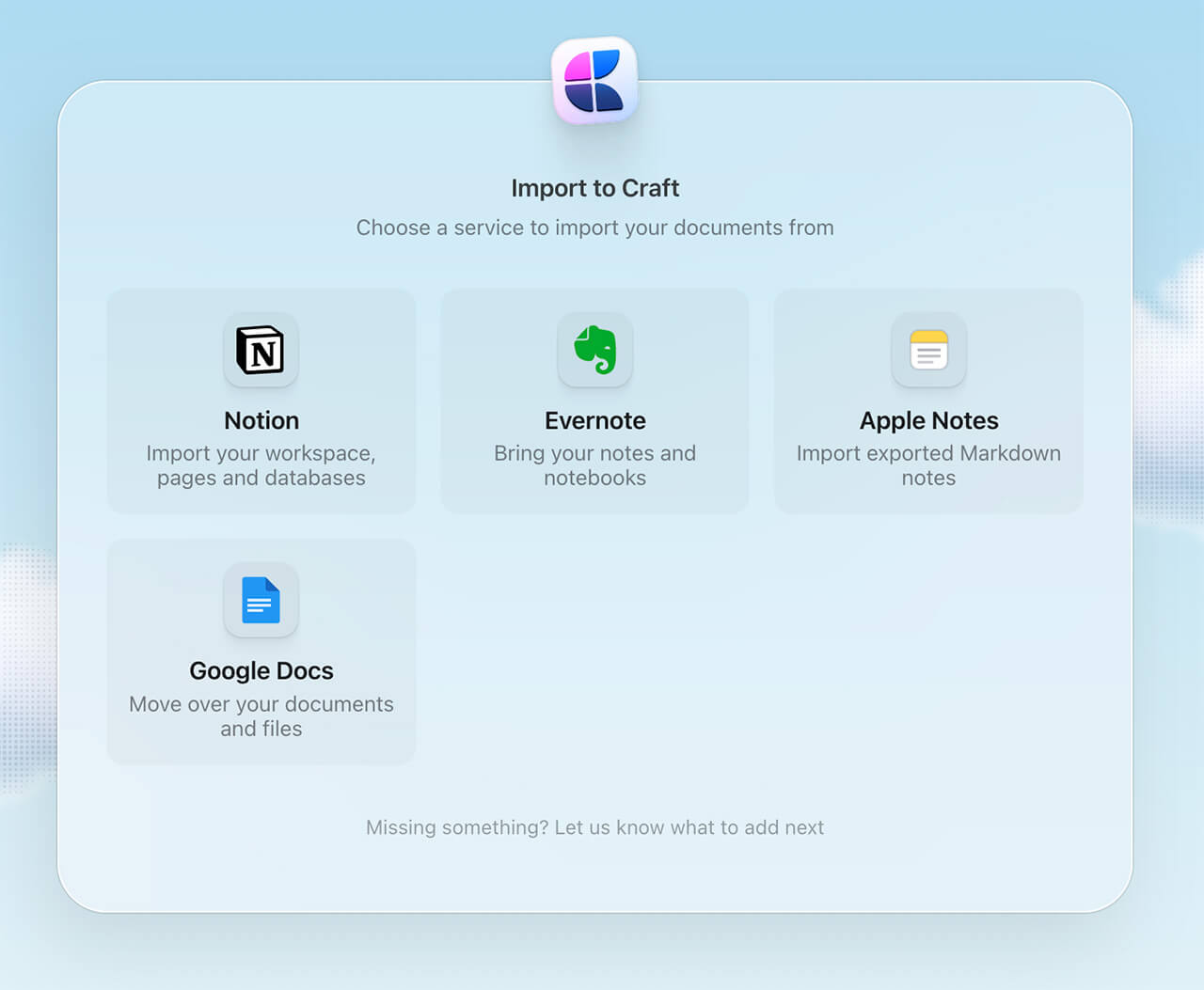
Over the past couple of months, we've been improving our import capabilities for Notion, Evernote, and Google Docs, and now we launched Apple Notes import as well.
You can try them at - https://docs.craft.do/import.
Missing an import option? Let us know!
Quality of Life improvements
As we promised, over the next several months roughly 80% of our effort will go toward improving and refining the parts of Craft you already use every day. As a result of this Quality focus we introduced 60+ improvements, you can read the high-level list here, and in our What’s new doc, you can also check out more details with screenshots as well.
Mac, iPhone, and iPad improvements
Code Blocks
- Fixed syntax highlighting temporarily disappearing while resizing windows or sidebars
- Removed the unnecessary focus ring shown with Full Keyboard Access enabled on macOS
Daily Notes
- Moved the date picker to the top right on iPad
- Enabled previous and next navigation on touch devices
- Added a Today option to the task reschedule menu
- Added the “+” button to task section on iPhone
Insert Menu
- Refreshed the insert menu with custom block icons, added missing block types, and made it easier to discover different content types
Dock Menu
- Added “New Window” and “Quick Entry” to the macOS Dock context menu
Collections
- Fixed multi-value relation fields on iPhone and iPad where selected items couldn’t be deselected
- Fixed clearing number field values in the edit panel
- Fixed editing large numbers in number fields
- Updated field type icons to use SF Symbols consistently
- Improved animations when changing field types and number formats
- Fixed relation field values fading out too early in the collection entry detail panel on iPad
Calendar
- Fixed Apple Calendar events not refreshing across calendar views
- Calendar Events: Fixed “Open in Calendar” on Mac not navigating to the selected event
Settings
- Updated Appearance Settings icons, they now also reflect the selected accent color
- Added integration descriptions and reorganized the sections
and all the other improvements across the whole app
-
Connections: Renamed the “Imagine” section to “Connections”, refined the layout, added “Add” buttons to each section, improved the example use cases, and made the example gallery dismissible
-
Tables: Use tabular figures for numeric table cells
Different digits have different widths (e.g., 1 is a lot narrower than 9). Therefore numbers sometimes have different lengths (e.g., 1,111,111 vs 9,999,999) making them difficult to compare at a glance. Most fonts have a tabular figures feature, where all digits have the same width, making larger numbers line up perfectly. In tables, when the cell is formatted as a number, currency or percent, we now use tabular numbers.
-
Create Screen: Press
⇧ ⌘ Uto select a Space (Tabin the Space switcher to switch between accounts) -
Spaces: Switching spaces now keeps you on the Tasks or Calendar page
-
Insert Sidebar: Added a keyboard shortcut badge to the search field
-
Card Style Panel: Added keyboard support for navigating and applying card styles on Mac and iPad
-
In-Document Search: Fixed searches with accented characters when diacritics-insensitive matching was enabled
-
Styling: Fixed the top document fade sometimes using the wrong background color after returning from a subpage
-
Fixed the document unexpectedly scrolling to the top when opening or closing a sidebar on iPad
Web and Windows improvements
Editor
- Faster loading: Appearance previews precache instead of lazy-loading at runtime, and avoid redundant downloads
- Smaller assets: Image assets losslessly compressed for a lighter preload and quicker startup
- Deleting a space from settings now navigates you away instead of leaving a dead page
- Daily-note "Today" tab title refreshes automatically at midnight
- Fixed a black outline flash when previews load
- Appearance previews stay ready and responsive under load
- Fixed typing experience for Japanese users on Android
Collections
- Allow scroll to propagate from collection to page
- Handle multi-select fields in Equals and Does not equal filters
- Fixed image flicker during scroll in gallery collections
- Multiselect properties now work correctly with "equals" / "does not equal" filters
- Cover images load immediately instead of waiting for scroll
- Improved scrolling inside a collection
- Fixed single-select field filter set to "equal" and "not equal" not being saved correctly
Templates
- Fixed "New Template" button in template picker not reacting to clicks
- (+) menu in My Templates view
- Renamed "New Doc" to "New Template"
- Removed "From Template"
- Fixed the menu also in My Templates' sub-folders
- Fixed empty states in My Templates hierarchy to say "New Template" as well
- My Templates in the sidebar used to be shown only when you had any custom templates already, now it’s enabled by default
Windows crashes
- Multiple fixes to reduce the number of crashes
and all the other improvements across the whole app
- Wide page setting now allows up to 5 cards in a row in both the editor and published docs
- Fixed unhandled video autoplay
- Fixed in-document breadcrumbs navigation in shared docs - clicking on the root of the document wouldn't always navigate
- Fixed document cards theming not being applied and synced correctly
Once again if you are interested of the full list with all the details and screenshots, check out our What’s new doc.