Use Craft’s API to Build With Craft Agents
Use Craft's API to build apps on Craft Agents. Fetch your documents, sync content, and create custom tools powered by your Craft data.


Enabling the API for Documents
First, you have to enable the API in order for Craft to setup an API endpoint for your documents. Then, you use the API endpoint URL to connect to the server from Craft Agents.
Step 1
Step 2
Step 3
Step 4
Step 5
Step 6
Using the API in a Craft Agents Prompt
Once the API is enabled for your Craft docs, you can now focus on writing a prompt that Craft Agents will use to generate your project.
In order for Craft Agents to see how to use the API and understand the structure of your document, you attach the AI bundle to your prompt. This bundle is a markdown document that contains the current content of your Craft doc as well as the API documentation.
Step 1
Step 2
Step 3
Step 4
Some Ideas to Get You Started
Browse App Templates
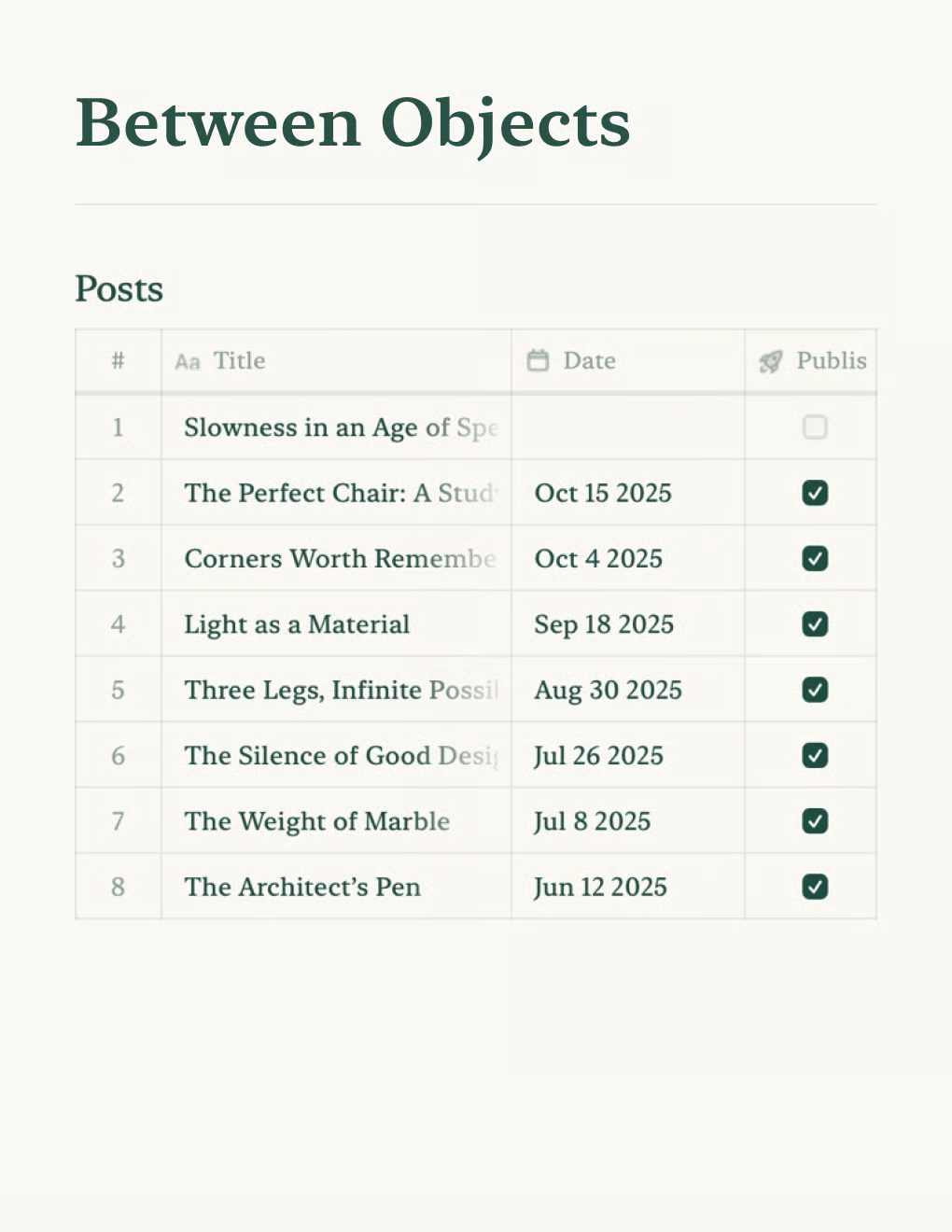

Build a personal blog powered by Craft docs. Auto-syncs content via API — publish from your notes app.
Learn more

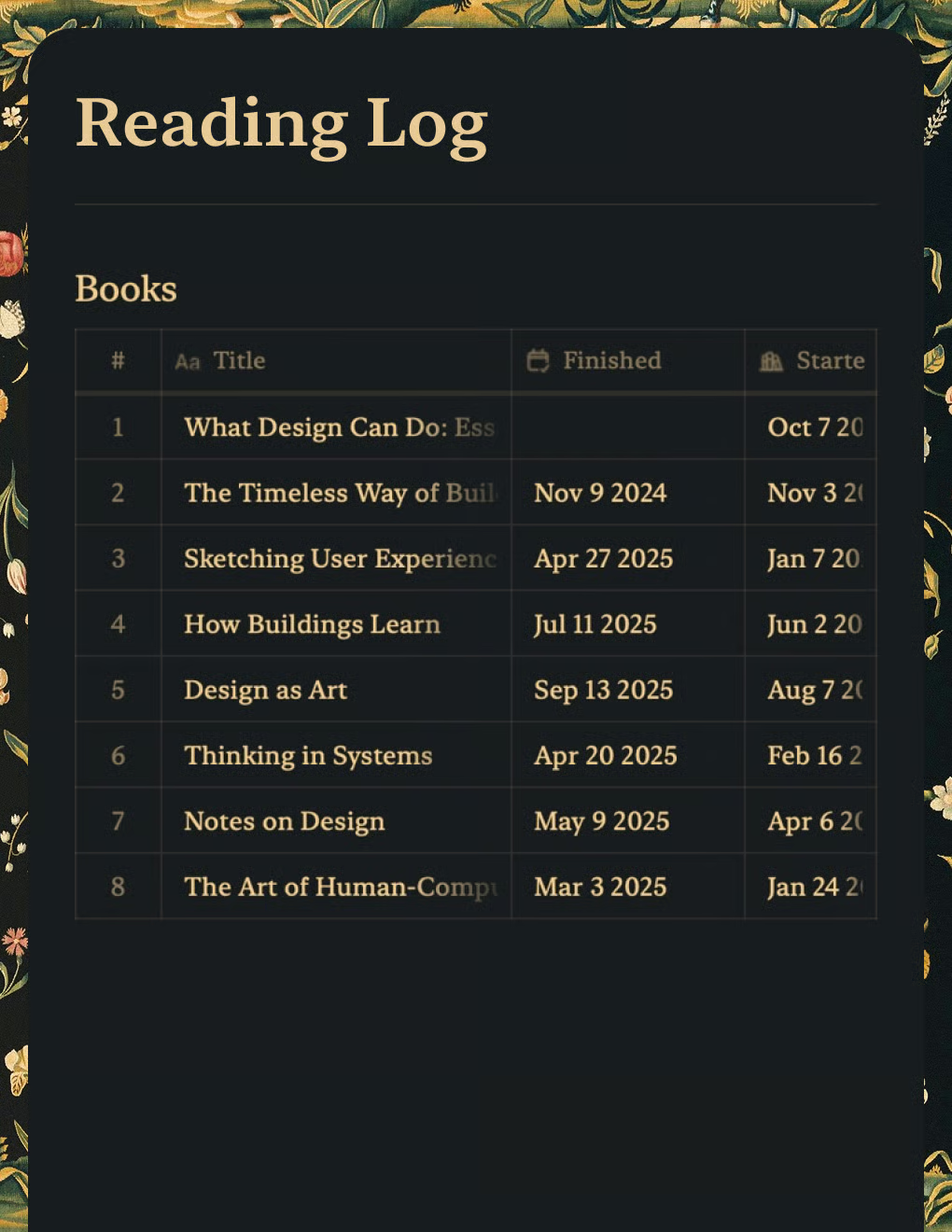
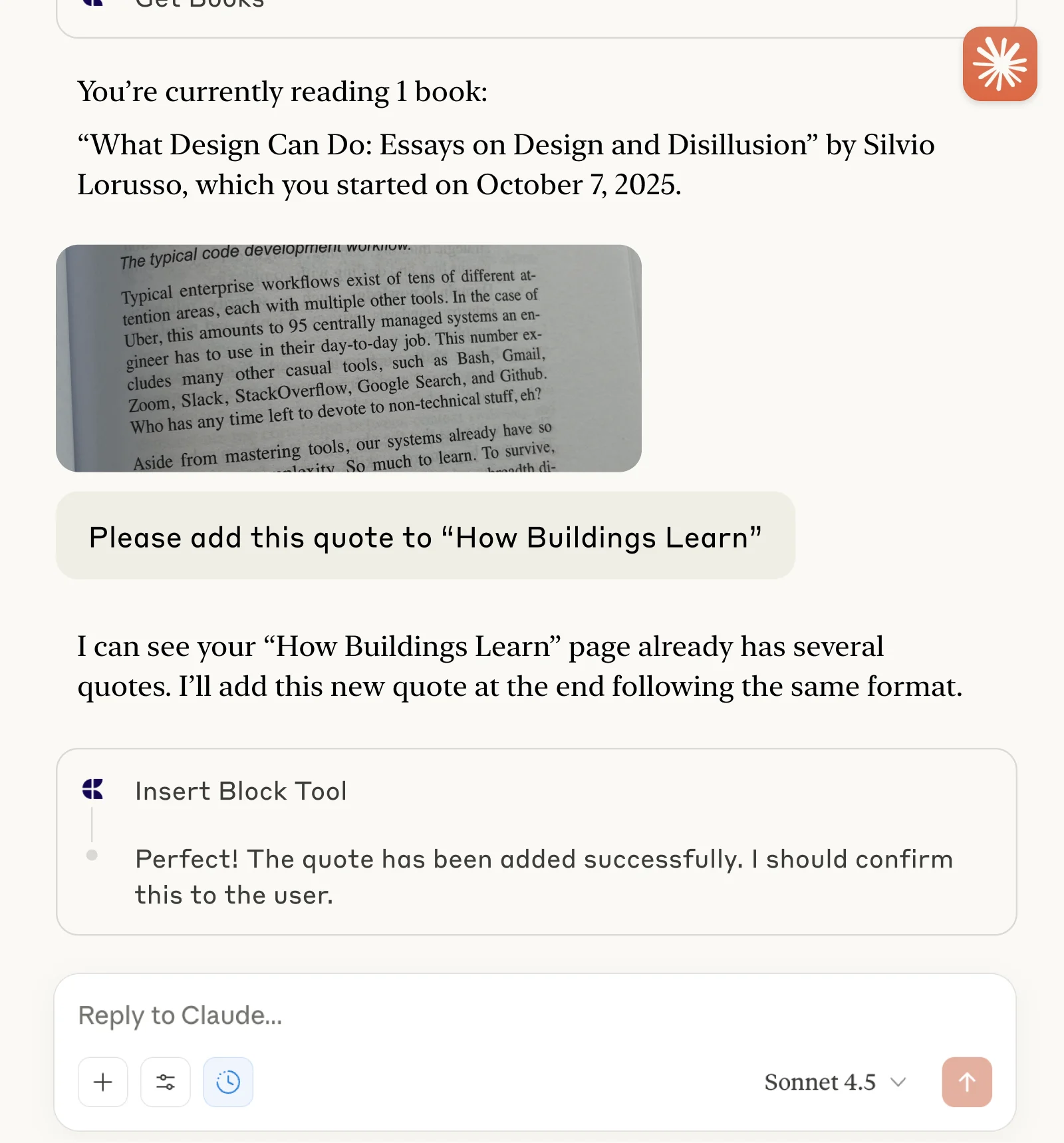
Track books and capture quotes with Claude or ChatGPT via MCP.
Learn more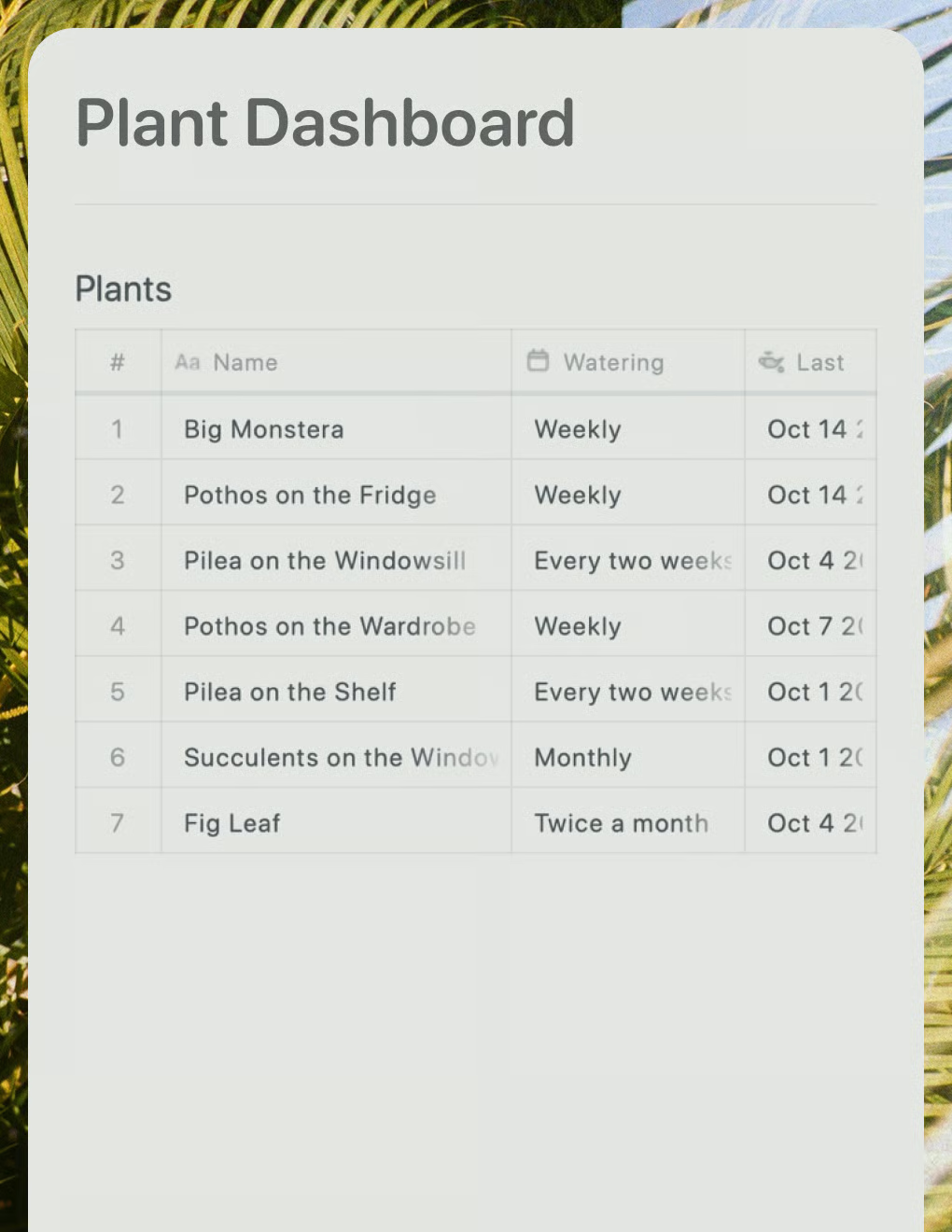
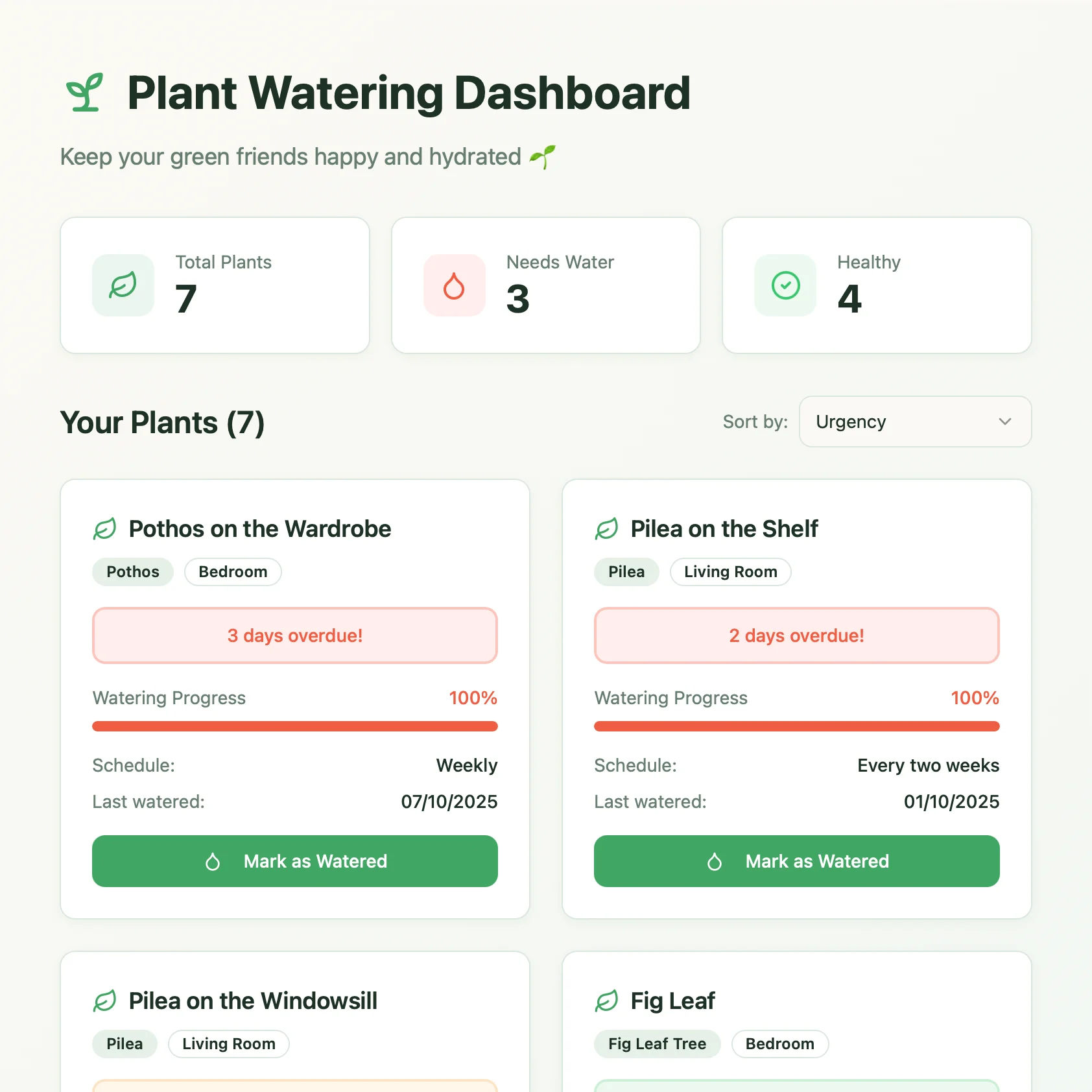
A live plant care dashboard built with Lovable. Pulls watering schedules and care tips from your Craft doc.
Learn more